Topics
The client portal on your own domain
Let your client open the portal on an address of your own firm. You add the domain, have one DNS record created and verify it.
On this page
Before you start
- You have the Manage team settings permission. An Administrator always has it.
- Someone can change the DNS of your domain, for example your IT administrator or website builder.
Screenshots show boeq's Dutch interface.
With a custom domain, your client opens the portal on an address of your firm. A DNS record is a line on your domain that says where an address points to. Your firm can use one custom domain.
Choose a subdomain
Use a subdomain, such as portal.your-agency.nl from the example on the screen. boeq only accepts a CNAME record. Many providers don't allow one on your main domain.
Add the domain
-
Go to Settings › Branding.
-
Scroll to Custom domain.
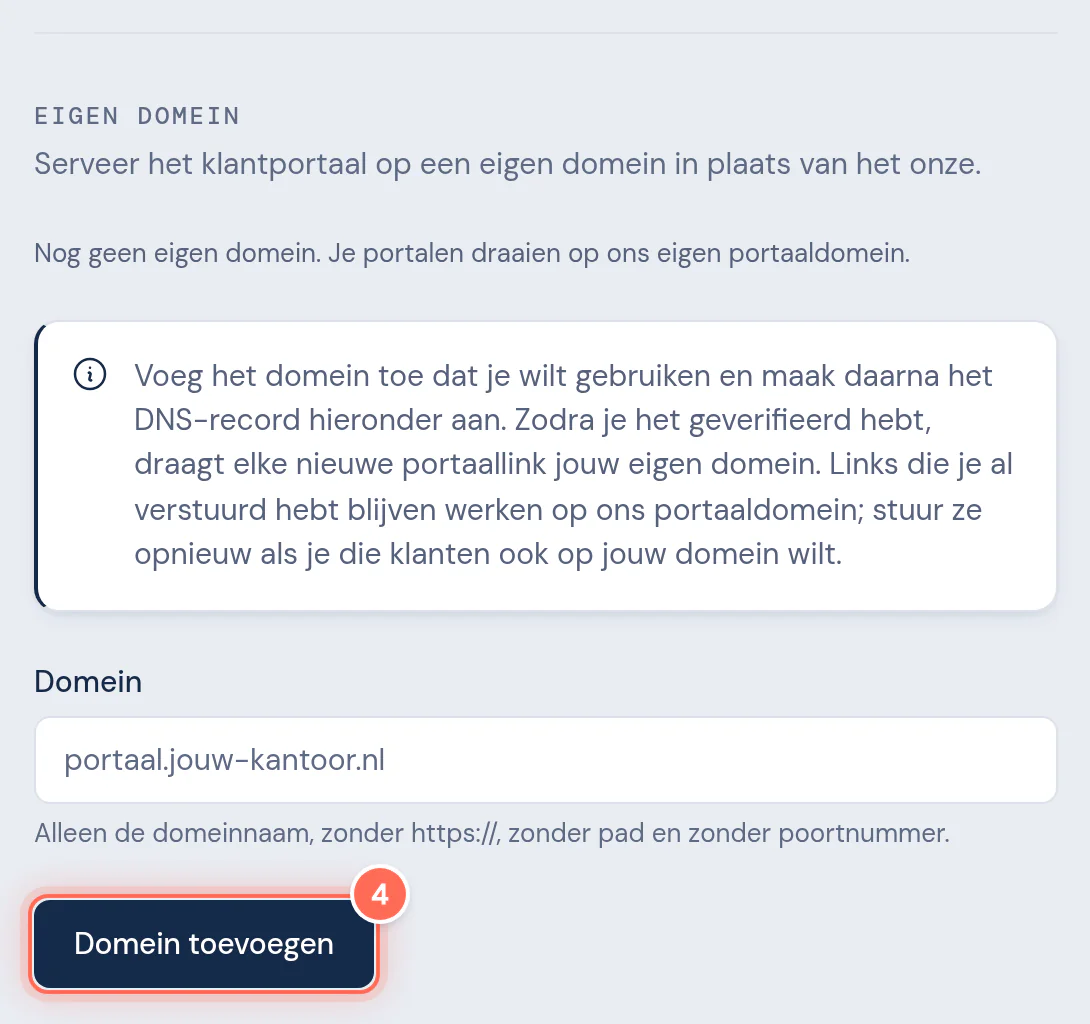
Enter only the domain name, without https://. -
Enter the subdomain under Domain, without
https://, path or port number. -
Click Add domain.
The domain gets the status 'Waiting for DNS'. Below the domain is the block Pass this on to whoever manages your domain.
Have the DNS record created
Send the three lines from that block to whoever manages your domain.
| Line | What it contains |
|---|---|
| Type | CNAME |
| Name | The subdomain you entered. Does your DNS screen only ask for the first part? Then enter just portal. |
| Value | The boeq address shown on the screen. Copy it exactly. |
A DNS change can take a few hours.
Watch out
An A record or a redirect doesn't work. boeq only checks whether a CNAME record points to the Value.
Verify the domain
- Open Settings › Branding again.
- Click Verify domain.
Is the record right? Then the domain gets the status 'Active'. See 'We cannot see the DNS record yet'? Then boeq shows what it finds now. Have the record checked and try again later. Does someone visit the domain before you click again? Then boeq also checks the record by itself.
You don't need to arrange an HTTPS certificate. boeq creates it for the first visitor and renews it by itself after that.
What changes after that
- Every new portal link uses your own domain, including the unique link and the sign-in email.
- Links you have already sent keep working on boeq's portal domain. Send them again if you want those clients on your own domain.
- On your own domain, the portal has its own sign-in page for clients who sign in by email.
- You and your colleagues work on the same address as always.
Don't want to use the domain any more? Click Remove domain and confirm with Yes, remove the domain. Links on your own domain stop working straight away. Send your clients a new link.
Further reading
Still stuck? Email [email protected] or call +31 6 57867535.