Topics
What your client sees in the client portal
The client portal is where your client sees their figures, answers questions and sends in documents. This is what it looks like.
On this page
Screenshots show boeq's Dutch interface.
In the client portal, your client works together with your firm. Your client only sees the administrations you link to their portal. Your firm's name is at the top.
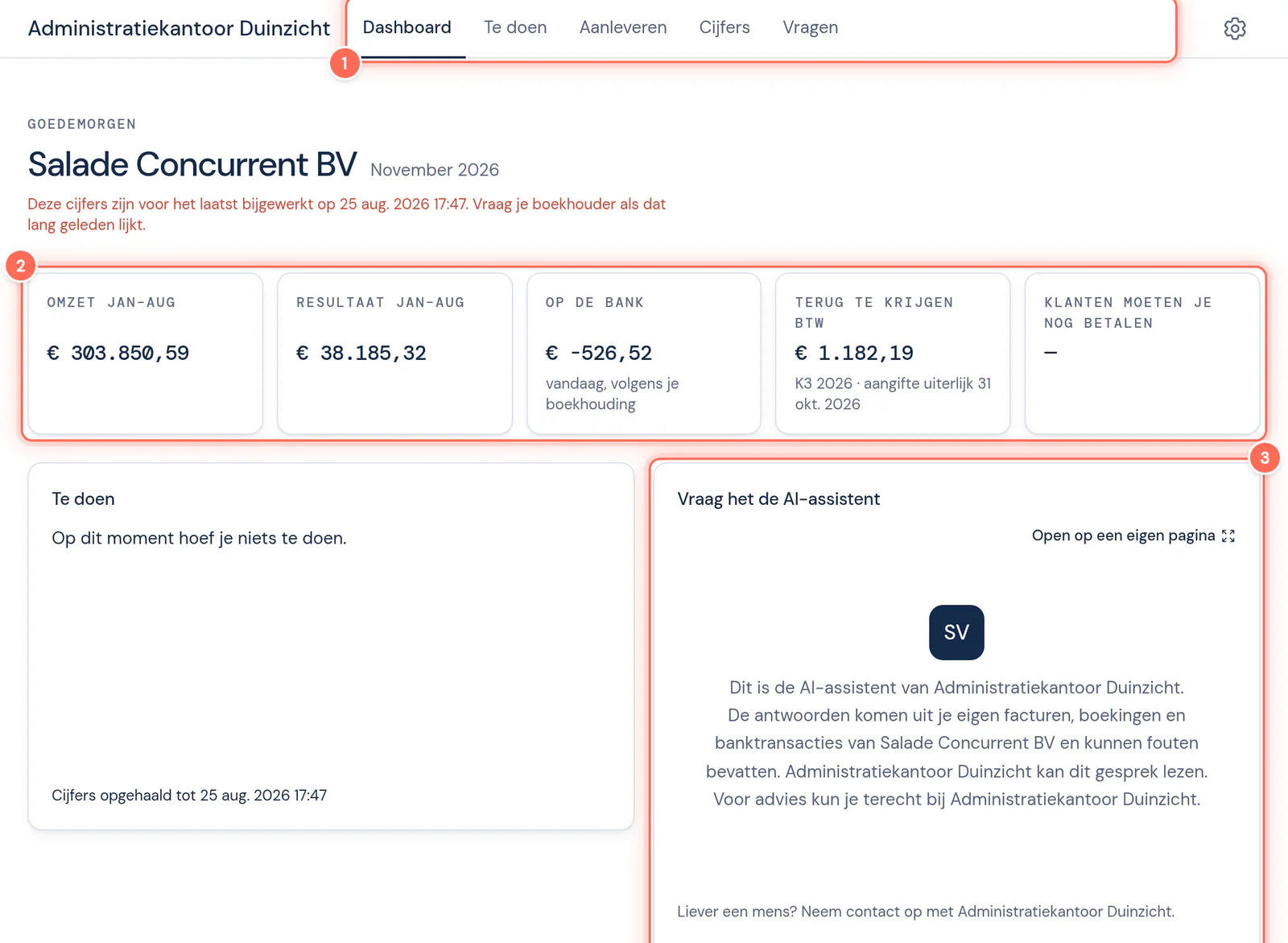
The sections
| Section | What your client does there |
|---|---|
| Dashboard | Sees the key figures: revenue, result, the bank balance, VAT and what customers still have to pay. Below them are the cards you choose. |
| To do | Answers your firm's questions. Open bank transactions and documents for invoices are here too. |
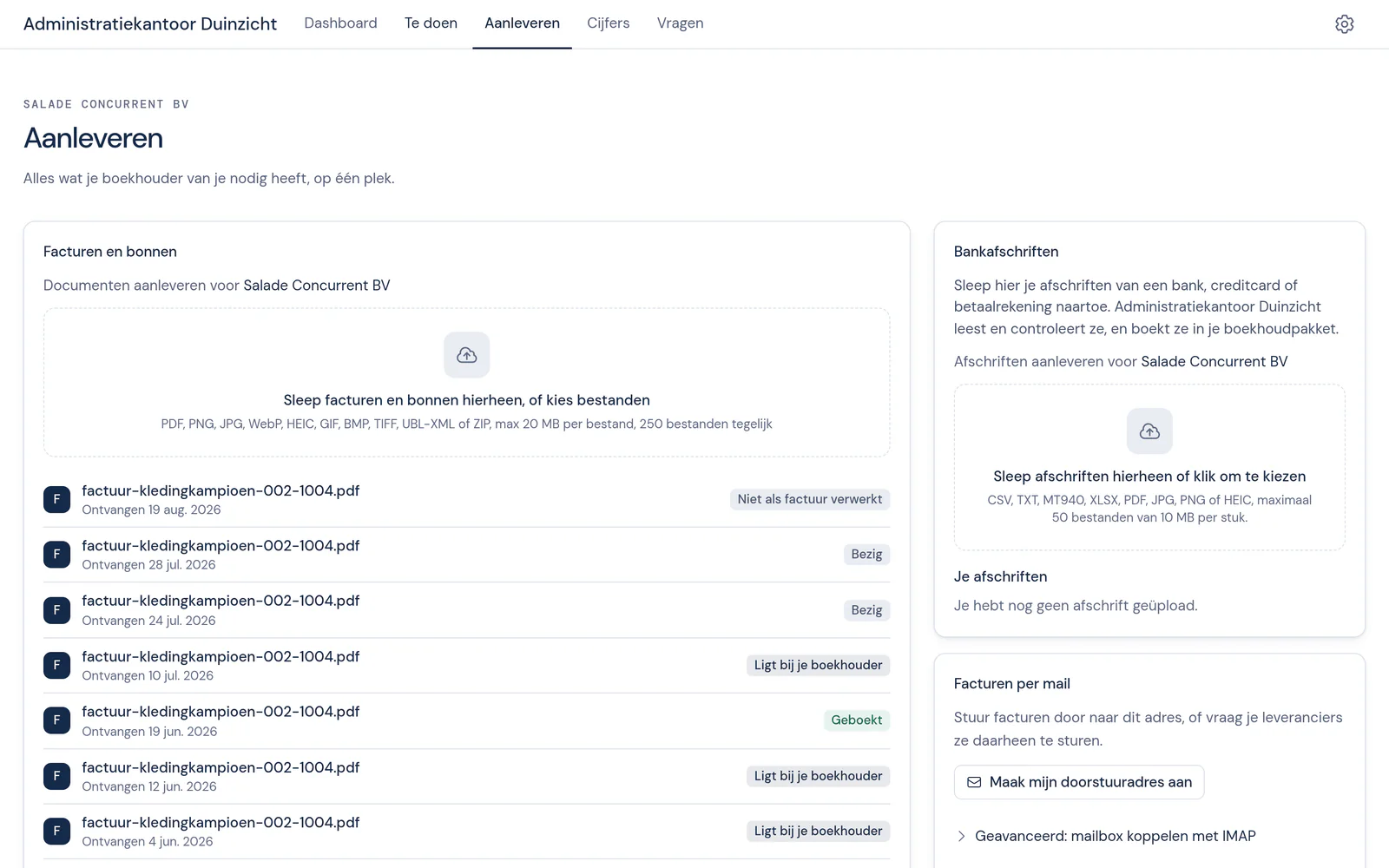
| Upload | Uploads invoices, receipts and bank statements, and links their mailbox or suppliers' websites. They see for each document whether it has come in or has already been booked. |
| Reports | Sees their results, balance sheet, cash flow, VAT and invoices per period. |
| Questions | Asks a question about their figures in the chat. |
| Invoices | Makes sales invoices and emails them to their customers. This section is only there if you switch it on. Read Let your client make sales invoices in the portal. |
What the key figures, the cards and the reports under Reports show exactly is in Your client's figures in the portal.
With the cog at the top right, your client opens their settings: the language, this device and the Link your invoice mailbox card. With Link a mailbox, that card takes them to the Invoice mailbox card under Upload. If your client makes sales invoices, their invoice details and the text of the invoice email are under Sales invoices.
On a laptop and on a phone
On a laptop or larger screen, the portal fills the full width of the window. Under To do, Questions from our office takes two thirds of the page, with Open bank transactions and Documents for invoices beside it. Under Upload, Invoices and receipts is on the left, with Bank statements, Invoices by mail, Invoice mailbox and Invoices from websites beside it.
On a phone or tablet the cards are stacked, in the same order.
To do
The To do card on the dashboard lists what your client still has to do. Each line opens the list behind it on the To do page.
- 'Pay VAT for' and the period, with the due date, when VAT has to be paid soon.
- 'Answer … questions' with roughly how many minutes that takes.
- '… payments need a receipt': every payment that waits for a document from your client, once. A payment your firm has already asked a document for counts here too.
- '… missing invoices': only the documents your firm asks for about an invoice, such as a card receipt or the invoice itself. This line opens the Documents for invoices list.
If there is nothing to do, it says 'Nothing to do right now.' If you switch a list off on the Widgets page, its line on the card goes too.
The To do page has the lists Questions from our office, Open bank transactions and Documents for invoices, with a button for each list at the top. The counts on the card, on the buttons and on the To do tab count the same lines as the lists. They are current on every page, and when your client answers a question, the buttons update straight away.
Open bank transactions
This list only holds payments your firm still needs a document from your client for. The lead says so too: payments you can match to an invoice yourselves are not in it.
- Each line names the counterparty. If the payment has no name, the portal takes the counterparty from the bank line or the supplier of the linked invoice. Only if those are missing too does it say 'Unknown counterparty'.
- If a payment belongs to an invoice, it says 'For invoice … from …' with the number and the supplier, or 'For an invoice from …' without a number. If part of the payment is not allocated yet, 'left to allocate' follows with the amount.
- When your client hovers over the line, they see the bank's description.
Upload
Upload has the cards your client uses to send in documents. You choose per portal which cards your client sees, on the Widgets page. Read Set up your client's dashboard.
- Invoices and receipts: your client drags files into the box. Below the box are the 5 newest documents with their status, such as In progress, With your bookkeeper or Booked. If there are more, Show all shows the rest, up to the 200 newest. Show fewer folds the list back.
- Bank statements: statements from a bank, credit card or payment account. Read Upload bank statements.
- Invoices by mail: the addresses to forward invoices to, and the Arrived by mail list. If the administration has no address yet, your client creates it with Get my forwarding address.
- Invoice mailbox: your client links a mailbox of their own. See below.
- Invoices from websites: your client connects a supplier's website. Read Have Leo collect invoices from suppliers.
Link a mailbox
When your client clicks Link a mailbox in the Invoice mailbox card, the portal first asks: 'Is it a separate mailbox that only receives invoices and receipts?' That is because Leo reads every attachment in a linked mailbox as an invoice.
- Yes, only invoices and receipts arrive there: your client fills in the mailbox's login details, such as the IMAP server, the Username and the Password. Link tests the connection before the portal saves the mailbox.
- No, it is my normal mailbox: the portal links nothing. Under 'Link a separate mailbox for invoices' it explains that a normal mailbox also holds private documents. Three steps follow: create a mailbox that only receives invoices, for example [email protected], ask your suppliers to send their invoices there, and link that mailbox. Back takes your client back to the question.
If your client cancels, the portal asks again next time.
The chat with the AI assistant
The chat is under Questions and on the dashboard. In the portal it is called your firm's AI assistant. The answers come from your client's invoices, bookings and bank transactions. Your firm can read every conversation. Would your client rather have an answer from a person? Then they click Send to and the contact person's name below the answer. Read Answer questions and pass them on to your client.
How it works
The figures are as recent as the last time boeq fetched them from Exact Online. Was that a long time ago? Then your client sees a red message with the date.
What your client doesn't see
- Your client sees nothing of your firm's other clients.
- Your client doesn't see what you discuss internally about their administration.
- Your client doesn't work in boeq itself. They only see the portal.
See for yourself
In boeq, open Customer portals and click View as customer next to a portal. You then see exactly what your client sees. You can't send anything in this view.
Further reading
Still stuck? Email [email protected] or call +31 6 57867535.