Topics
Have Leo collect invoices from suppliers (Websites)
Leo can log in to a supplier's website once a week and collect the new invoices there. This is how you set that up.
- Level: Advanced
-
 Leo
- Updated
- 4 min read
- Role: Administrator
On this page
Before you start
- You have the Administrator role, or a role with the Manage invoice sources permission.
- You have the login name and password for the supplier's website.
Screenshots show boeq's Dutch interface.
Many suppliers only put their invoices on their own website. Leo can collect those invoices for you.
Add a website
-
Choose the administration at the top.
-
Open Invoices in the menu.
-
Click the three dots and choose Invoice sources.
-
Open the Websites tab and click Add website.
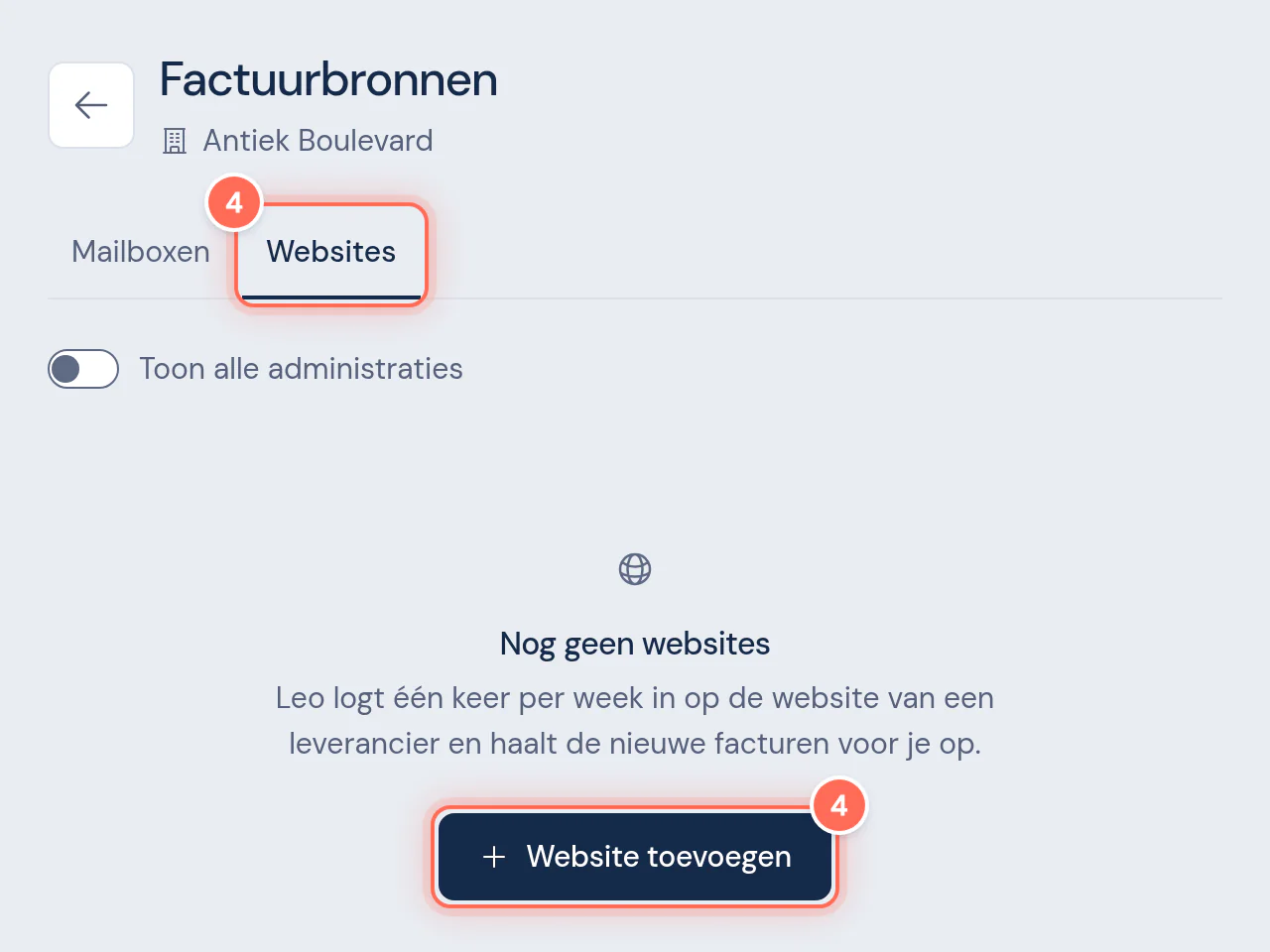
You add a website on the Websites tab. -
Under Website, type the supplier's web address. Choose it from the list.
-
Fill in the Login name and the Password.
-
If the website asks for a 6-digit code from an app, choose Yes. Otherwise choose No.
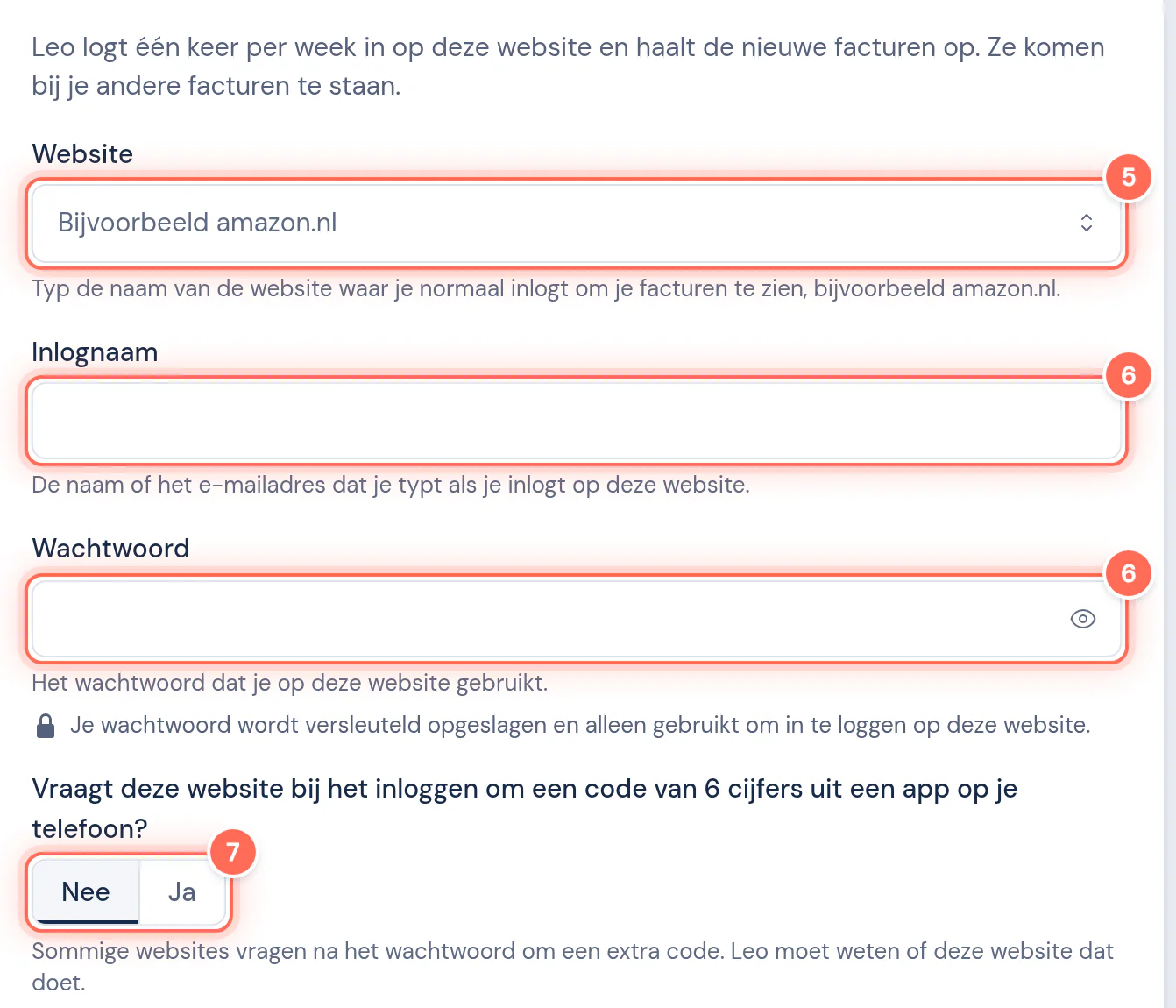
Fill in the login you use yourself on the supplier's website. -
Under Retrieve invoices from, choose the first date. Leo can go back up to five years.
-
Click Add website.
boeq stores the password encrypted. Leo only uses it to log in to that website.
Websites with a 6-digit code
If you chose Yes, fill in the Setup key. That is the long code of letters and digits the website shows when you set up the code app. Leo uses it to make the codes himself. The screen explains step by step where to find the key.
If the website sends the code by text message or email, Leo can't log in to it yet.
Watch out
If you set up the code app on the website again, scan the new code with the app on your own phone as well. Otherwise your phone stops working for that website.
Keep an eye on the status
The list shows the Status of each website: Working, Busy or Needs your attention. Click a website to see more.
- Retrieve now: Leo collects the invoices straight away, without waiting for the next run.
- Watch Leo at work: a recording of the last time Leo collected the invoices.
- Update login: fill in a new login name or a new password.
If Leo can't log in
If Leo can't log in, you get the notification 'Leo cannot log in to a website'. Open the website and click Update login.
If collecting fails four times in a row, Leo stops trying. Once the website works again, click Try again.
Your client connects a website
Does your client have a client portal? Then they can connect a website themselves, on the Upload page in the Invoices from websites card. Leo then collects the invoices as he does for a website you add.
- Connect a website opens a form: the website (search, or add it by its web address, for example canva.com), the Login name, the Password and the question whether the website asks for a 6-digit code from an app. If it does, your client fills in the Setup key. The form explains step by step where to find it.
- Connect checks the login with the website straight away. After 10 attempts within an hour, the portal makes your client wait.
- For each website the card shows Connected, Collecting invoices or Needs your attention with the reason, and the date of the last invoice.
- Does a website need attention? Then your client clicks Enter login again and then Save login. The portal refuses a login for a different account. Your client then removes the website and connects it again.
- Remove asks for confirmation with Remove website. Leo then stops collecting and forgets the login. The invoices already collected stay.
Your client doesn't choose a date and can't collect straight away. Leo collects the invoices of the last 90 days. Want to go further back, or collect now? Open the website in boeq and click Retrieve now.
A website your client connects is on the Websites tab of the administration they were working in, just like a website you added. You switch the card on or off per portal on the Widgets page, under Upload.
What Leo does
Leo logs in to the website once a week and adds the new invoices to your other invoices. Then he processes them as usual.
What you decide
You choose which websites Leo visits, with which login, and from which date he collects invoices.
Further reading
Still stuck? Email [email protected] or call +31 6 57867535.