Topics
Create a mailbox per administration
Give an administration its own email address. Invoices that arrive at that address go straight to Leo.
-
 Leo
- Updated
- 3 min read
- Role: Administrator
On this page
Before you start
- You have the Administrator role, or a role with the Manage invoice sources permission.
Screenshots show boeq's Dutch interface.
Each administration can get its own address for purchase invoices and its own address for sales invoices. Leo creates the address himself.
Create a mailbox
-
Choose the administration at the top.
-
Open Invoices in the menu.
-
Click the three dots and choose Invoice sources.
-
Open the Mailboxes tab.
-
Under How should Leo receive mail?, choose Send mail to Leo.
-
Under Type, choose Purchase or Sales.
-
Click Create mailbox.
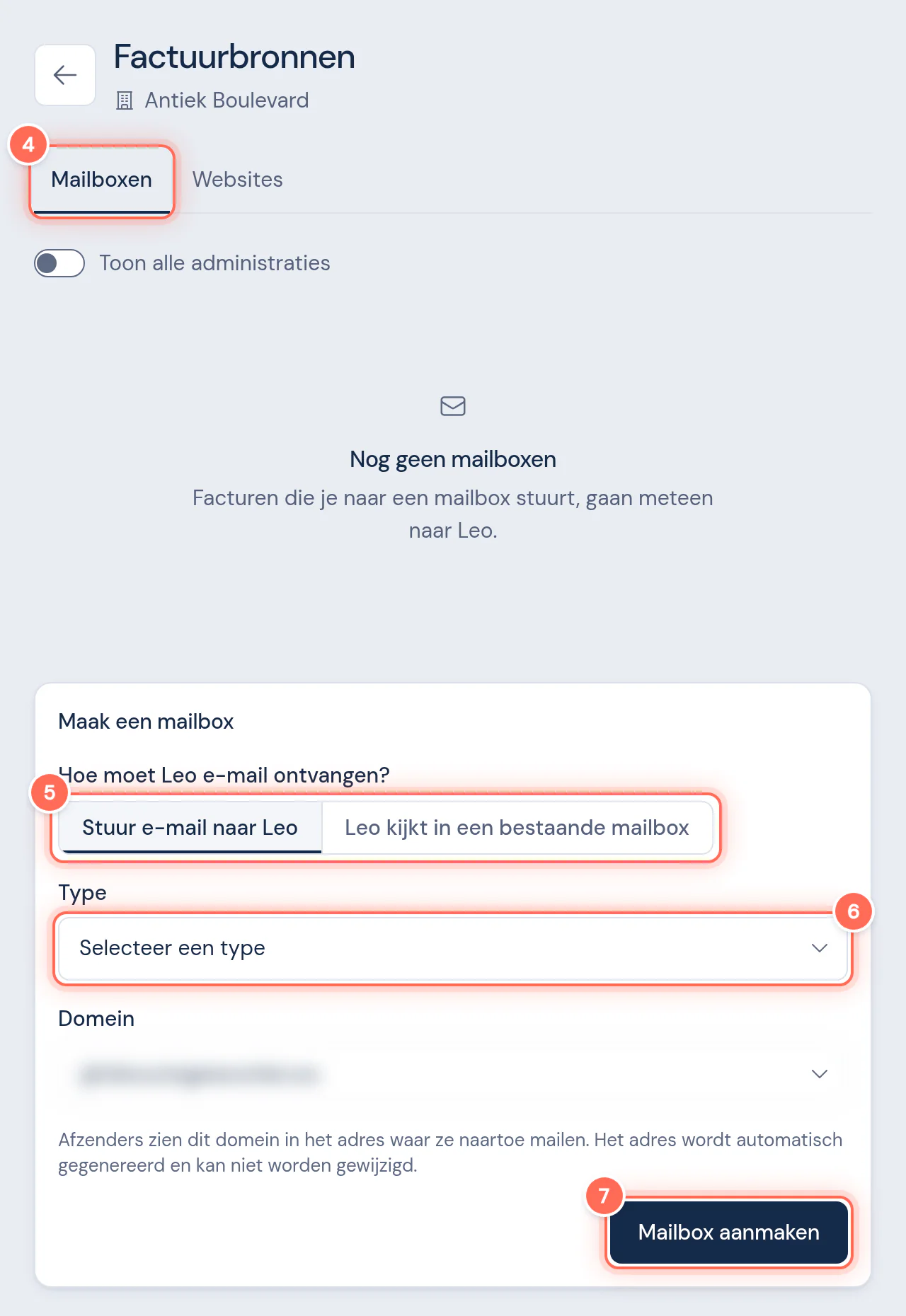
Choose Send mail to Leo and the type. Then create the mailbox.
The new address now appears in the list, above the form. You can't change the address later.
Pass on the address
- Click the clipboard icon next to the address. A message tells you the address has been copied.
- Give the address to your client. Or have the supplier send their invoices to this address.
Your client can also forward invoices from their own mailbox. Leo reads the attachments.
Does your client have a client portal? Then they see the addresses themselves on the Upload page, in the Invoices by mail card. If the administration has no address yet, they create it there with Get my forwarding address.
Does an e-invoice (UBL-XML) come with the same invoice as a PDF, under the same file name? Then Leo processes only the e-invoice, so the invoice doesn't come in twice. You see the PDF next to the invoice. It also goes to Exact Online as the attachment.
All administrations at once
- Switch on Show all administrations.
- Click Generate for all administrations.
Leo then creates a purchase mailbox and a sales mailbox for every administration that doesn't have one yet.
Let Leo read an existing mailbox
If your client already has a fixed address for invoices, Leo can look in that mailbox.
- Open the Mailboxes tab as described above.
- Under How should Leo receive mail?, choose Leo looks in an existing mailbox.
- Fill in the mailbox details: Host, Port, Encryption, Username and Password.
- Click Load folders and choose the Folder that holds the invoices.
- Under Check for new mail, choose how often Leo looks.
- Under Import history, choose whether Leo also reads older email.
- Click Create mailbox.
- Click Test connection on the new mailbox.
Your client can also link such a mailbox themselves in the client portal, on the Upload page in the Invoice mailbox card. The portal first asks whether it is a separate mailbox that only receives invoices and receipts. Only then can they link it, because Leo reads every attachment in that mailbox as an invoice. Your client can't link a normal mailbox that also holds private mail. The mailbox they link then also appears here on the Mailboxes tab.
Watch out
You delete a mailbox with the bin icon. Delete mailbox also deletes all messages and attachments that came in at that address. You can't undo this.
What Leo does
Leo reads every invoice that arrives at the address and prepares the booking in the right administration.
What you decide
You decide which administrations get an address and who you give that address to.
Further reading
Still stuck? Email [email protected] or call +31 6 57867535.