Topics
Quick booking at the bank: handle many bank transactions
Are lots of bank transactions waiting for you? With Quick booking you handle them one at a time, the most certain proposals first.
- Level: Advanced
-
 Leo
- Updated
- 3 min read
- Role: Member or Administrator
Before you start
- You have chosen the administration at the top.
- Your role has the permission to book bank transactions.
Screenshots show boeq's Dutch interface.
Quick booking only shows the bank transactions Leo needs you for. You see one at a time, so you work through the list from top to bottom.
Open Quick booking
- Open Bank transactions.
- Click the three dots at the top right and choose Quick booking. To handle only a few lines, select them first.
If you see Nothing left for you, Leo doesn't need you for any bank transaction right now.
Handle a transaction
The top shows how far you are, for example '5 to go'. Below that is the transaction that is up next.
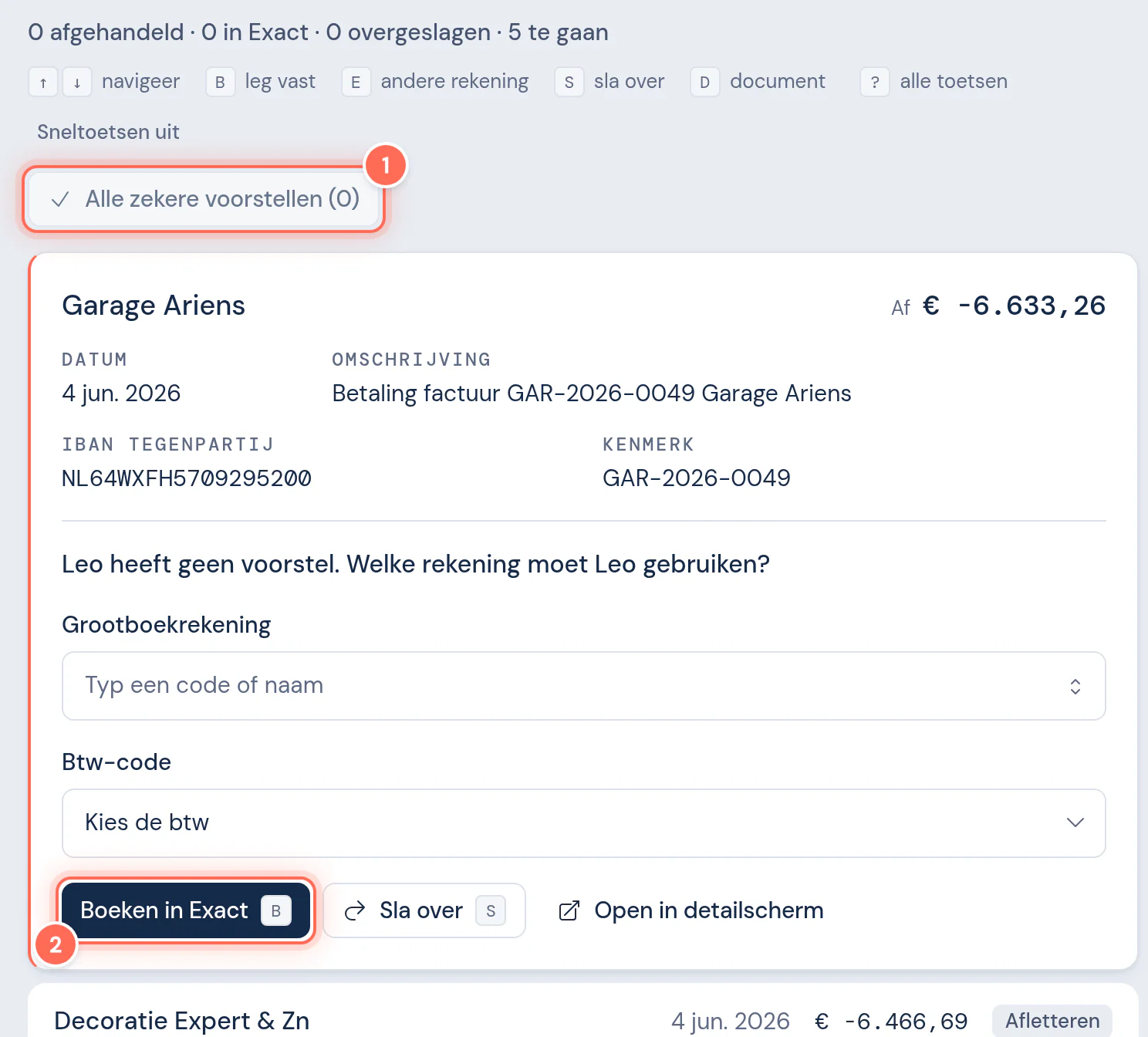
The card shows one of these situations:
- Proposal: Leo knows the account. Click Approve and book in Exact. For a different account, click Other account.
- Match: Leo found an open item. Click Accept and book in Exact. Other options are under Other proposals.
- Book yourself: Leo has no proposal. Choose the Ledger account and the VAT code and click Book in Exact.
For each open item, a bar with Certain or Uncertain shows how certain Leo is. Are two proposals equally certain? Then both say Tied with another proposal, and neither says Certain. Check yourself which invoice belongs to the payment.
To leave a transaction for later, click Skip and give a short reason. Your colleagues see that reason. Leo keeps the transaction for you.
If it says Leo waits for the invoice, the payment belongs to an invoice that hasn't been booked yet. Click Book those invoices. Leo books the transaction in Exact Online as soon as the invoice is booked.
If it says Remainder of a bank line, Exact Online matched the payment only in part and the rest is still open. The card shows the matched and the open amounts. Read Bank transactions: the views explained.
Keyboard shortcuts
| Key | What it does |
|---|---|
| J and K, or the arrow keys | Go to the next or previous transaction. |
| B, then Enter | Record and book in Exact Online. |
| E | Choose a different account. |
| S | Skip. |
| D | Show the document. |
| ? | Show all keys. |
| Esc | Cancel. |
All sure proposals
With All sure proposals you book everything Leo is sure about in one go. These are proposals based on your own earlier bookings, and payments that match on both payment reference and IBAN. There are at most 25 per run.
- Click All sure proposals.
- Read how many transactions Leo is going to record.
- Click Yes, book them. Leo skips anything Exact Online would refuse.
Afterwards you see a summary of the run.
Good to know
The first time, check a few sure proposals before you book them all. Read Reconcile or book a bank transaction to see what Leo shows you.
What Leo does
Leo lines up the bank transactions he needs you for, his most certain proposals first. Whatever you approve, he books in Exact Online straight away.
What you decide
You approve each transaction, or book it yourself. With All sure proposals you confirm the whole run.
Not working?
Further reading
Still stuck? Email [email protected] or call +31 6 57867535.