Topics
Let Leo do more: how to go about it
A six-step plan: from invoices that come in by themselves to a Leo who books on his own. Per administration, and you can always turn it back.
- Level: Advanced
-
 Leo
- Updated
- 3 min read
- Role: Administrator, or a role with Manage working agreements
On this page
Before you start
- Exact Online is connected and Leo has been working with you for a few weeks.
- Changing authorisations and working agreements needs the Manage working agreements permission.
Screenshots show boeq's Dutch interface.
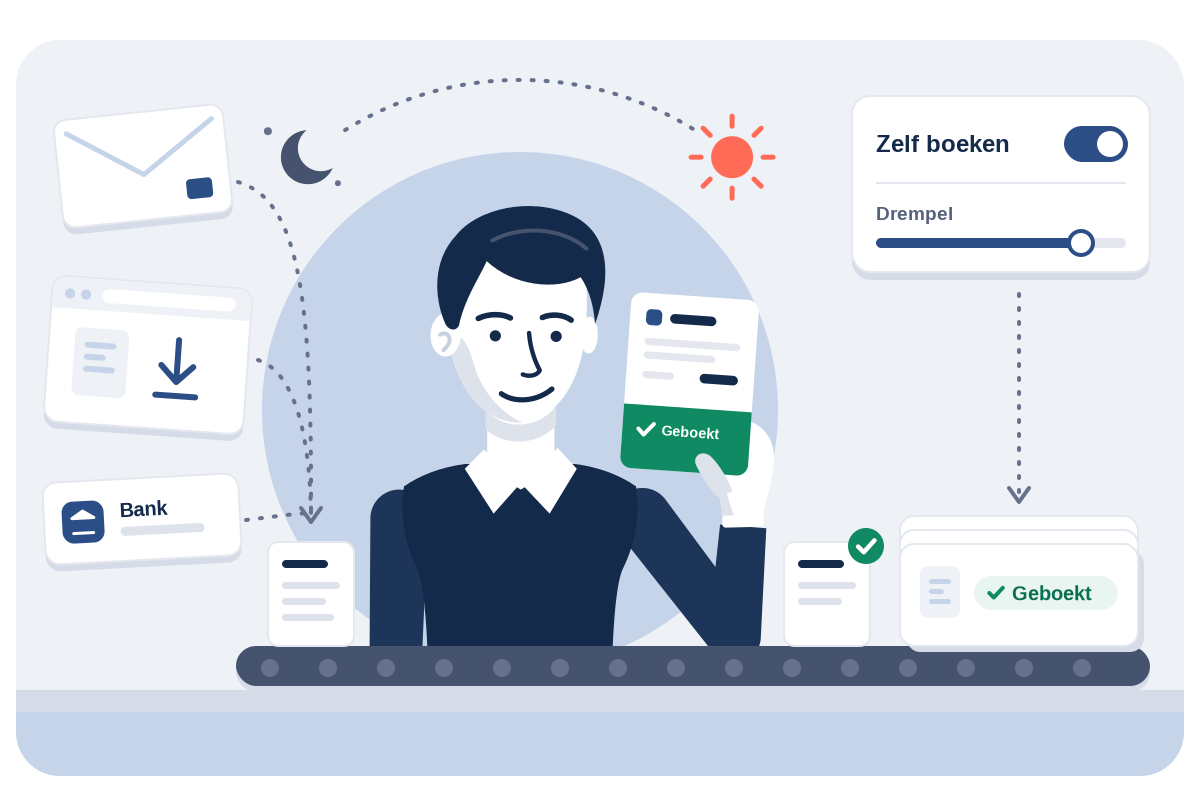
Leo already does a lot by himself. Read What Leo does automatically. Do you want him to take on more? Build it up in this order, one administration at a time.
Step 1: let invoices come in by themselves
As long as you upload invoices, Leo waits for you. So let them come in by themselves:
- Leo's mailbox: your client or supplier emails a fixed address. Leo reads the invoice straight away.
- Existing mailbox: Leo checks an address you already have. Under Check for new mail you choose how often.
- Websites: Leo logs in to a supplier's website once a week and fetches new invoices.
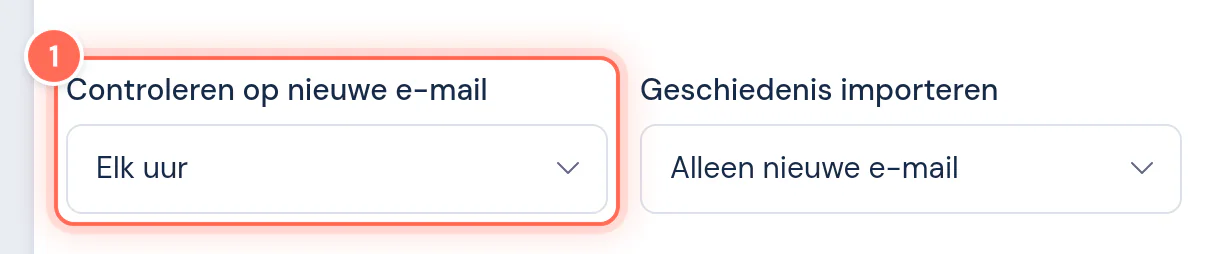
Read How invoices reach Leo, Create a mailbox per administration and Have invoices fetched from suppliers.
Step 2: let working agreements come about and review them
- Open Working agreements in the menu.
- Does your firm have no working agreements yet? Click Have Leo draft working agreements.
- For each proposal, choose Accept or Reject. If you leave a proposal for a week, Leo asks about it under Questions.
Then correct the booking proposals that are wrong. If you make the same correction a few times for the same supplier, Leo turns it into a working agreement himself. It applies straight away and you get a notification about it. Read Working agreements: what Leo learns from your firm.
Step 3: prepare the bank
On a bank transaction, tick Remember for the counterparty. If you book the same counterparty to the same account a few times, Leo writes a bank rule himself.
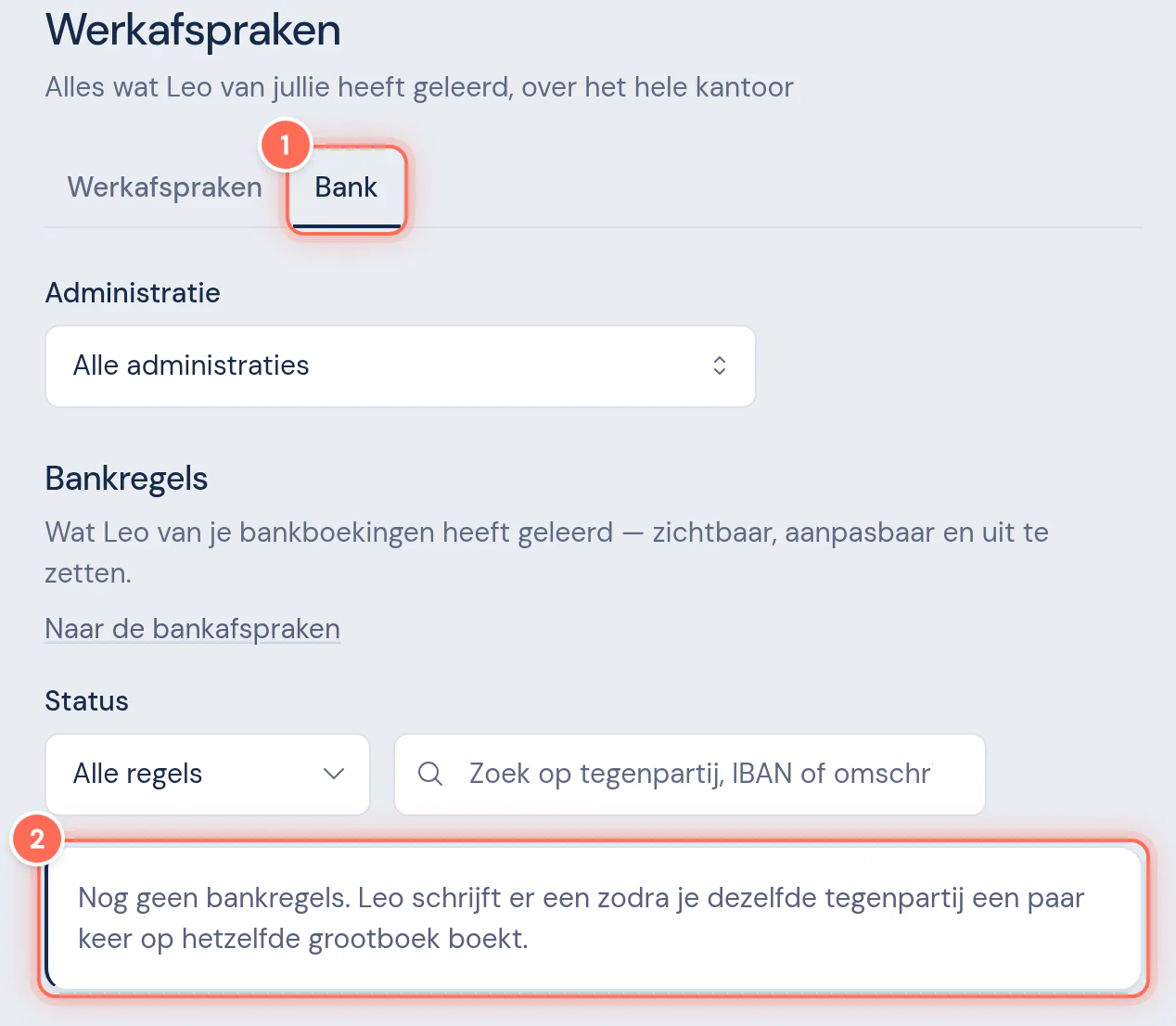
Also choose the accounts Leo books small differences to. Read Bank settings.
Step 4: switch on an authorisation, first for one administration
By default, all authorisations are off. Only an Administrator, or someone with the Manage working agreements permission, can switch them on.
- Open Dossier under Leo and go to Authorisations.
- Under Applies to, choose One administration and pick the administration.
- Switch on Book invoices on his own and leave Invoice threshold (%) at 90.
For the bank, switch on Settle bank transactions on his own. With Post bank transactions to the ledger, Leo also puts those lines in Exact Online.
Is Leo unsure, or is a question still open? Then he puts the invoice to you, whatever threshold you choose. Read Leo's authorisations: booking on his own and thresholds.
How it works
At the bank, Leo starts carefully. Some types of suggestion he only books on his own once he has agreed with you in that administration for a while.
Step 5: follow what Leo did
- Open Dossier and under Period choose 7 days. Look at Why work came back to you to see what you can still arrange. Read Leo's record.
- For each invoice and bank transaction, Activity shows what Leo did. Didn't Leo book a bank transaction himself? Then it says why. For example, automatic booking is switched off for the administration, or Leo was less sure than the threshold.
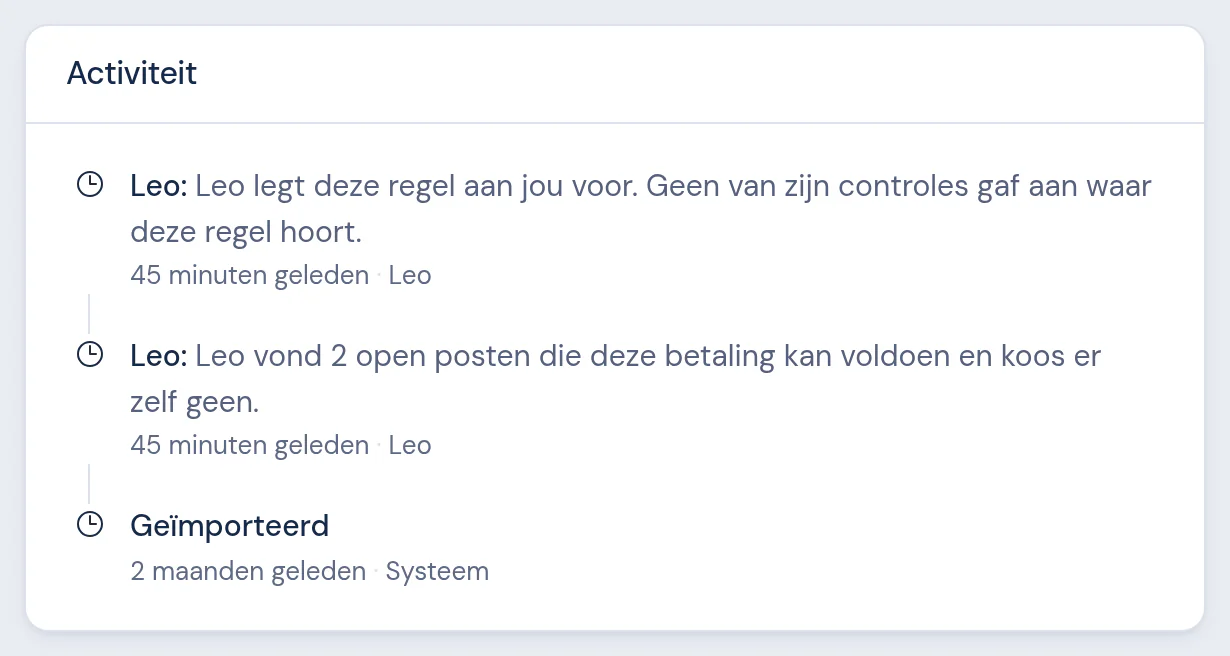
Does a booking Leo made on his own fail? Then it appears in the Failed view and in the daily Manual invoice overview, not in a separate notification.
Step 6: adjust or turn back
- Going well? Switch the authorisation on for the next administration, or for The whole office.
- Going less well? Raise the threshold, or switch the authorisation off. Leo then goes straight back to preparing the work.
- Revert a booking that is wrong. Read Undo a booking.
Watch out
Switching off doesn't undo bookings Leo has already made. You revert those yourself.
What Leo does
Leo brings in the work himself and learns from your choices. With an authorisation, he books on his own whatever is above the threshold.
What you decide
For each administration, you choose what Leo may do on his own, at which threshold, and when you turn it back.
Further reading
Still stuck? Email [email protected] or call +31 6 57867535.