Topics
Step 8 of 9
Your first weeks: from proposals to letting Leo book on his own
At first, Leo prepares bookings and you book them. That's how you get to know Leo and give him more room, step by step.
On this page
Before you start
- Reviewing working agreements and giving authorisations needs the Manage working agreements permission.
Screenshots show boeq's Dutch interface.
At first, Leo books nothing in Exact Online on his own. He prepares every booking as a proposal, and you book it. That way you see how Leo works, while Leo learns how your firm books. Some other work he does on his own from the start, such as rejecting duplicate invoices. Read What Leo does automatically.
The first weeks: book the proposals
- Open Invoices every day and choose the Leo needs you view.
- Check each proposal and click boeq.
- Something wrong? Correct the proposal. Do you correct the general ledger account, the VAT code or the payment terms to the same value a few times for the same supplier? Then Leo turns it into a working agreement himself. You get a notification about it. You'll see it under Working agreements, and you can stop it there.
- Answer Leo's questions under Questions. Read Answer questions and pass them on to your client.
How to check a proposal is explained in Check and book a booking proposal.
Review the working agreements
After the onboarding, Leo proposes working agreements. He takes them from your bookings of the past two years.
- Open Working agreements in the menu.
- Is a proposal right? Click Accept.
- Is a proposal wrong? Click Reject.
Does your firm have no working agreements yet? Then click Have Leo draft working agreements.
See how it's going
Open Leo's Dossier. Under What Leo has done you see how many invoices Leo prepared in full. Under Why work came back to you you see why invoices came back to you, with a tip for each reason.
Let Leo book on his own
Are Leo's proposals usually right? Then give him an authorisation. Start with one administration.
-
Open Leo's Dossier.
-
Under Authorisations, choose One administration at Applies to.
-
At Administration, choose the administration.
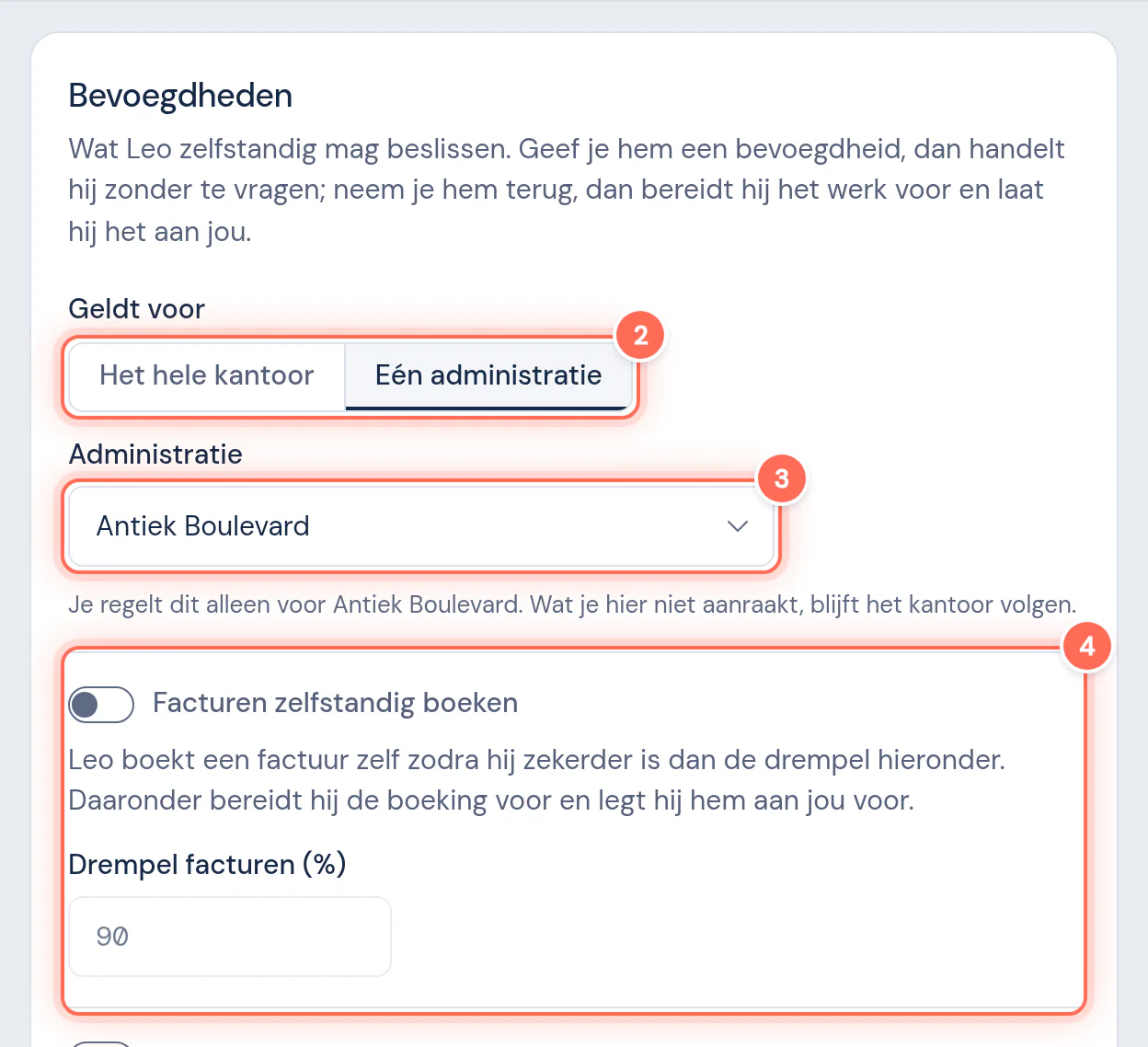
First choose which administration the authorisation applies to. All authorisations are off until someone switches them on. -
Switch on Book invoices on his own.
-
Your browser asks if you're sure. Click OK.
-
In Invoice threshold (%), enter how certain Leo has to be.
-
Press Enter. Below the authorisation you now see who changed it and when.
Leo now books an invoice himself whenever he is more certain about it than the threshold. Is he less certain? Then he puts the booking to you. If it goes well, switch the authorisation on for The whole office.
Good to know
Want to take an authorisation back? Switch it off again. Leo then prepares the work for you again.
Further reading
Still stuck? Email [email protected] or call +31 6 57867535.