Topics
Step 5 of 9
Finding your way: the menu, choosing an administration and notifications
How the boeq menu works, how to choose the administration you work in and how to read your notifications.
Screenshots show boeq's Dutch interface.
The menu
The menu is on the left. Have you chosen Top under Menu? Then the menu is at the top of the screen. It has three parts.
- Dashboard is your starting point. Here you see the tabs The floor, Questions and Administrations. Read The dashboard.
- Practice holds what applies to your whole firm, such as Working agreements, Customer portals and Master data.
- AI colleagues shows the work that belongs to each colleague. Click a colleague's name to show or hide their items.
Settings is at the bottom.
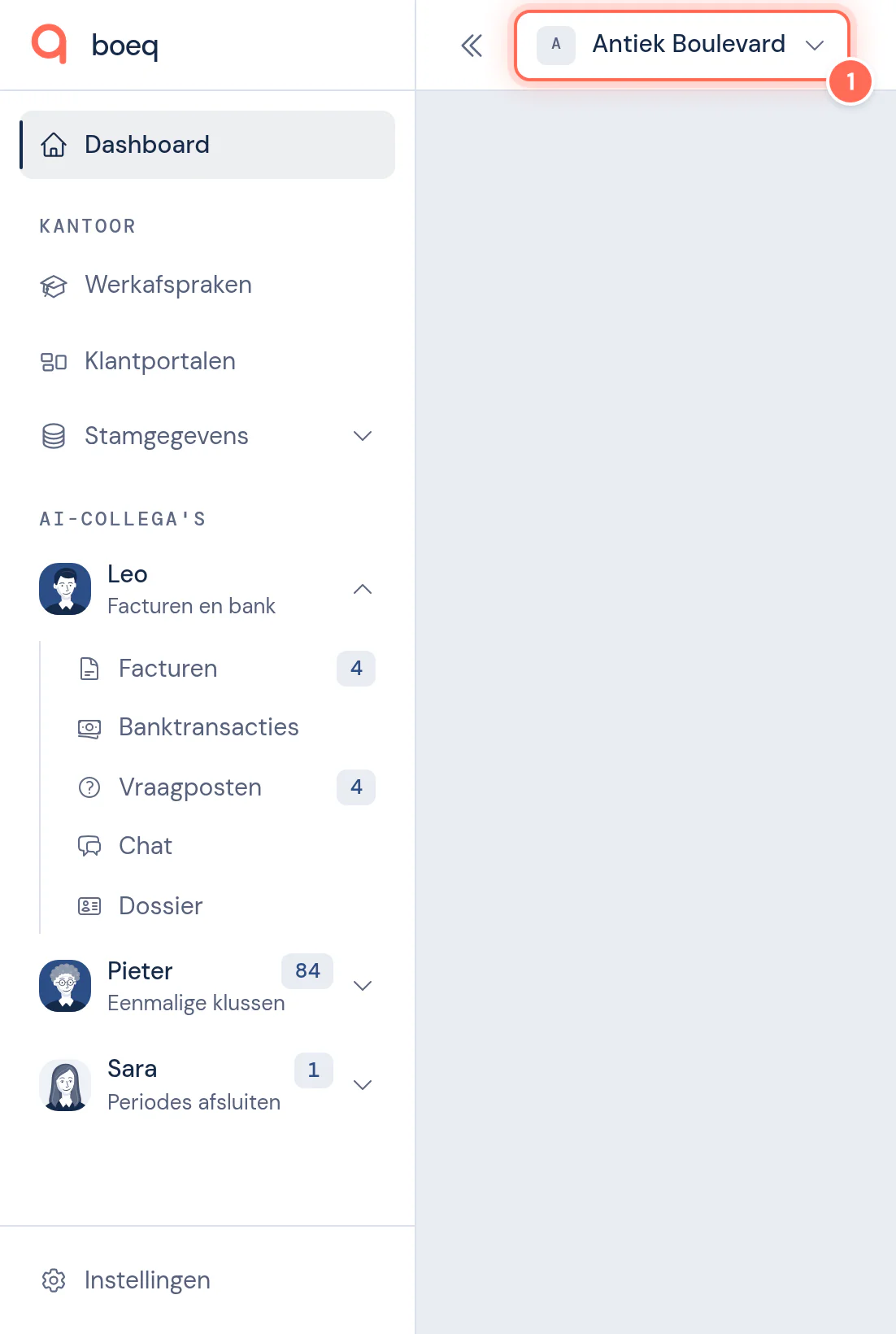
Can't see an item? Then your role doesn't have the right to it, or it isn't part of your firm's subscription.
Choose an administration
Invoices, bank transactions and master data belong to one administration. So first choose the administration you're working in.
-
Click the name of the administration at the top.
-
Type part of the name in Search administrations….
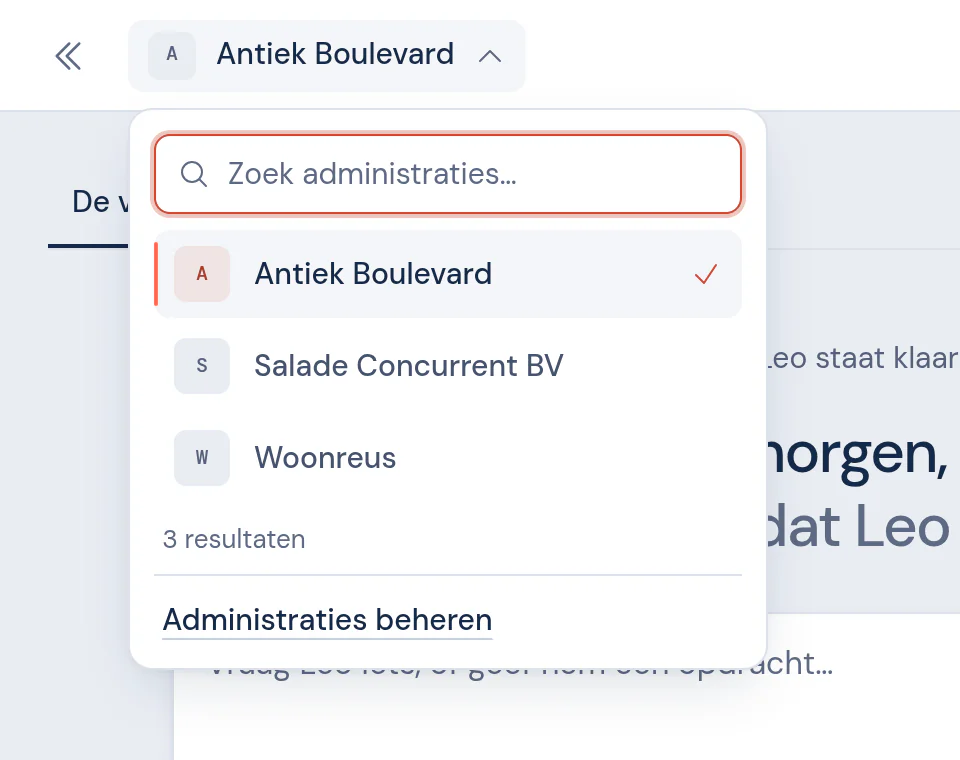
The tick is next to the administration you're working in now. -
Click the administration.
Invoices and Bank transactions under Leo now show that administration's work. Do you see Select an administration first? Then choose an administration first.
Read your notifications
There's a bell at the top right. The number on the bell is how many notifications you haven't read yet.
-
Click the bell.
-
Click a notification to open it.
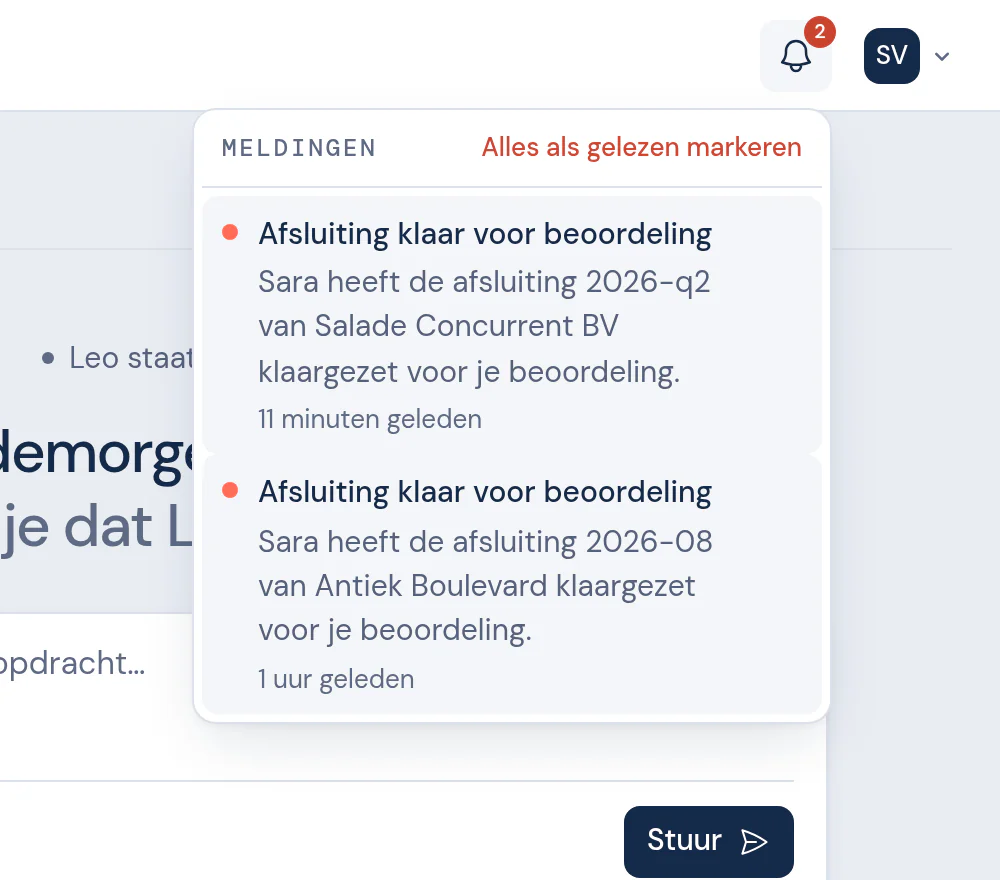
A red dot means you haven't read the notification yet. -
Click Mark all as read once you've seen everything.
You choose which notifications you get, and how, under Settings › Notifications.
Your own menu
Click your initials at the top right. There you'll find Change organisation, Settings, Appearance (system, light or dark), Menu (side or top) and Log out.
Further reading
Still stuck? Email [email protected] or call +31 6 57867535.