Topics
Your profile, language and notifications
Change your name and email address, choose your language and decide which notifications you get: only in boeq or by email as well.
Screenshots show boeq's Dutch interface.
Your name and email address
-
Go to Settings › Profile.
-
Change your Name or your Email.
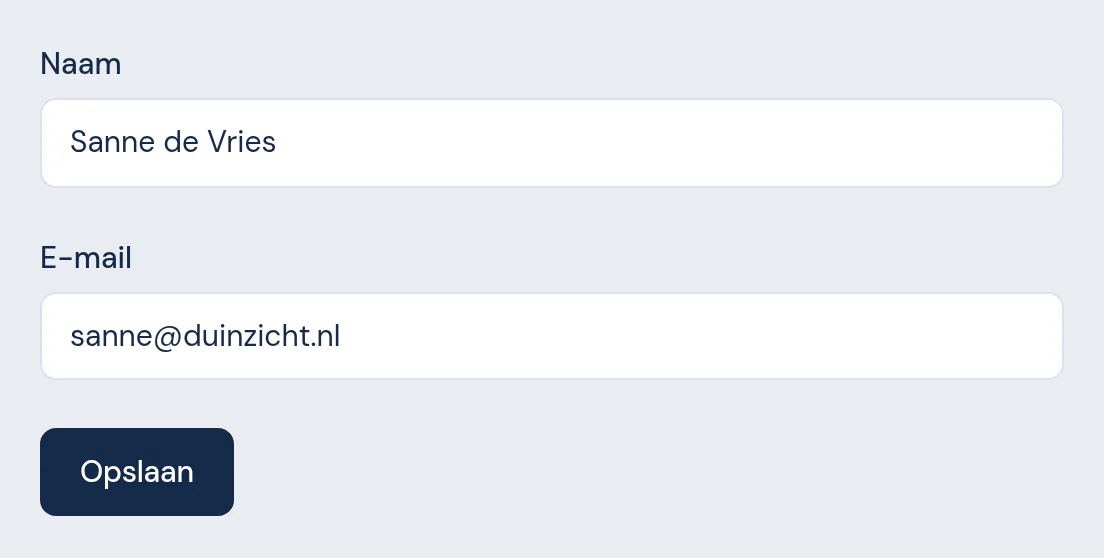
Your colleagues see this name in boeq. -
Click Save.
Your new email address applies straight away. From then on, you log in with this address. Check the address carefully before you click Save.
Choose your language
You can use boeq in English or in Dutch.
- Go to Settings › Language & Time.
- Under Language, choose English, or Nederlands for Dutch.
- Click Save.
The language only applies to you. The Timezone applies to your whole firm. Only an Administrator can change it.
Set up notifications
boeq sends you notifications about your work. For example when a booking fails, or when a closing is ready for review.
-
Go to Settings › Notifications.
-
Tick or untick Enabled for a notification.
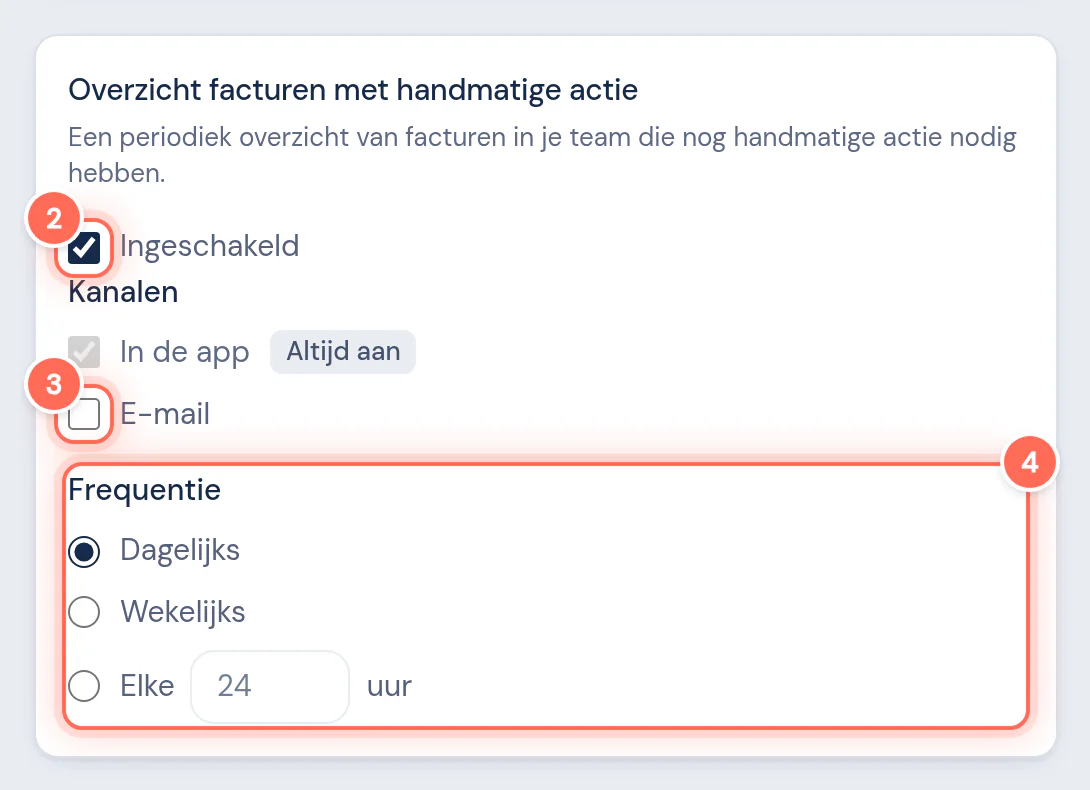
The numbers belong to steps 2, 3 and 4. -
Tick Email if you also want the notification in your inbox.
-
For a digest, choose the Frequency: Daily, Weekly or Every … hours.
-
Click Save at the bottom of the page.
In-app is always on. You see those notifications under the bell at the top right. You can't switch off a notification marked Always on. An Administrator gets a notification like that when a colleague is waiting for approval of a login location.
Good to know
Want less email? Leave Email off and check the bell a few times a day. Read Finding your way for more about the bell.
Further reading
Still stuck? Email [email protected] or call +31 6 57867535.