Topics
Two-factor authentication and passkeys
Protect your account with a code from an app on your phone or with a passkey. This covers setting them up and logging in without your phone.
Before you start
- For a code: an authenticator app on your phone, such as Google Authenticator or 1Password.
Screenshots show boeq's Dutch interface.
With two-factor authentication, you prove twice that it's you when you log in. First with your password, then with something only you have. You choose one of these two, or both:
- An authenticator app: an app on your phone that shows a new 6-digit code every 30 seconds.
- A passkey: you log in with your fingerprint, your face or your device's PIN.
Set up an authenticator app
-
Go to Settings › Security.
-
Under Two-factor authentication, click Enable 2FA.
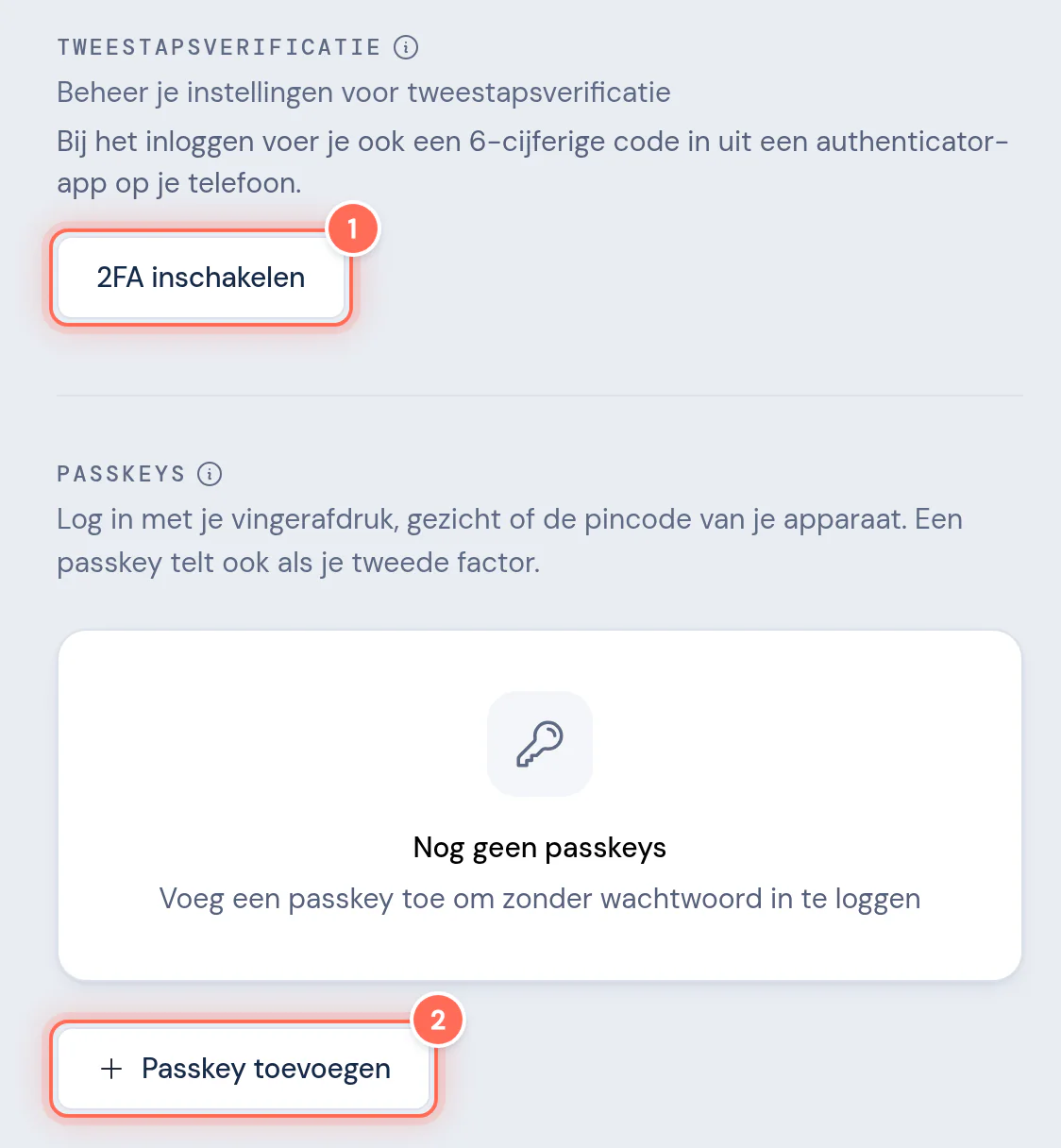
1 is the app on your phone, 2 is a passkey. -
Scan the QR code with your authenticator app.
If scanning doesn't work, type the key below the QR code into your app.
-
Click Continue.
-
Enter the 6-digit code from your app.
-
Click Confirm.
-
Click Close.
-
Click View recovery codes.
-
Store the recovery codes in a password manager.
A recovery code is a backup code for when you lose your phone. Each code works once.
Add a passkey
-
Under Passkeys, click Add passkey.
-
Give the passkey a name, for example the name of your laptop.
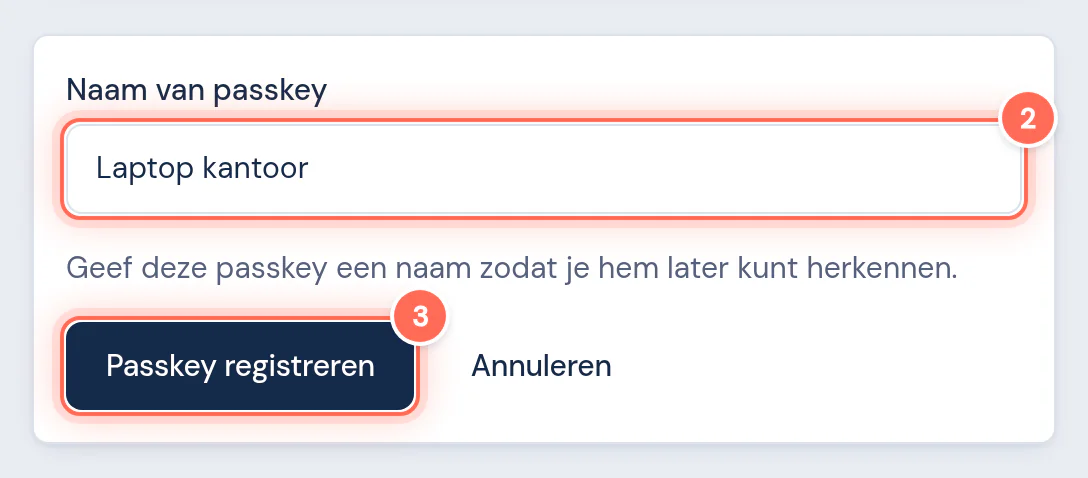
The numbers belong to steps 2 and 3. The name helps you recognise the passkey in the list later. -
Click Register passkey.
-
Confirm with your fingerprint, your face or your PIN.
From then on, you log in on that device with Sign in with a passkey. A passkey also counts as a second factor.
Log in without your phone
- Log in with your email address and password.
- On the code screen, click login using a recovery code.
- Enter one of your recovery codes.
- Click Continue.
If you have a passkey on this device, click Sign in with a passkey on the login screen.
Seeing The provided two factor authentication code was invalid.? Wait for a new code in your app and enter that. Seeing The provided two factor recovery code was invalid.? Try another recovery code.
Got a new phone? In Settings › Security, click Disable 2FA and set up the app again. You then get new recovery codes, and the old ones stop working. Store the new codes. Running out of recovery codes? Click View recovery codes and then Regenerate codes.
Lost both your phone and your recovery codes? Email [email protected]. An Administrator at your firm can't switch off your second factor.
How it works
Your firm can make a second factor mandatory. If you don't have one yet, you see Two-factor authentication required after you log in. That screen shows what your firm requires. Click Set up your second factor. If your firm requires a passkey, follow Add a passkey. Otherwise, choose an authenticator app or a passkey.
Not working?
Further reading
Still stuck? Email [email protected] or call +31 6 57867535.