Topics
Security level and login locations
Choose how strictly boeq protects your firm: from just a password to passkeys and logging in only from approved locations.
Before you start
- You have the Manage security permission. An Administrator always has it.
- You already have a second factor yourself. For **Maximum** you need a passkey yourself.
Screenshots show boeq's Dutch interface.
Choose a level
-
Go to Settings › Organisations.
-
Next to your firm, click Edit organisation (the pencil).
-
Open the Security tab.
-
Under Security level, choose a level.
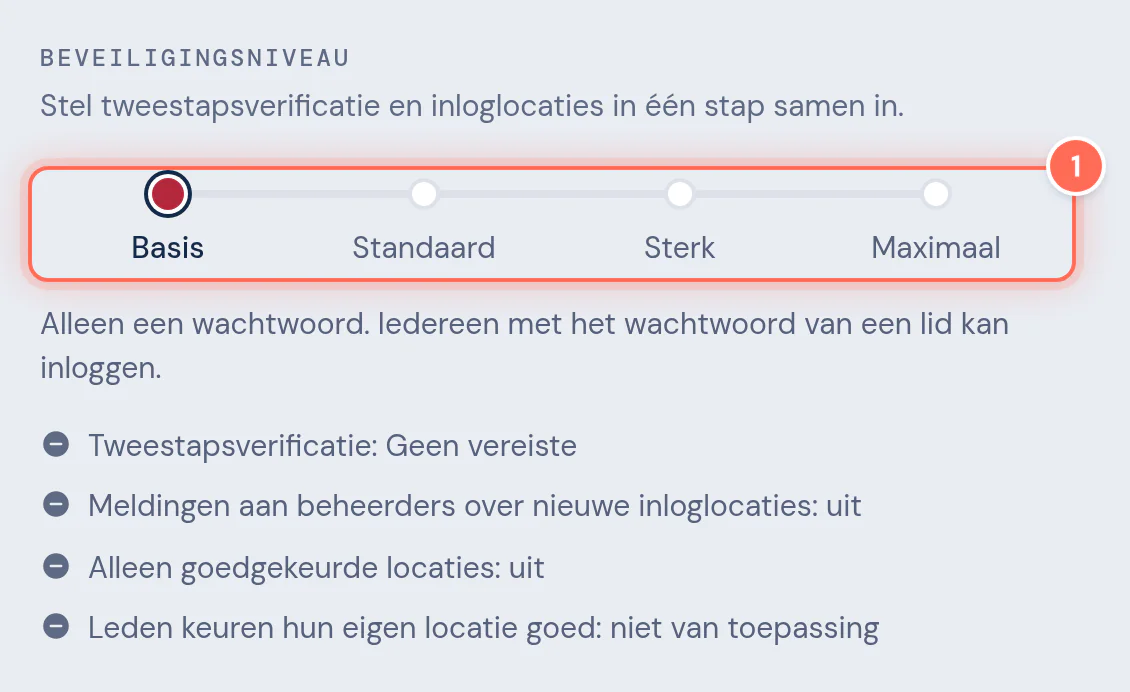
Below the options it says exactly what the level switches on. -
Read in the window what will change.
-
Click Change level.
| Level | What it does |
|---|---|
| Basic | Just a password. |
| Standard | Every colleague needs a second factor. Administrators get an email when someone logs in from a new location. |
| Strong | Second factor required. Only approved locations can log in. Colleagues approve their own new location by email. |
| Maximum | Passkey required. Only approved locations can log in. An Administrator approves every new location. |
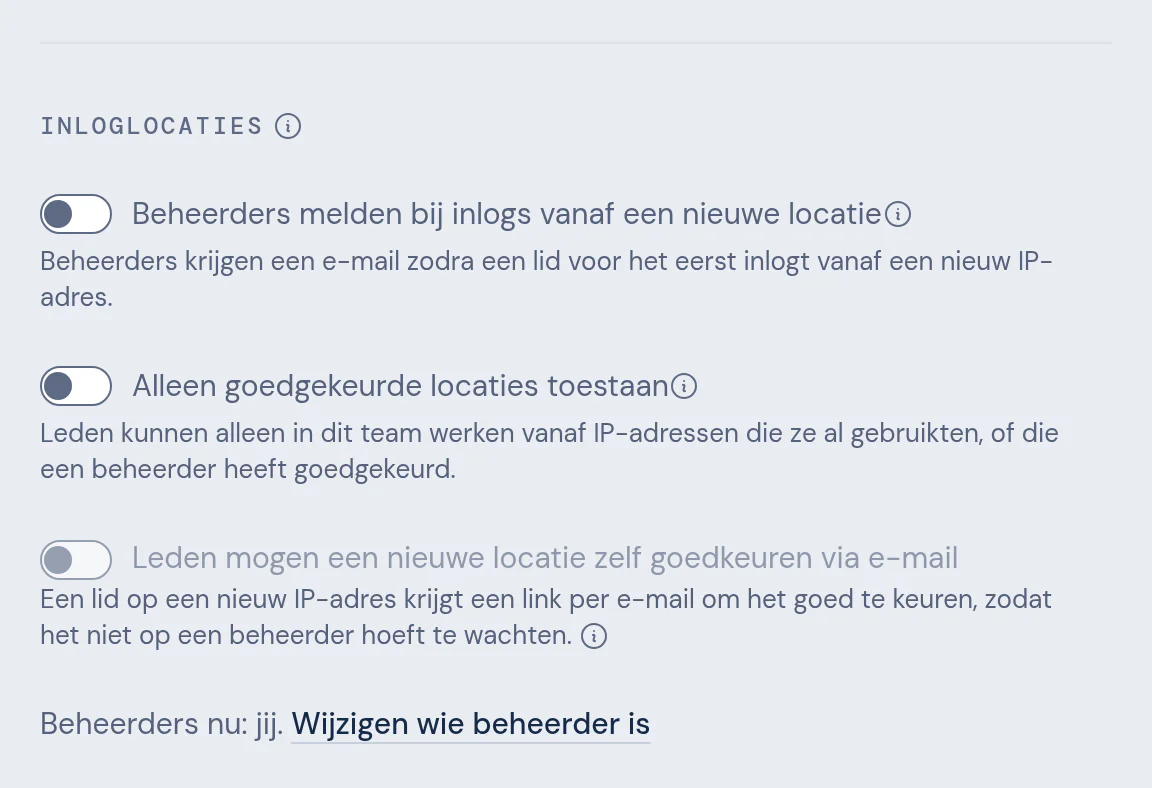
When the app says Administrator here, it means anyone with the Manage security permission. If you choose Strong or Maximum, the IP addresses that colleagues already used stay allowed. boeq approves your own address straight away. You can also set the second-factor requirement and the switches separately. The level is then called Custom.
Watch out
If a colleague doesn't have a second factor yet, they can't work again until they have set one up. The window tells you how many colleagues this affects. If you don't have a second factor yourself, you see You don't meet this requirement yourself. Set it up first, so you don't lock yourself out. Read Two-factor authentication and passkeys.
What a login location is
boeq recognises a location by its IP address. That is the internet address of the network someone logs in from. A new office, home or hotel network counts as a new location.
Approve a location
If Only allow approved locations is on, a colleague on a new network sees Location not approved.
- If Members may approve a new location themselves by email is on, your colleague clicks Send me a confirmation email. They open the link within 30 minutes, on the same connection.
- If that switch is off, or you choose Maximum, an Administrator approves the location. You do that on this tab, under Waiting for approval. Click Approve or Reject.
Under Allowed locations, you withdraw a location again with Revoke.
Who logged in where
At the bottom of the tab is the Login history. You see who logged in, when, from which location and how. Turn on New locations only to see only the first login from a new IP address.
Further reading
Still stuck? Email [email protected] or call +31 6 57867535.