Topics
Manage access per administration
Decide which administrations a colleague can open: per colleague, per administration or for several administrations at once.
Before you start
- You have the Manage members permission. An Administrator always has it.
Screenshots show boeq's Dutch interface.
A colleague can only open the administrations they have access to. What they can do in them depends on their role.
Per colleague
-
Go to Settings › Organisations.
-
Next to your firm, click Edit organisation (the pencil).
-
In Organisation members, click the pencil with the square next to the colleague (Edit access).
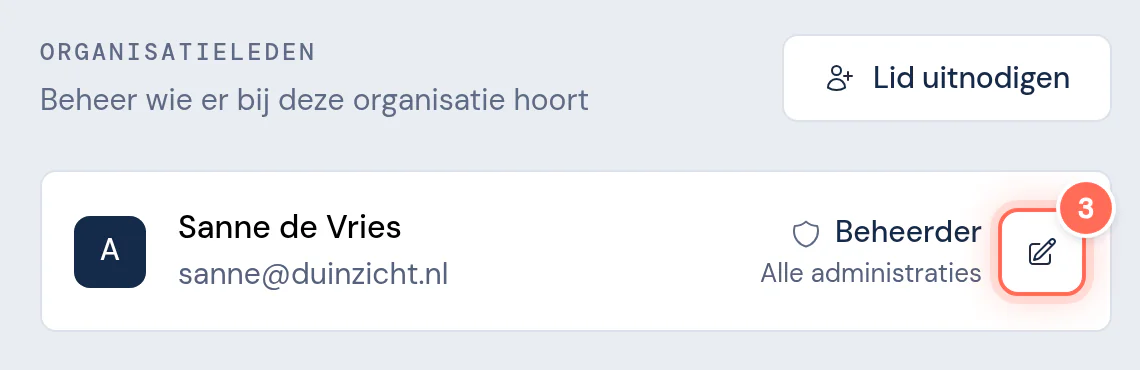
The button with the pencil and the square is Edit access. -
Turn All administrations on or off.
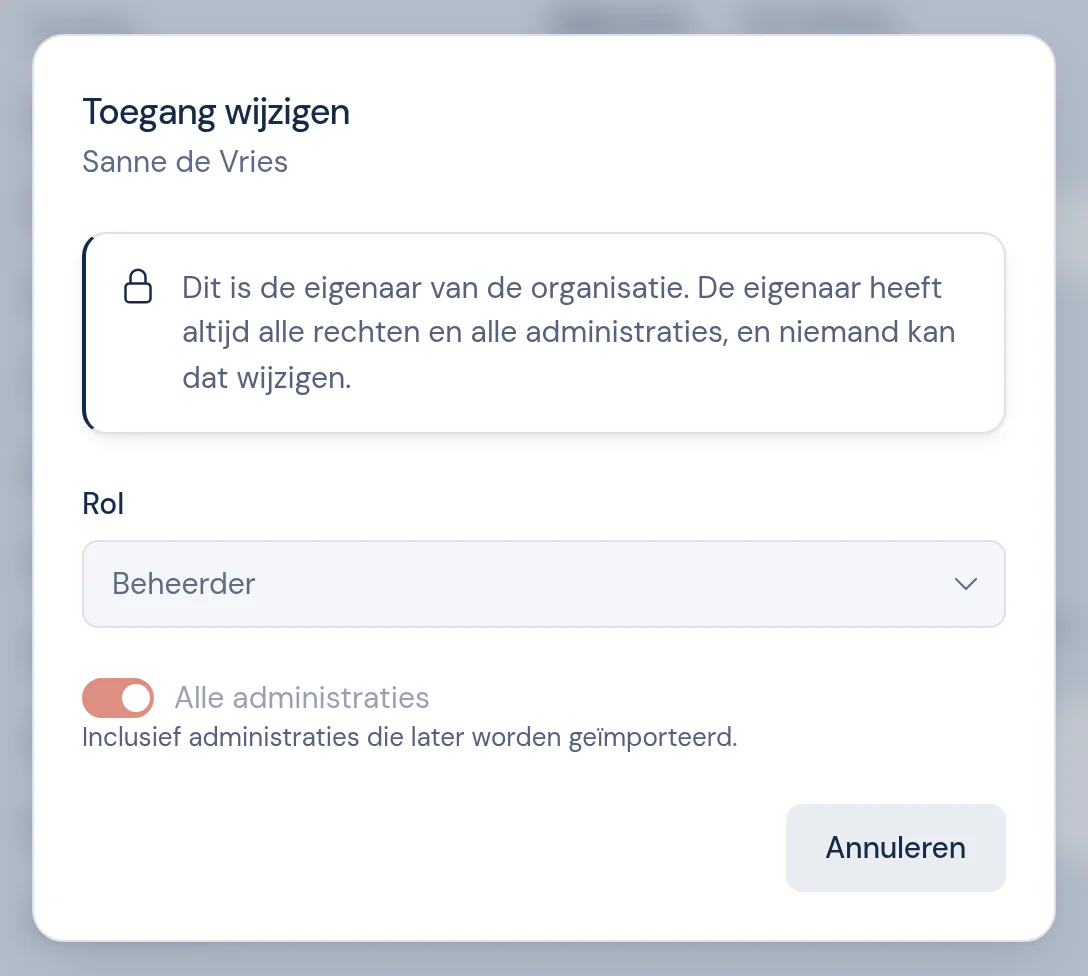
You can't change anything for the owner. For another colleague, you turn the switch on or off here. -
Click Save.
With All administrations, your colleague can also open administrations that come in from Exact Online later. If you turn it off, they keep the administrations they can open now. Only new administrations are no longer added.
Want to choose per administration? First turn off All administrations and click Save. Open Edit access again and click Choose administrations. Settings › Administrations then shows only this colleague's administrations. Set the access there as described below.
Per administration
-
Go to Settings › Administrations.
-
Click the three dots next to the administration.
-
Click Manage access.
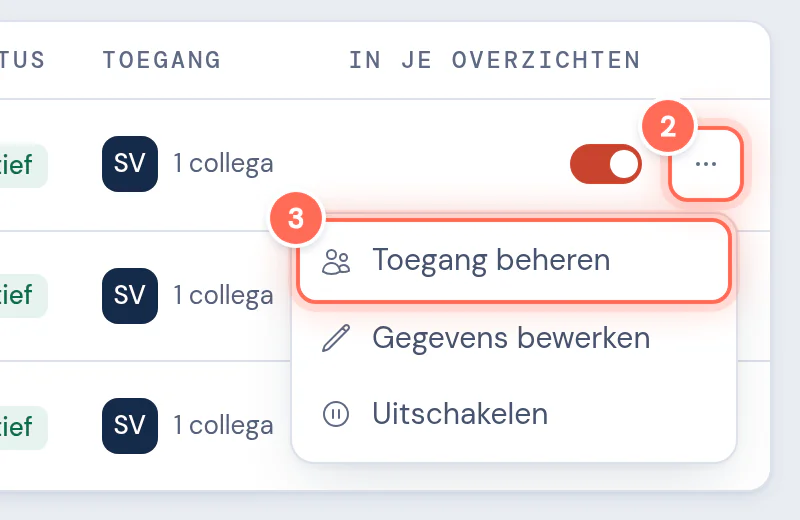
The numbers belong to steps 2 and 3. The Access column shows how many colleagues can open an administration. -
Turn on the switch for each colleague who may open the administration.
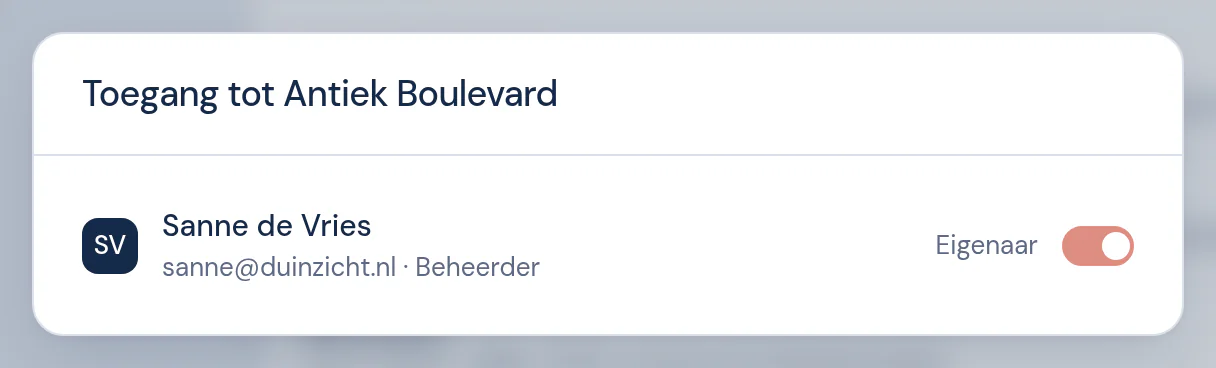
The owner always has access. For another colleague, you turn the switch on or off here. It applies straight away.
For a colleague with All administrations, you can't use the switch. Click Change next to them to adjust that. You can't change your own access or the owner's.
For several administrations at once
- In Settings › Administrations, tick the administrations.
- Click Access….
- Tick the colleagues.
- Click Give access or Remove access.
Good to know
The switch in the In your overviews column isn't about access. It only hides an administration for you. Read Hide, deactivate or reactivate an administration.
Further reading
Still stuck? Email [email protected] or call +31 6 57867535.