Topics
Step 7 of 9
Invite colleagues
Invite someone from your firm to boeq. You choose their role and the administrations they can open.
Before you start
- You have the Manage members permission. An Administrator always has it.
Screenshots show boeq's Dutch interface.
Invite someone
-
Go to Settings › Organisations.
-
Next to your firm, click Edit organisation (the pencil).
-
Under Organisation members, click Invite member.
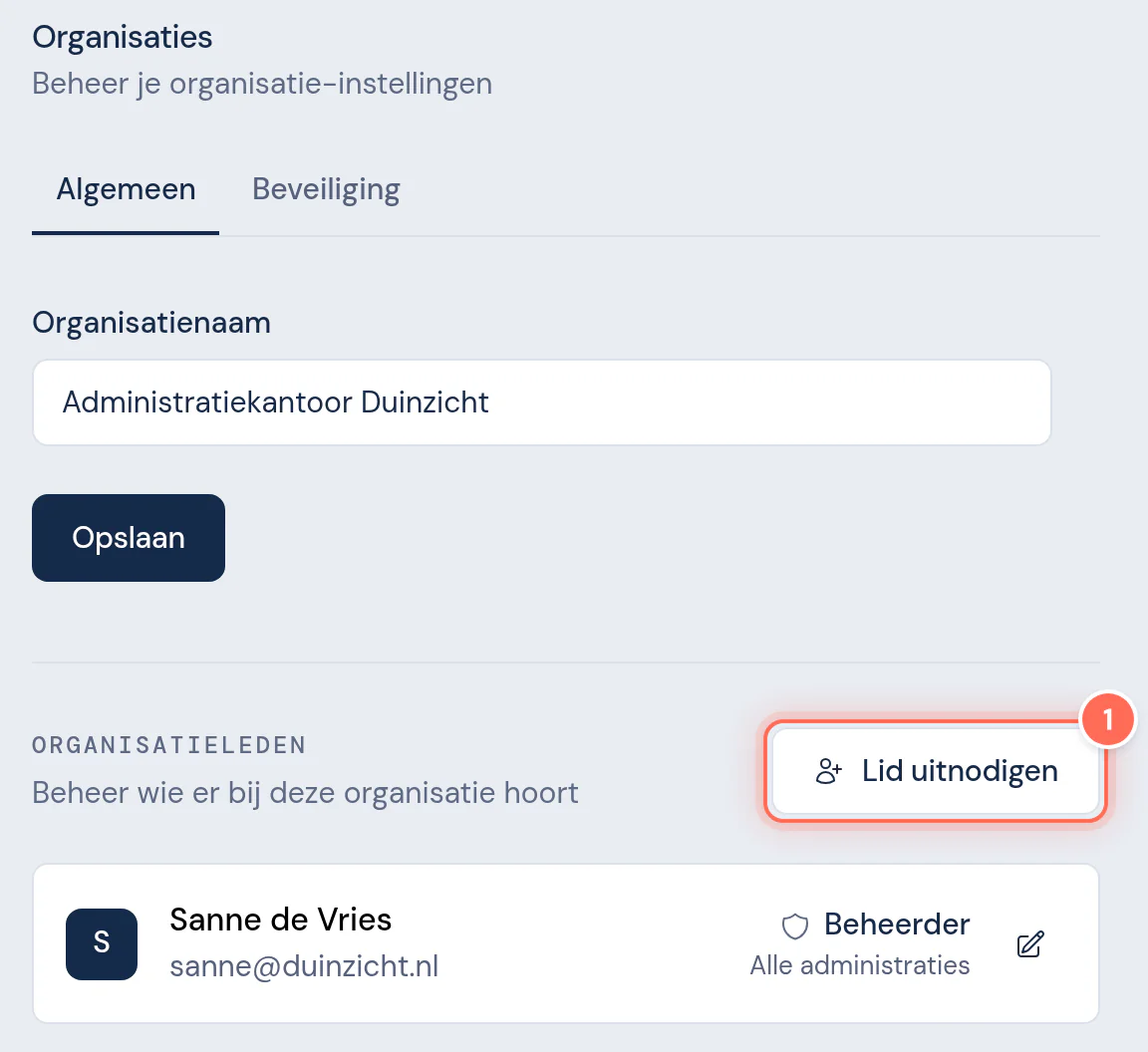
Under Organisation members you see who already belongs to your firm. -
Enter the person's Email address.
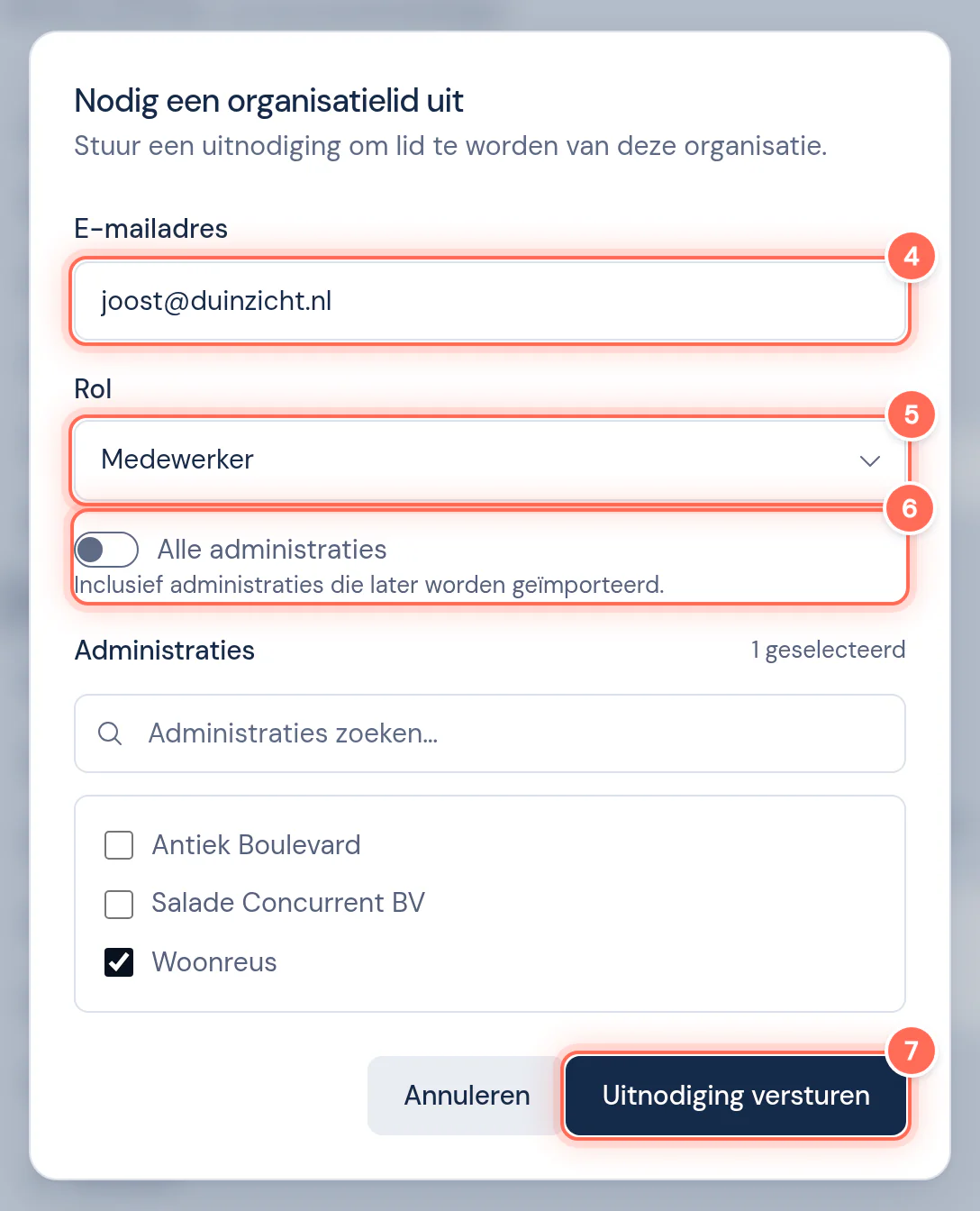
Each number goes with the step of the same number. -
Choose a Role.
-
Switch on All administrations, or tick the administrations the person may open.
-
Click Send invitation.
With All administrations, the person can also open administrations that come in from Exact Online later.
Which role to choose
| Role | What the person may do |
|---|---|
| Administrator | Everything, including settings, members and roles. |
| Member | Process and book invoices and bank transactions, answer questions and chat with Leo. Start and view a closing. Not: use Pieter, review or approve a closing, manage working agreements or change settings. |
| Read-only | View and chat with Leo. Can't book or change anything. |
Has your firm created a custom role? Then it's in the list too. You can only give a role with permissions you have yourself. Read more in Roles and permissions.
What the person does next
The person gets an email with a link. The link works for three days. The person then logs in with the same email address. Read Your first login.
Until then, the invitation is listed under Pending invitations. You can also cancel it there.
Good to know
Has the link expired? Then invite the person again, with the same email address.
Further reading
Still stuck? Email [email protected] or call +31 6 57867535.