Topics
Correct a proposal and make Leo remember it
Is a field in Leo's proposal wrong? This is how you change it, and how you make sure Leo gets it right himself next time.
-
 Leo
- Updated
- 3 min read
- Role: Member or Administrator
Before you start
- You have an invoice open in the Leo needs you view.
- For Remember you need the Administrator role, or the Manage working agreements permission.
Screenshots show boeq's Dutch interface.
Change a field
-
Click the field that is wrong. For example, the general ledger account of a booking line.
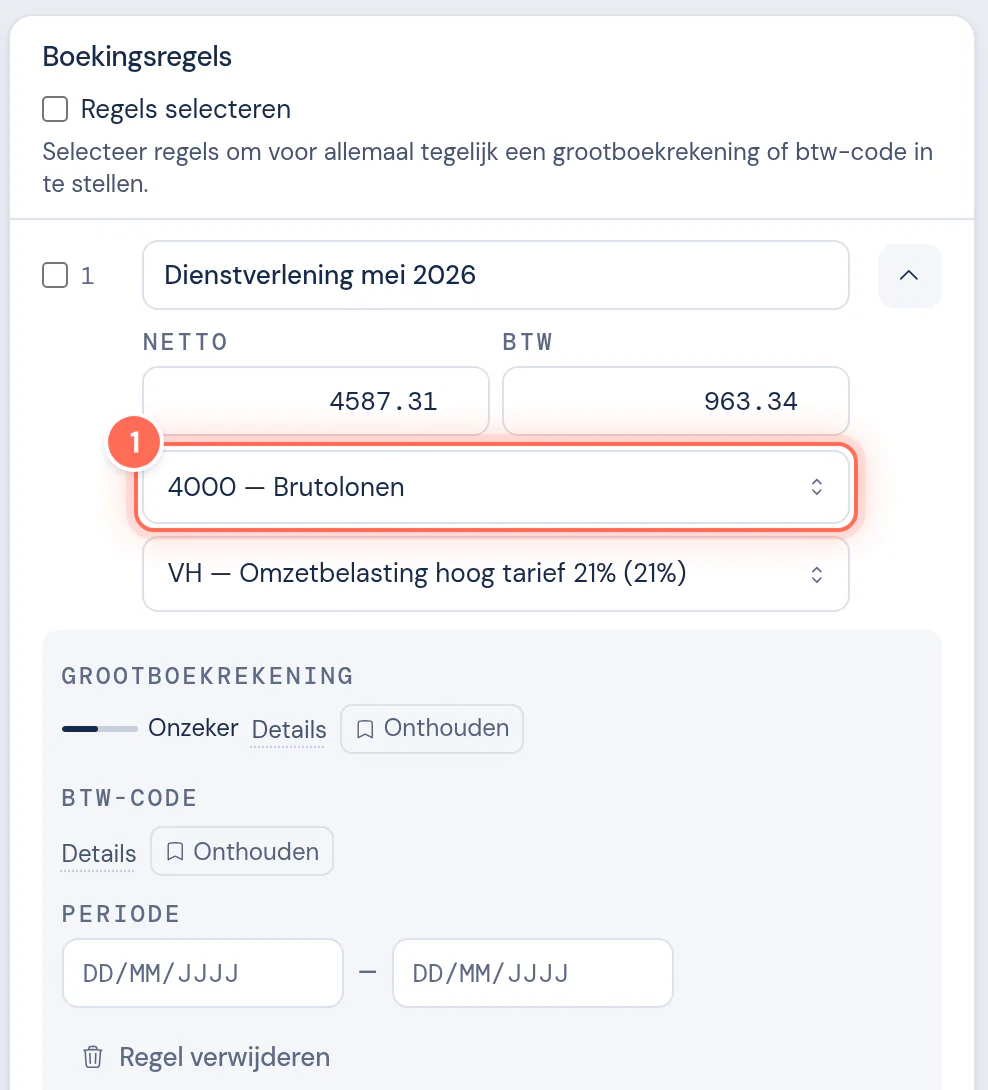
This general ledger account is wrong. Click it to choose another one. -
Choose the right value from the list. You can type to search.
-
Below the booking lines, click Save changes.
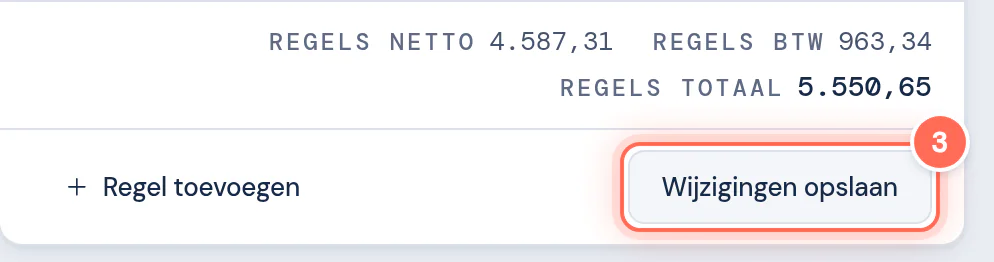
Save changes keeps your change without booking.
If you book straight away, Leo saves your change as well.
You change the invoice number, the date and the amounts with the pencil next to the value. After your change, Your choice appears below the field.
If the general ledger account you need isn't in the list, read Create a general ledger account from a booking.
When your firm asks for a reason
Your firm can ask that everyone explains why they change a choice Leo made. The setting is called Require change feedback and is off by default. You can't switch it on in your own settings. Email [email protected] and boeq switches it on for your firm.
With the setting on, you see the Reason for change field in two places:
- in the bar at the bottom of the proposal, above the boeq button;
- below a value you change with the pencil, if Leo read that value from the document.
Do you replace a value Leo proposed or read, such as the supplier, the general ledger account, the VAT code or the invoice number? Then fill in a reason. Without one, Save changes saves nothing and boeq doesn't book. Give a reason for this change. then appears below the field.
- Filling in a field Leo left empty, or changing a line back to what Leo proposed, never needs a reason.
- If you change several values at once, one reason covers them all.
- boeq stores the reason with each correction it explains. It isn't shown anywhere yet, and Leo doesn't read it.
Make Leo remember
If you want Leo to make this choice himself from now on, turn it into a working agreement. A working agreement is a fixed rule that Leo follows.
- Expand the booking line with the arrow at the end of the line.
- Under Ledger account or VAT code, click Remember.
- Under Who this applies to, choose one of three: Only for the supplier, For this whole administration or For every administration of your organisation.
- Read the text under The agreement. Leo fills it in himself. Change it if needed.
- Click Record.
Leo applies the working agreement straight away. He also updates the open invoices from that supplier. For the payment term, Remember is directly below the field.
Watch out
If you choose the whole administration or all administrations, the agreement applies to every supplier, not just this one.
Good to know
All your firm's working agreements are under Working agreements in the menu. That is where you change them or stop them. Read Working agreements: what Leo learns from your firm.
Then book
Click boeq at the bottom. Read the question and click boeq again. Read Check and book a booking proposal.
What Leo does
Leo books the proposal the way you correct it. With Remember he turns your choice into a working agreement and applies it straight away.
What you decide
You choose whether a correction is a one-off or applies from now on, and what it covers: one supplier, one administration or the whole firm.
Further reading
Still stuck? Email [email protected] or call +31 6 57867535.