Topics
Upload bank statements (CSV, MT940, PDF)
Do the lines of an account not reach Exact Online by themselves? Upload the statement. Leo reads it, you approve it and Leo books.
-
 Leo
- Updated
- 7 min read
- Role: Member or Administrator
On this page
Before you start
- You have chosen the administration at the top.
- The account has a bank journal in Exact Online.
Screenshots show boeq's Dutch interface.
Leo checks the totals before you approve.
Upload a statement
-
Open Bank transactions and click Upload statements at the top right.
-
Under Journal, leave Leo detects the journal selected. Or choose a journal yourself. That choice applies to every file in this upload.
-
Drag the files into the box. You can also click in the box.
-
Click Upload.
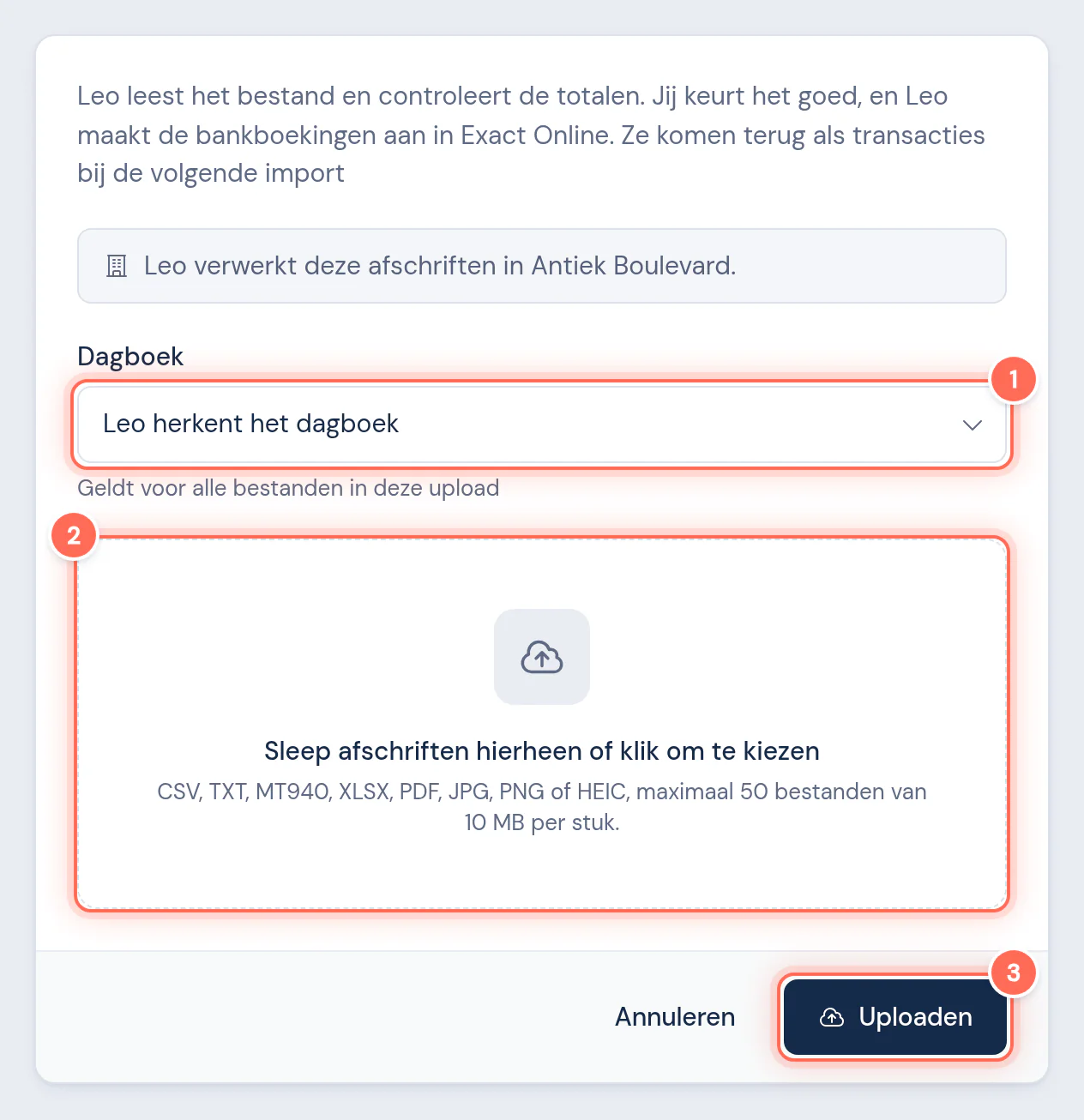
Choose the journal (1), drag the files into the box (2) and click Upload (3).
Leo accepts CSV, TXT, MT940, XLSX, PDF, JPG, PNG and HEIC. The box shows how many files you can upload at once and how large they may be.
Watch out
A photo or scan must show an opening balance and a closing balance. Otherwise Leo can't check the lines and creates nothing. Use the bank's PDF or CSV export where you can.
Find the statement in the list
Your upload appears under Statement files, below the form. Each statement has one line with the account, the currency and the period, the number of lines and the status. While Leo reads the file, a circle turns in the status. That can take a few minutes.
Above the list, one line counts the statements, for example 2 imports need you · 23 others. The statements that need you are at the top. The others follow, newest first. The imports from one file sit next to each other.
A statement needs you when it has one of these statuses:
| Status | What you do |
|---|---|
| Ready to post | Check the statement and post it. |
| Waiting for an account link | Choose the journal for the account. |
| Waiting for a rate date | Choose the date of the exchange rate. |
| Failed | Read why and try again. |
Click a line to open the statement. You do everything else on the statement's page.
The statement page
At the top is the title: the account, the currency and the period. The status is next to it. Below the title, one line says what Leo did, for example:
Leo read 45 lines from this file: 40 to post, 3 already in the books, 2 skipped
Below that you find, from top to bottom:
- What needs you, if anything. See the sections below.
- A line such as All 6 checks passed. Click it to see the checks Leo did on the file.
- The lines of the statement.
- The bar with the Post button, when the statement is Ready to post.
- The tabs Details and Activity.
Post the statement
- Open a statement with the status Ready to post.
- Is there a box above the lines? Read it. First come the issues that block posting, each with its fix next to it. Then come the points to check, such as a statement that seems to be missing.
- Check the lines.
- Look at the bar under the lines. It shows the Total amount, the journal and the transit account.
- Click Post … lines to Exact Online in that bar. The button shows the number of lines.
- Confirm with Post.
Does an issue block posting? Then the bar says 1 issue blocks posting (or 2 issues block posting). Click it to go to the issues. You fix them like this:
- Exact Online has no transit account on journal 1100: set the transit account in Exact Online. Then click Fetch journals.
- Leo couldn't tell which currency 3 lines are in: click This is wrong, so Leo reads the file again. Or delete the statement.
- The whole statement is in USD, but journal 1100 is EUR: tick Convert every line to … (the currency of the journal).
Is a statement missing between this one and the previous one? Then you see a point to check that starts like this:
Opening balance … does not follow the closing balance … of the previous statement
Upload the missing statement first.
Does the file hold no balances? Then Leo couldn't add the lines up. Check them yourself before you post.
Check the lines
Above the lines is their number, for example 45 EUR lines.
- Result only shows the lines that differ: Skipped with the reason, and Already in the books. After posting, it shows the entry number, such as Entry 24000123. A line without a result is a line Leo will post.
- Are there skipped lines or lines already in the books? Then you can filter with All, Skipped and Already in the books. The number of lines is next to each filter.
- Tick Compare with the file to see the line from the file under every line.
- Has a line already come back as a bank transaction? Click the line to open the transaction.
After posting, the button Review journal … at the top opens the bank transactions of that journal.
A file with more than one currency
Does the file hold lines in more than one currency? Then Leo makes one import per currency, for example one for EUR and one for USD. You post each import on its own.
You see this on the page of each import:
- The line below the title counts the lines in the other import, for example 12 in the USD import.
- From this file lists every import of the file, such as EUR · 45 lines and USD · 12 lines · Ready to post. Click one to open it.
- The heading above the lines also names the other import: 45 EUR lines · 12 USD lines in the USD import.
- The last row of the lines says where the other lines are, for example 12 USD lines from this file are in the USD import · Ready to post. Click it to open that import.
The USD import points back to the EUR import in the same way.
Details and activity
Below the lines are two tabs:
- Details: the file with Open file, the format, the account type, the account, the accounting package, the journal and the transit account, the period, the opening balance and the closing balance. It also shows who uploaded the statement and when, and who approved it. A statement your client uploaded says The client via the portal.
- Activity: what happened to the statement, and when.
If something is wrong
Click the three dots at the top right and choose:
- Change journal: the lines belong in a different journal. Choose the journal and click Save. Statements that are already posted stay in the old journal.
- Flip signs: money in and money out are the wrong way round.
- This is wrong: Leo reads the file again. Write what is wrong and click Read again.
- Open file: opens the file you uploaded.
- Delete: the file is removed. Have lines from it already been posted? Then Leo also takes those out of Exact Online, as long as they have not been processed there yet.
Could Leo not read or post the file? Then the status is Failed and the page says why. Click Try again.
You need the Import bank statements permission to post, link or change a statement. Without it, you can open and read the statement, but you can't post or change it.
Leo does not know the account
The status is Waiting for an account link. Leo asks which journal the lines belong in.
- Choose the journal. Does Leo have a suggestion? Then that journal is already chosen.
- Is it a credit card? Fill in the Settlement account (IBAN): the account the card is paid from.
- Click Link.
Is the journal not in the list? Create it in Exact Online first. Then click Fetch journals.
Did you choose a journal in the upload, and did Leo link this account to another journal before? Then Leo asks which one to use. Click Move to journal … or Keep journal ….
Leo found no exchange rate
The status is Waiting for a rate date. Leo shows the lines that have no rate. Choose a Rate date and click Convert.
How it works
Your client can also upload statements in the client portal. Those also wait for your approval before Leo books anything. Until you have reviewed such a statement, it is also in Client replies, with the Review statement button.
What Leo does
Leo reads the statement, checks the lines against the balances and prepares the bank entries.
What you decide
You approve the statement. Only then does Leo create the entries in Exact Online.
Further reading
Still stuck? Email [email protected] or call +31 6 57867535.