Topics
How invoices reach Leo
Invoices can reach Leo in six ways. Here is how to choose what suits your firm and your client, and where to find the settings.
-
 Leo
- Updated
- 3 min read
On this page
Screenshots show boeq's Dutch interface.
Leo handles every invoice the same way. He reads the invoice, prepares a booking and puts it to you. There are six ways to get invoices to Leo.
The six ways
| Way | How it works | Who sets it up |
|---|---|---|
| Upload | You drag files into the Add invoice screen. On your phone you can also take a photo. | Member or Administrator |
| Leo's mailbox | Each administration gets its own email address. You or your client send invoices to that address. | Administrator |
| Existing mailbox | Leo looks in a mailbox you already have, for example an address for your client's invoices. | Administrator, or your client in the portal |
| Websites | Once a week Leo logs in to a supplier's website and collects the new invoices. | Administrator, or your client in the portal |
| Client portal | Your client puts their own invoices in the client portal. | Your client, in a portal from your firm |
| Exact Online | Leo collects documents from Scan & herken in Exact Online. This is off by default. | Administrator |
You can use more than one way at the same time. For example, a client emails their purchase invoices, and you upload the receipts they bring in on paper.
Where to set up each way
- Choose the administration at the top.
- Open Invoices in the menu.
What comes next depends on the way:
- Upload: click Add invoice.
- Mailbox or website: click the three dots and choose Invoice sources.
- Client portal: open Customer portals in the menu.
- Exact Online: see below.
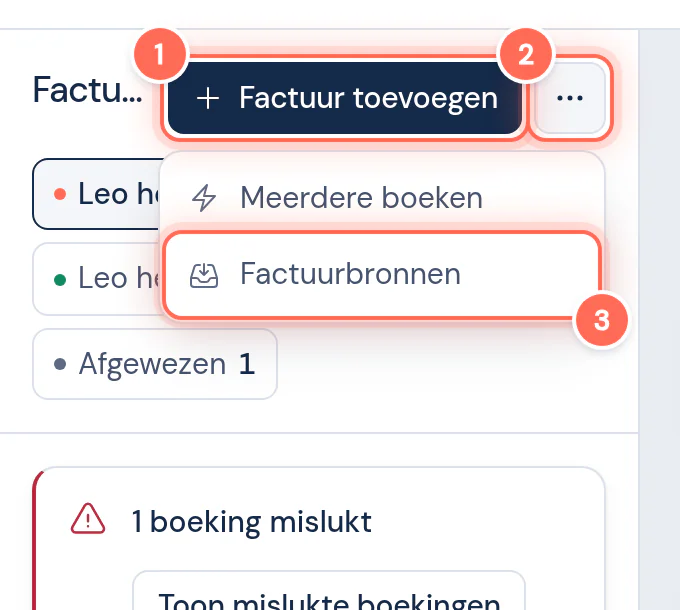
Invoice sources has two tabs: Mailboxes and Websites. You only see them with the Administrator role, or with the Manage invoice sources permission.
To have Leo collect the documents from Scan & herken in Exact Online, switch on Extract invoice documents from Exact under Settings › Integrations. This applies to all Exact administrations. For a single administration, you set it under Settings › Administrations › Edit details.
Is the option off? Then the documents stay in Scan & herken. Sara's closing still reads Scan & herken, and counts a document there that is still waiting to be booked up to period end. Read Reference: all of Sara's checks.
What your client sets up in the portal
Does your client have a client portal? Then their Upload page has the cards they use to send in invoices themselves:
- Invoices and receipts: they drag files into the box or choose them.
- Invoices by mail: they see the addresses of Leo's mailbox to forward invoices to.
- Invoice mailbox: they link a mailbox of their own. It must be a separate mailbox that only receives invoices and receipts, because Leo reads every attachment in that mailbox as an invoice. The portal asks this first. Your client can't link a normal mailbox.
- Invoices from websites: they connect a supplier's website with their own login. Read Have Leo collect invoices from suppliers.
A mailbox or website your client links belongs to the administration they are working in. You see it in boeq under Invoice sources, just like a source you added yourself. You choose per portal which cards your client sees, on the Widgets page. Read Set up your client's dashboard.
Where an invoice came from
Open an invoice and choose the Activity tab. It shows how the invoice came in, for example 'Uploaded by hand' or 'Received by email at' followed by the address.
Further reading for each way
What Leo does
Leo handles every invoice the same way, wherever it comes from. He reads the invoice and prepares a booking.
What you decide
You choose per administration which ways you use, and which address or website your client gets.
Further reading
Still stuck? Email [email protected] or call +31 6 57867535.