Topics
Set up your client's dashboard
Choose which cards your client sees on their dashboard and whether they may move them. Save a good layout for all your portals.
On this page
Before you start
- You have the Manage customer portals permission.
Screenshots show boeq's Dutch interface.
A new portal starts with your firm's default layout. If you don't have one, it starts with the standard layout. You change it on the Dashboard tab. In boeq, each card is also called a widget.
Add and move cards
-
Open the portal and choose the Dashboard tab.
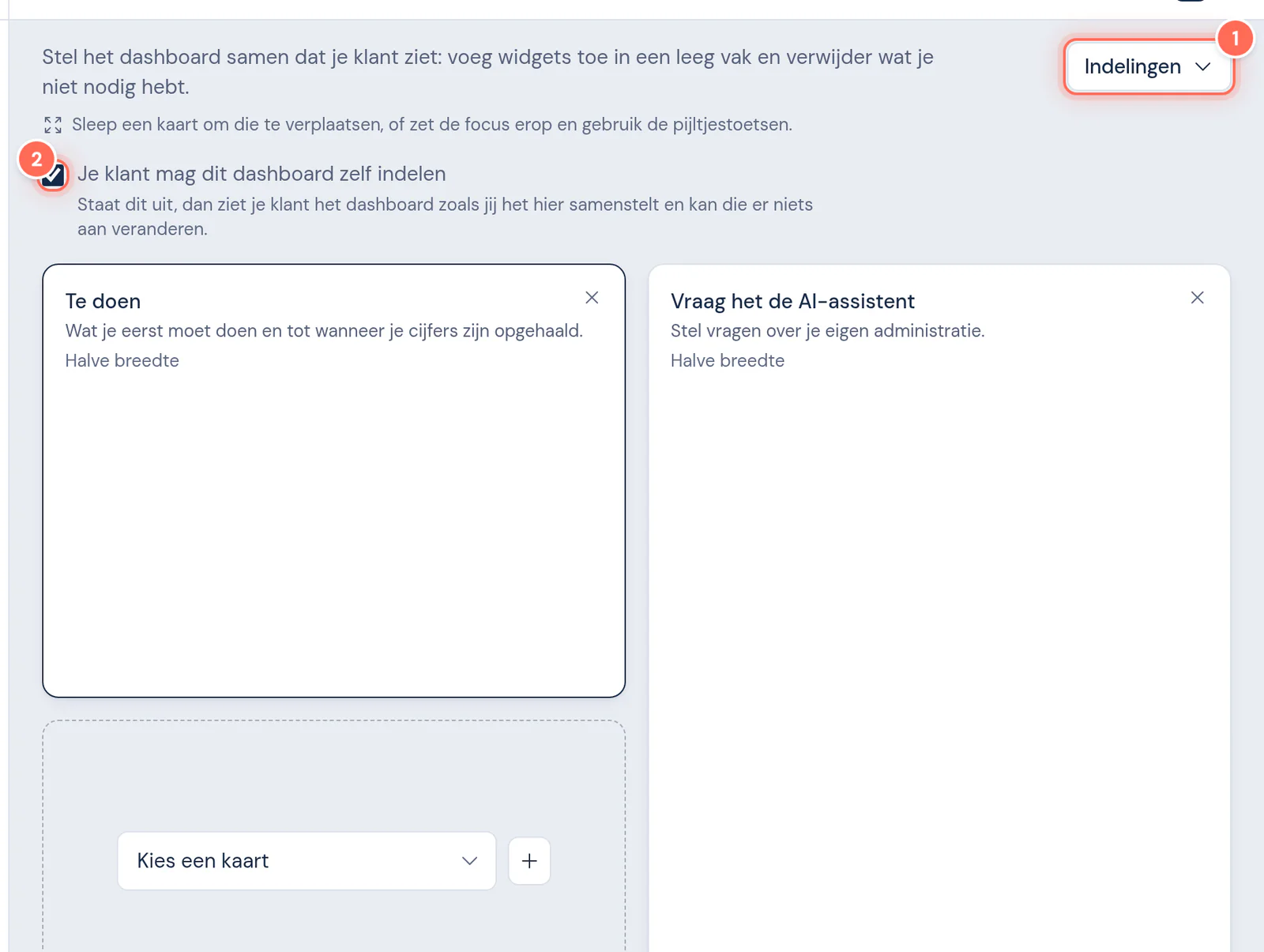
1 the Layouts menu, 2 the choice of whether your client may arrange the dashboard. -
In an empty slot, choose a card under Choose a card.
-
Click the plus sign to add the card.
-
Drag a card to another place. You can also use the keyboard: put the focus on the card and use the arrow keys.
-
Click the cross to remove a card.
Your client sees every change straight away. Each card takes a fixed share of the width, such as half or the full width of the page. On a phone you can only add and remove cards.
Choose a card only lists cards that suit the administration. Current accounts is only there if the administration has a current account with the director-shareholder or with a group company. A new portal doesn't get that card by itself: you place it on the dashboard yourself. What the cards show is in Your client's figures in the portal.
May your client arrange it?
Is Let your customer arrange this dashboard switched on? Then your client sees the Edit dashboard button. They can then add, remove and move cards. Switch it off, and your client sees the dashboard exactly as you put it together.
Watch out
Has your client already arranged the dashboard themselves? Then every change you make overwrites their layout straight away.
Save a layout for other portals
- Click Layouts.
- Choose Store as default.
- Give the layout a name under Name of this layout.
- Should every new portal start with it? Then tick Use this layout as the default for new portals.
- Click Store layout.
Existing portals don't change. To put a saved layout on an existing portal, choose Apply a saved layout or Apply default layout under Layouts. In the Customer portals list you can also do this for several portals at once. You can't undo this.
Switch a widget off completely
Removing a card from the dashboard is not the same as switching a widget off. Your client no longer sees a widget that is switched off anywhere.
- Click Widgets at the top of the portal.
- Switch off Your customer sees this widget for a widget.
- Confirm with Switch off.
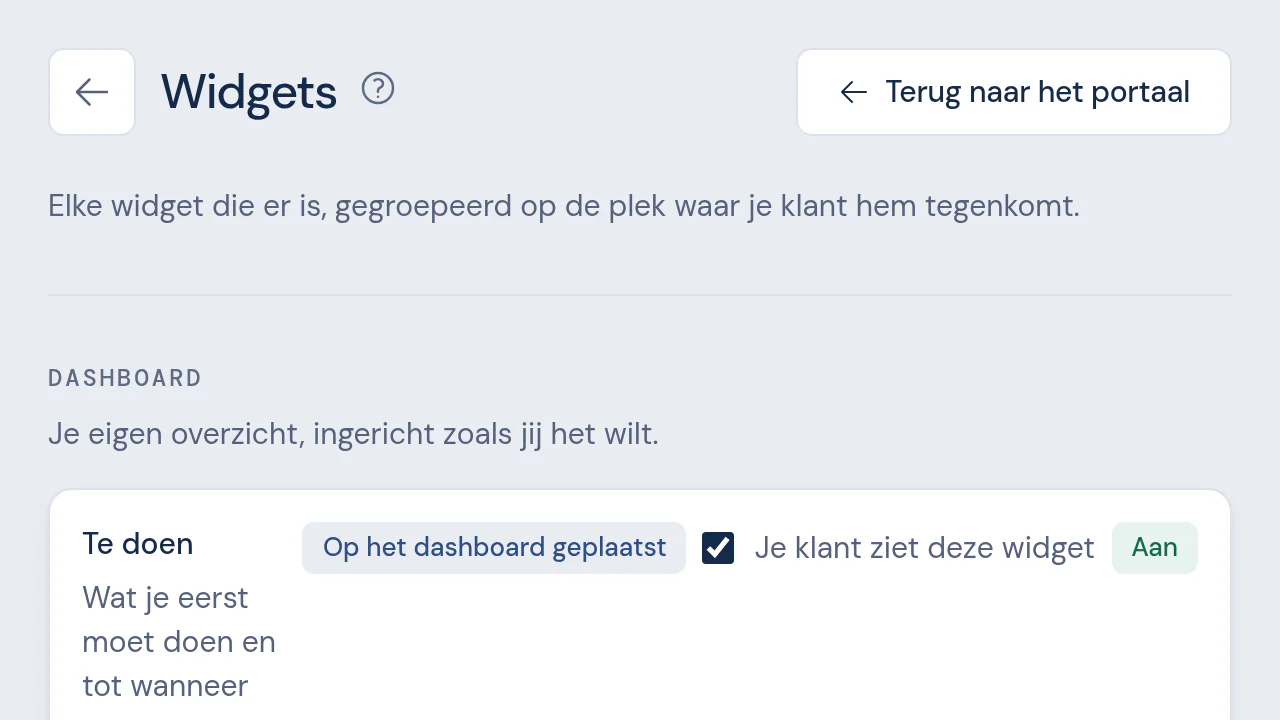
If you switch the widget back on later, place the card on the dashboard again.
The Widgets page groups the widgets by where your client comes across them, such as To do and Upload. Each widget is On or Off. Under Upload you switch these cards on or off separately:
- Invoices by mail: the addresses to forward invoices to, and what arrived by mail.
- Invoice mailbox: your client links a mailbox of their own that only receives invoices.
- Invoices from websites: your client connects a supplier's website.
Your client's settings page has the Link your invoice mailbox card. It follows Invoice mailbox. If Invoice mailbox is off, that card disappears and the Widgets page says 'Off while Invoice mailbox is switched off.' You can't switch off other settings cards.
Watch out
Had you switched Invoices by mail off before Invoice mailbox became a card of its own? Then your client now sees Invoice mailbox and can link a mailbox. Switch Invoice mailbox off too if you don't want that.
Further reading
Still stuck? Email [email protected] or call +31 6 57867535.