Topics
How your client signs in: email or unique link
Your client gets into the portal in one of two ways: a sign-in email per person or one secret link. How to choose, and how each works.
Before you start
- You have the Manage portal access permission. An Administrator always has it.
- The portal already exists. If not, read Create a client portal first.
Screenshots show boeq's Dutch interface.
You choose the sign-in method for each portal, on the Access tab.
| Method | How your client gets in | Choose this if |
|---|---|---|
| Sign-in by email | Each person signs in separately with a link or code sent by email. | Several people at your client use the portal, or you want to give and withdraw access per person. |
| Unique URL | Your client opens the portal with one secret link, without signing in. | Your client doesn't want a sign-in step. Anyone with the link can get in. |
Set up sign-in by email
-
Open the portal and choose the Access tab.
-
Choose Sign-in by email.
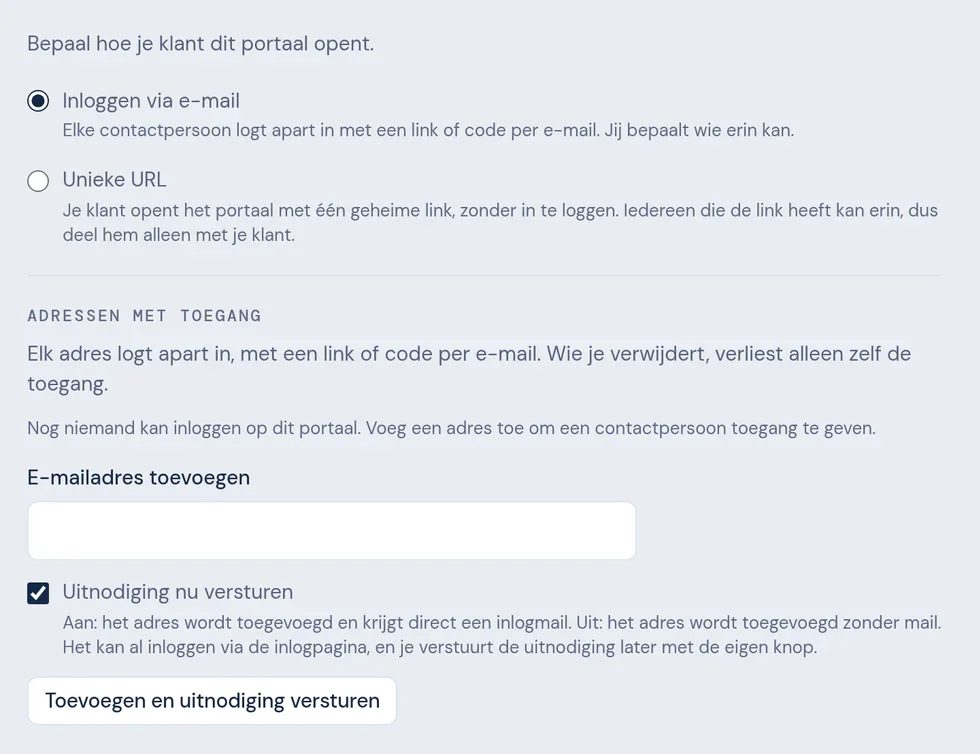
Every address that can sign in will be listed under Addresses with access. -
Enter an address under Add email address.
-
Click Add and send invitation.
Is your client using the unique link now, and is the portal open? Then step 2 won't work. First click Close for customer. Then choose Sign-in by email, add an address and click Open for customer.
If the portal is closed, switch off Send invitation now first and send the invitation later. Read Create a client portal and invite your client.
How your client signs in
Your client clicks Sign in in the email. On the page that opens, they can tick Keep me signed in on this device. Then they click Sign in.
The link works for 15 minutes. If your client clicks an expired link, they land on the sign-in page. There they request a new link with Send sign-in link. They can also enter the 6-digit code from the new email.
With Keep me signed in on this device, your client stays signed in for 30 days after their last visit.
Want to take away someone's access? Click Remove next to that address. The other addresses keep their access.
Use the unique link
-
Open the portal and choose the Access tab.
-
Choose Unique URL.
-
If the portal is open, click Switch in the window.
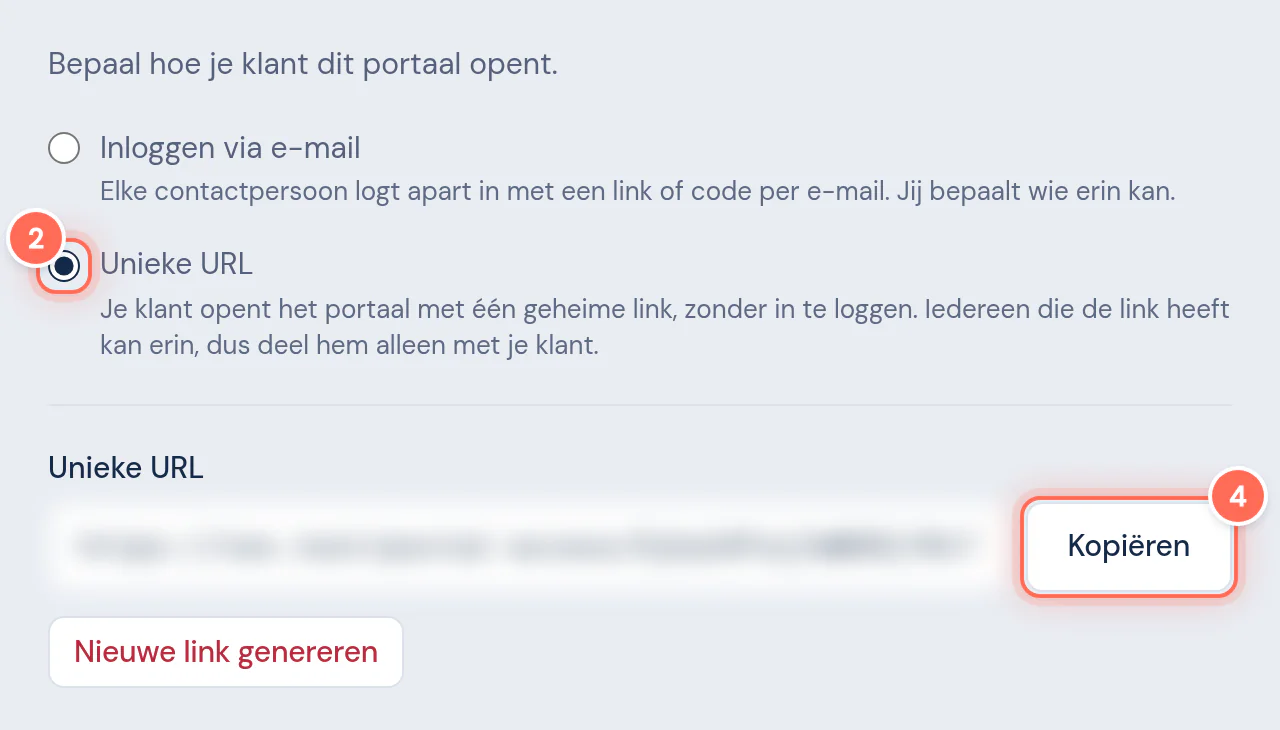
2 the Unique URL option, 4 the Copy button. The link itself has been made unreadable. -
Click Copy.
-
Send the link to your client yourself.
With this method, boeq doesn't send an email.
Watch out
Anyone with the link can get into the portal. Has the link ended up with the wrong person? Then click Generate new link. The old link stops working straight away, also as an app on the home screen.
If you go back to sign-in by email, boeq asks you to Switch too. The unique link stops working straight away after that.
Further reading
Still stuck? Email [email protected] or call +31 6 57867535.