Topics
Your house style in the client portal
Put your firm's name, logo and colours on the client portal, the sign-in page and the emails to your clients.
Before you start
- You have the Manage team settings permission. An Administrator always has it.
Screenshots show boeq's Dutch interface.
Your house style applies to all your firm's portals. You set it up once.
What changes for your client
As soon as you enter a Company name, your client sees your name and logo instead of boeq's. That applies in three places:
- the client portal;
- the portal's sign-in page;
- the emails your client gets, such as the sign-in email.
At the bottom of the portal it then says 'This portal is provided by' with your firm's name. The screens you and your colleagues use in boeq don't change.
How it works
The company name switches your house style on. Without a name, your logo and colours are kept, but your client doesn't see them.
Let Leo look up your house style
You only see this block while no Company name has been entered. Is there already a name? Then fill in the fields yourself.
-
Go to Settings › Branding.
-
Enter your firm's web address under Website.
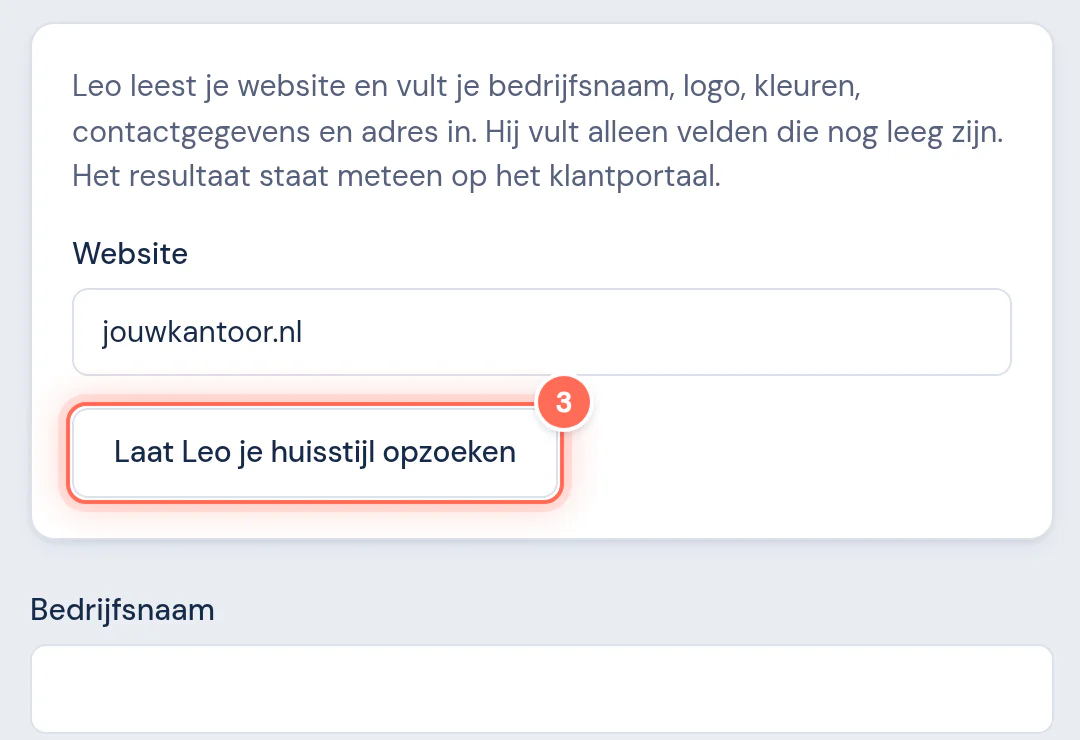
Leo only fills in fields that are still empty. -
Click Let Leo search for your branding.
Leo reads your website. That can take a few minutes. You can leave the page. Leo fills in the company name, the logo, the colours, the contact details and the address. He only fills in fields that are still empty. If Leo found a company name, the result shows on the client portal straight away. If not, enter the name yourself.
Leo has three tries. If that doesn't work, fill in the fields yourself.
Fill in the fields yourself
- Enter the Company name.
- Choose a Logo: PNG, JPG or SVG, up to 2 MB.
- Under Colours, enter a Primary colour and, if you like, a Secondary colour, for example
#2C4E86. - Under App on the home screen, you can enter an App name, Short app name and App icon.
- Enter the Contact details and the Address.
- Click Save.
Your client can put the portal on the home screen of their phone. It then opens like an app. If you leave the app fields empty, the portal uses your company name and your logo. An SVG logo doesn't become an app icon. Choose a PNG or JPG for the icon.
Want the portal on an address of your own firm too? Read The client portal on your own domain.
Further reading
Still stuck? Email [email protected] or call +31 6 57867535.