Topics
Let your client make sales invoices in the portal
Let your client make sales invoices in the portal themselves. Every final invoice comes in at your firm to be booked.
On this page
Before you start
- You have the Manage customer portals permission.
- Your client has a client portal.
Screenshots show boeq's Dutch interface.
Your client makes the invoice and emails it to their customer from the portal. They can also download the PDF and send it themselves. Your firm sees every invoice and books it in the administration.
Switch on sales invoices
-
Open Customer portals and click your client's portal.
-
Choose the Sales invoices tab.
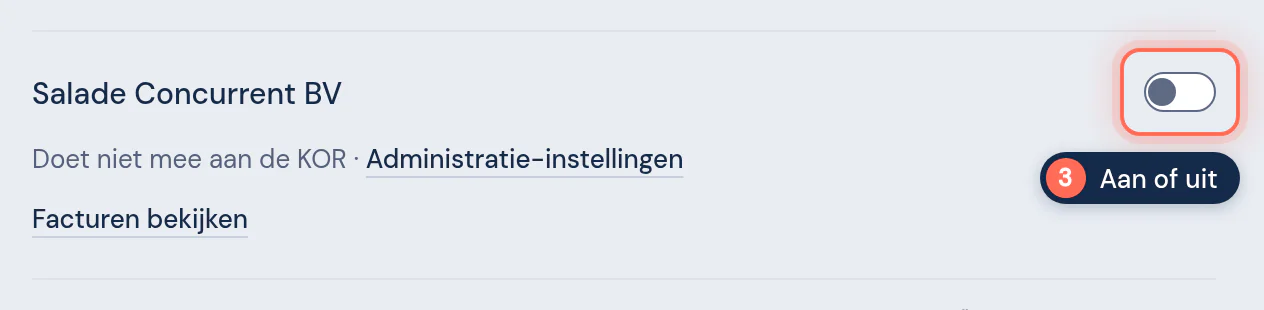
3 the switch for each administration. Below the name is the link to the invoices your client has already made. -
Turn on the switch next to the administration.
The switch applies to every portal this administration is in. Your client now sees the Invoices section in their portal. They put the New sales invoice tile on their dashboard themselves. Isn't your client allowed to arrange their own dashboard? Then add the tile yourself on the Dashboard tab.
Below the name of the administration it says whether it uses the KOR, the Dutch small business scheme. Is that wrong? Change it in Administration settings.
Watch out
Can't turn the switch on? Then read the message below it. An administration needs at least one sales VAT code.
What your client does
- Under Settings › Sales invoices, your client enters their details, such as their Chamber of Commerce (KvK) number, VAT ID and IBAN. boeq fills in part of this from the administration.
- Under Invoices, your client makes an invoice. They save customers and items while filling in the invoice.
- Your client makes the invoice final.
- Your client clicks Send by email, or downloads the PDF and sends it themselves.
A final invoice can't be changed. Your client then makes a credit note and a new invoice, as long as nothing has been paid on it yet.
Send an invoice by email
A final invoice or credit note has a Send by email button. It opens the 'Send invoice …' or 'Send credit note …' window, with the number.
- To: the address of this invoice's previous email, otherwise the customer's email address. Does the customer not have an email address yet? Then the portal saves the address your client types here.
- Subject and Message: the text from the settings. What your client changes here applies to this email only.
- Attachments: the PDF, and the UBL file if that option is on.
- Where replies go: 'Replies go to' followed by the email address from the business details. Is there no email address there? Then the window says replies will not arrive, with the Go to settings button.
Your client clicks Send. The email comes from the portal's sending address, with your client's company name as the sender. That also applies if your firm has not set up its own house style.
Below the invoice's status it then says 'Being sent to', 'Sent to … on …' with the date, or 'Sending to … failed. Please try again.' After sending, the button reads Send again. In the Invoices list, the invoice shows Sent with the date of the last email. A credited invoice can no longer be sent.
Crediting and correcting
Did an invoice go out by email and your client credits it? Then the credit note is emailed to the same address. The credit window says so beforehand: 'The credit note is also e-mailed to' followed by the address.
If your client corrects such an invoice, the new invoice is emailed to the same address, with the credit note as a second attachment. The subject is 'Corrected invoice' with the number and the company name. The screen your client corrects in says this beforehand too.
Was the invoice never emailed? Then crediting or correcting sends nothing.
Set up the email
Your client sets up the email under Settings › Sales invoices › Email.
- Subject and Message: if a field stays empty, the portal uses the standard text. In both fields your client can use {klant}, {bedrijf}, {factuurnummer}, {bedrag}, {vervaldatum} and {iban}.
- Send the UBL file along: the invoice goes along as an e-invoice next to the PDF. The customer's accounting software can read it in.
- Show preview: shows the email with From, Reply to, Subject and Attachments, filled in for the latest final invoice. If there is no invoice yet, it uses sample details.
Replies go to the email address your client fills in under Business details, on the same page.
What your firm sees
Every final invoice comes into boeq under Invoices, as a sales invoice. Leo processes it like any other invoice. Does your firm reject the invoice in boeq? Then your client sees a message that the invoice was not booked in their administration.
On the Sales invoices tab, click View invoices. You then see all invoices from the portal, with the booking status and the entry number. If a booking has failed, a red counter appears. Choose the filter with the failed bookings to find them.
Switch off sales invoices
Turn the switch off again. Your client can then no longer make new invoices. Their existing invoices stay visible in the portal.
Further reading
Still stuck? Email [email protected] or call +31 6 57867535.