Topics
Upload or photograph invoices
Do you have invoices as a file or on paper? This is how you put them in boeq, including with a photo from your phone.
-
 Leo
- Updated
- 2 min read
- Role: Member or Administrator
Screenshots show boeq's Dutch interface.
Upload files
-
Choose the administration at the top.
-
Open Invoices in the menu.
-
Click Add invoice.
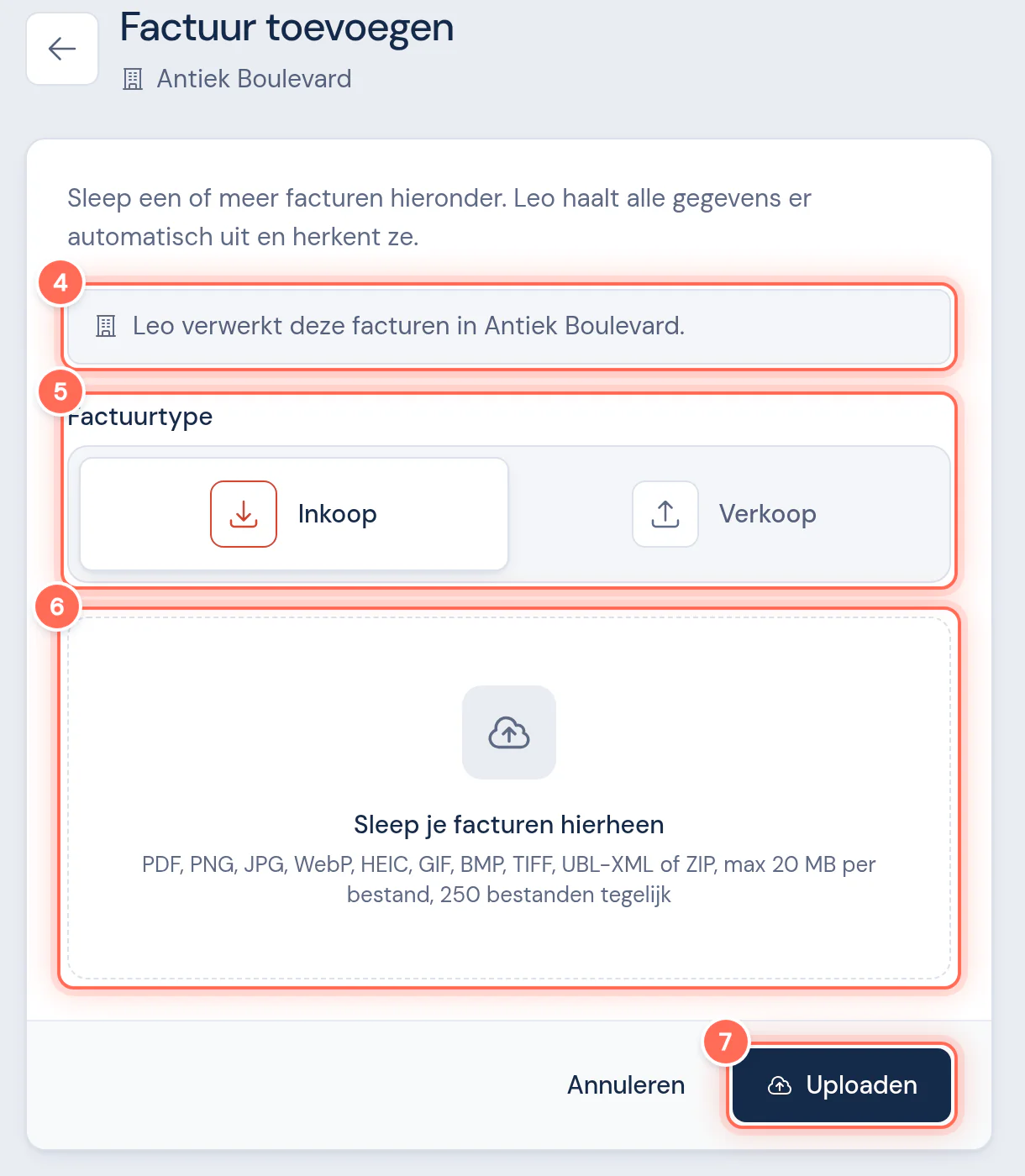
Check the administration, choose the type, drag in the files and upload. -
Check the administration. It says 'Leo will process these invoices in' followed by the name.
-
Under Invoice type, choose Purchase or Sales.
-
Drag the files into the box. Or click the box and choose the files.
-
Click Upload.
Leo starts straight away. At the top of the list, Leo is working on these shows how many invoices he is still processing. Until he is done, those invoices are in the Leo handled these view. If Leo needs you, the invoice moves to the Leo needs you view.
Which files you can upload
You can upload PDF, PNG, JPG, WebP, HEIC, GIF, BMP, TIFF, UBL-XML and ZIP. Below the box it says how large a file may be and how many files you can upload at once.
Take a photo with your phone
- Open boeq in the browser on your phone.
- Choose the administration and open Invoices.
- Tap Add invoice.
- Tap the box and choose the camera.
- Take the photo.
- Tap Upload.
Leo crops the receipt out of the photo himself. Lay the receipt flat and make sure there is enough light.
Good to know
If you chose the wrong type, wait until the invoice is in Leo needs you. Open the invoice and click the three dots. Choose Change to sales invoice or Change to purchase invoice. Leo then processes the invoice again.
How it works
If a file is already in this administration, you see a message after uploading. Leo doesn't process that file a second time.
What Leo does
Leo reads the files straight away. From a photo he first crops out the receipt. Then he prepares a booking for each invoice.
What you decide
You choose the administration and whether the invoices are purchase or sales.
Further reading
Still stuck? Email [email protected] or call +31 6 57867535.