Topics
Quick booking: clear a pile of invoices
Are lots of invoices waiting for you? With Quick booking you work through them one at a time, using the keyboard if you like.
- Level: Advanced
-
 Leo
- Updated
- 2 min read
- Role: Member or Administrator
Screenshots show boeq's Dutch interface.
Quick booking shows the invoices with the status 'Leo has a question', one at a time. Work through the list from the top. Stop when you notice you have to correct a lot.
Open Quick booking
- Choose the administration at the top.
- Open Invoices in the menu.
- Click the three dots and choose Book multiple.
To book only a few invoices, tick them in the list and click Book selected.
Work through the list
-
Choose a confidence level at the top: All, High, Medium or Low. With High, Leo expects you to book the invoice as he proposes.
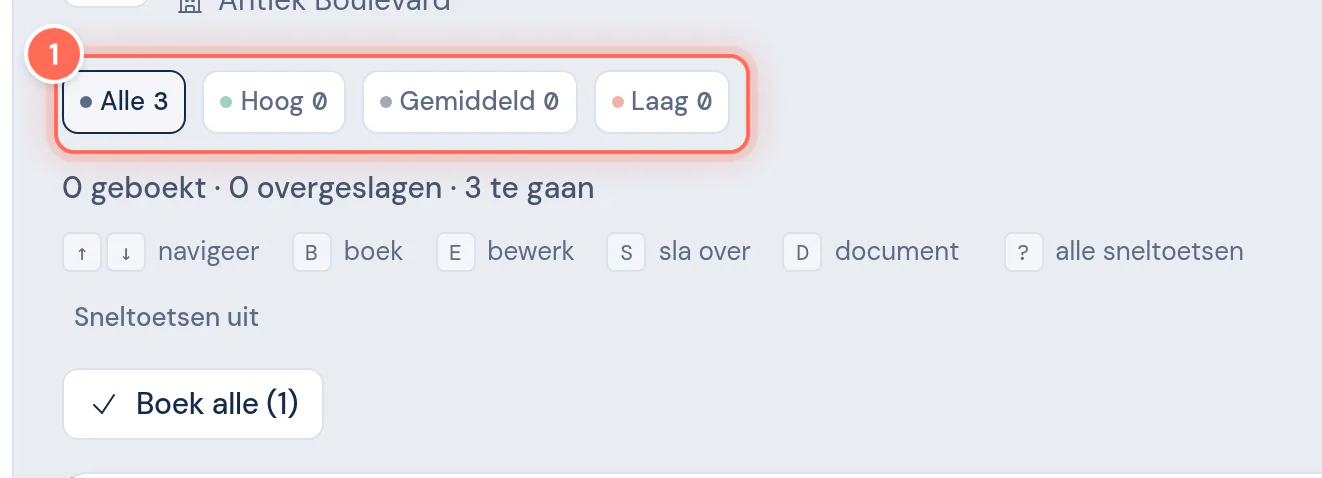
Choose a confidence level. Below it you see how many invoices you have worked through. -
Check the invoice: supplier, amount, general ledger account and VAT code.
-
If everything is right, click boeq. The button changes to Are you sure?.
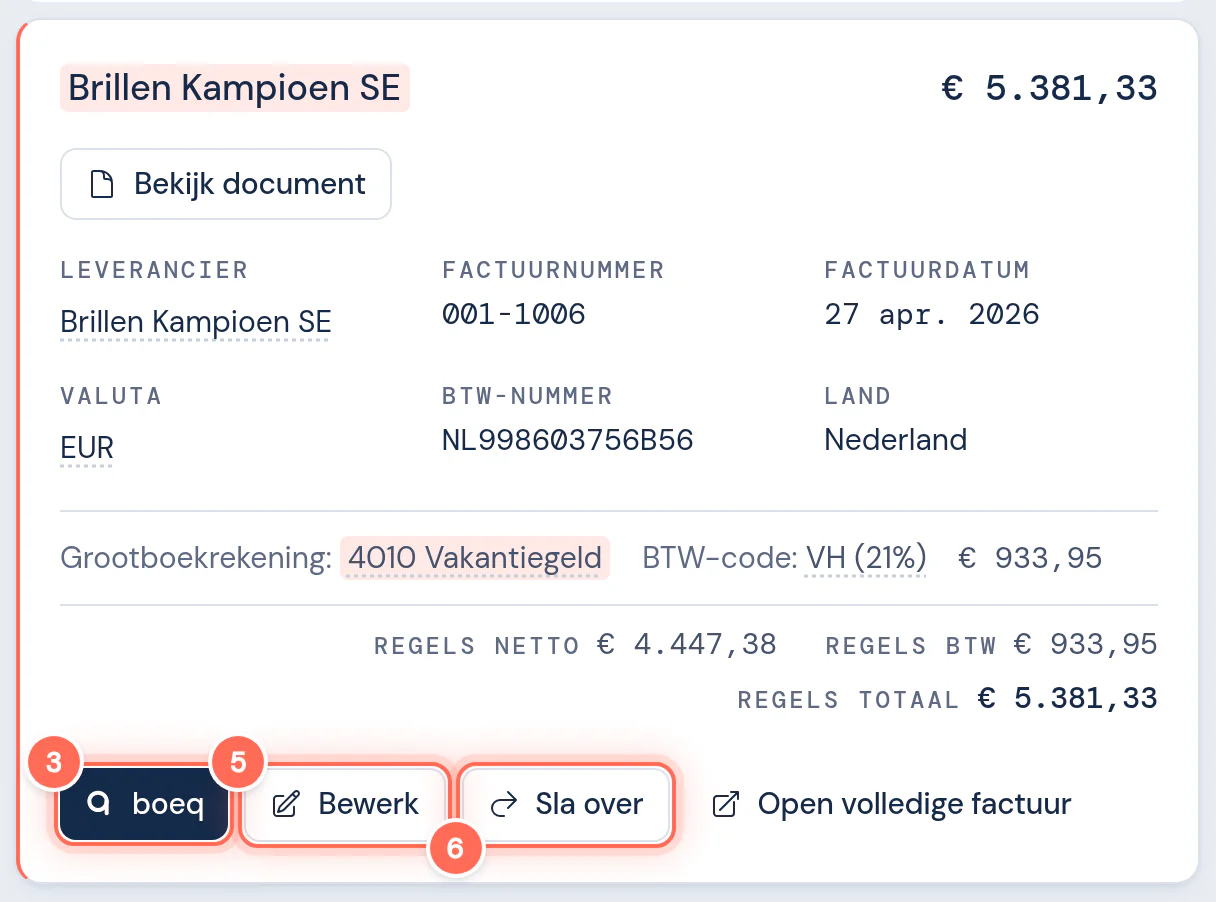
Each invoice has the boeq, Edit and Skip buttons below it. -
Click the button again to book.
-
To change a header field, click Edit. To change a booking line, click Open full invoice.
-
If you're not sure, click Skip and write briefly why. Your colleagues see that reason.
Does your firm ask for a reason for changes? Then Edit shows the Reason for change field, above Save. If you replace the supplier, a general ledger account or a VAT code that Leo proposed, Save only works once you fill in a reason. Read Correct a proposal and make Leo remember it.
At the top you see how many invoices you have booked, how many you skipped and how many are left. A red block in the card means Leo can't book that invoice here yet. Open the full invoice instead.
Keyboard shortcuts
| Key | What it does |
|---|---|
| ↑ ↓ or J K | Go to the previous or next invoice |
| B, then Enter | Book |
| E | Edit |
| S | Skip |
| D | Show or hide the document |
| Esc | Cancel |
| ? | All shortcuts |
If the shortcuts get in your way, click Shortcuts off.
Book everything at once
Book all books every invoice in the list that has no blocker in a single run, up to 25 per run. Leo skips invoices with a blocker. You confirm with Yes, book them.
Watch out
With Book all you don't check the invoices one by one. Only use it when you have already gone through the list, for example with the High filter.
What Leo does
Leo lines up the invoices he needs you for. The proposals that take the least work are at the top.
What you decide
You check each invoice and choose: book, change or skip.
Further reading
Still stuck? Email [email protected] or call +31 6 57867535.