Topics
Add, change or stop a working agreement
Record a working agreement yourself, improve its wording or stop an agreement. You also change bank rules here.
- Level: Advanced
-
 Leo
- Updated
- 2 min read
- Role: Administrator
On this page
Before you start
- You have the Administrator role, or a role with the Manage working agreements permission.
Screenshots show boeq's Dutch interface.
Add a working agreement
-
Open Working agreements in the menu.
-
Click Add agreement at the top right.
-
Under Administration, choose one administration, or Whole office.
-
Under What the agreement is about, choose the topic, for example Ledger, VAT or Bank agreements.
-
Under The agreement, write one concrete rule. For example: always book artificial plants straight to expenses, never capitalise them.
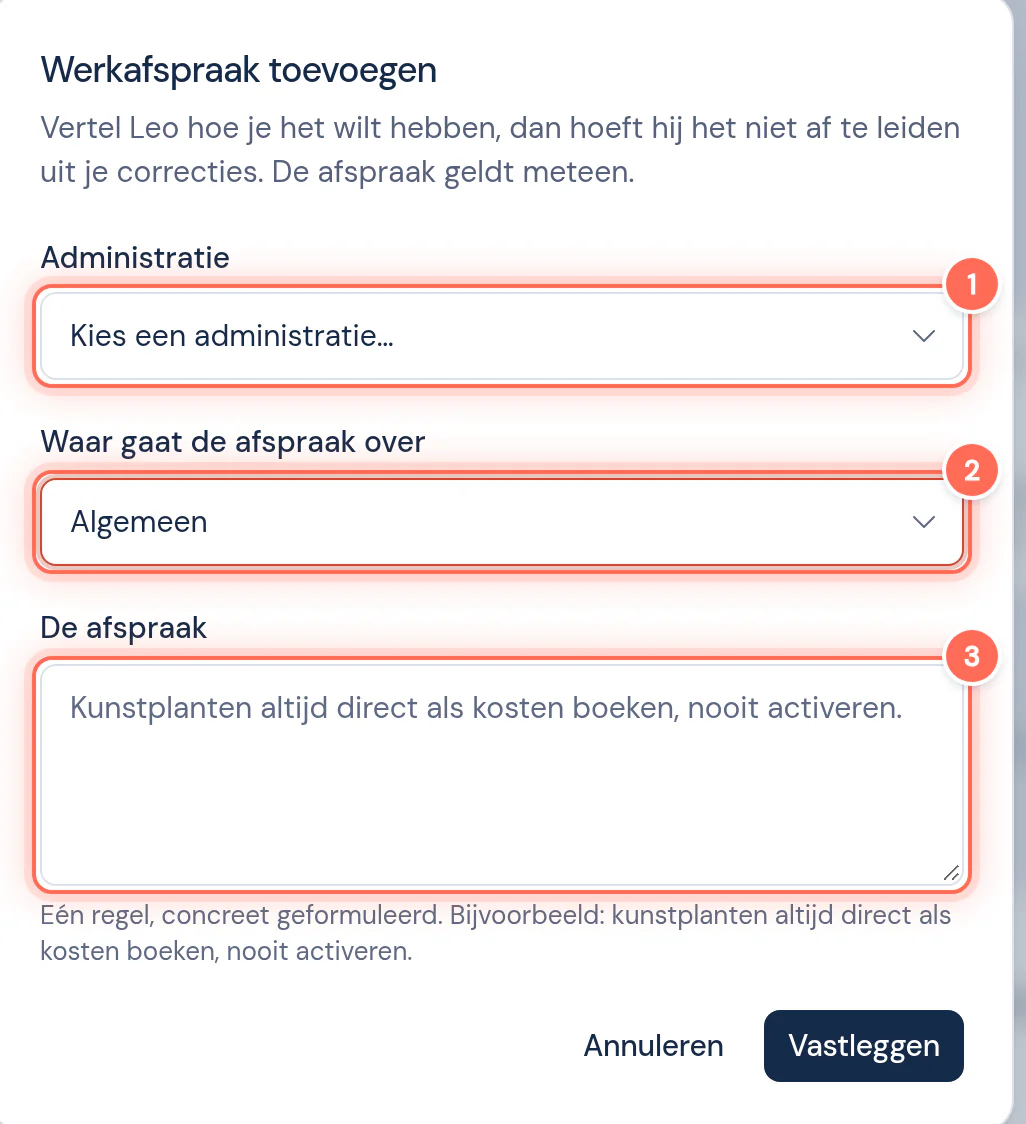
Choose the administration (1) and the topic (2), and write the agreement (3). -
Click Record.
The agreement applies straight away. Leo also takes another look at the open invoices you haven't edited yet.
The buttons on a working agreement
You find every agreement under All working agreements. Filter by Topic or Status, or search the text.
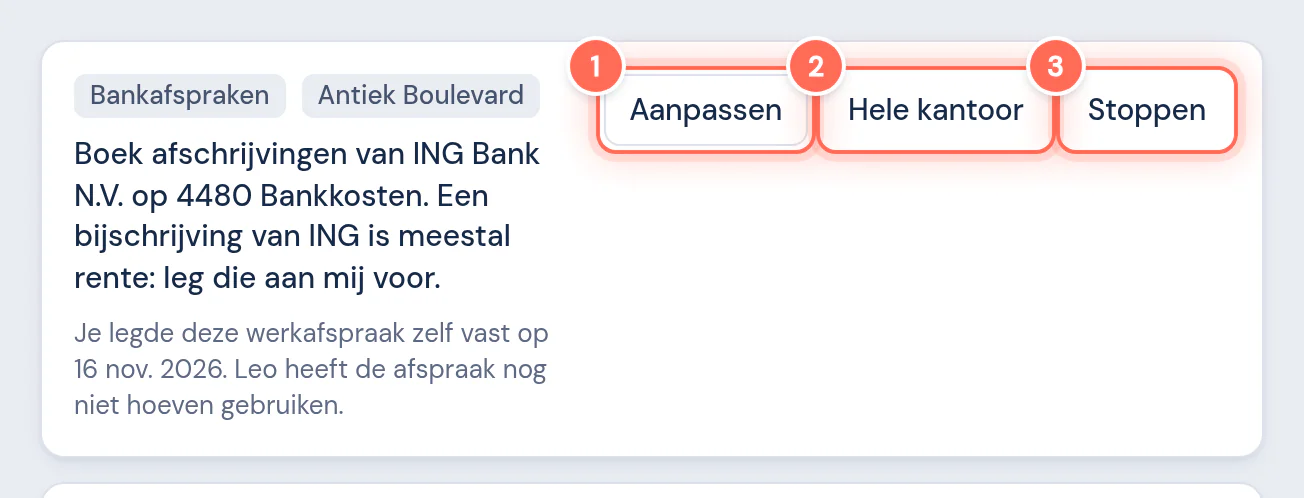
Change a working agreement
- Click Adjust on the agreement.
- Improve the wording.
- Click Save.
Leo uses the new wording from the next invoice on. Whatever he remembered under the old wording, he forgets.
Apply it to the whole firm
Click Whole office and confirm. The agreement then applies to all administrations of your firm. Does the agreement already apply to the whole firm? Then the button isn't there.
Good to know
Did you record an agreement with Remember for one supplier? Then it belongs to that supplier, and so to one administration. Such an agreement has no Whole office button. Do you want it elsewhere too? Record it there again.
Stop a working agreement
- Click Stop on the agreement.
- Confirm.
From the next invoice on, Leo no longer uses the agreement. Invoices that have already been booked don't open again. You see stopped agreements when you choose Stopped under Status. Leo also forgets what he remembered with the agreement. Do you want such an agreement back later? Add it again.
Change bank rules
- Open the Bank tab.
- Click Edit on a bank rule and choose a different general ledger account.
- Click Save.
Don't want to use a rule any more? Click Switch off. Switch on turns it back on.
A rule marked Managed in Exact comes from Exact Online. You change it there.
What Leo does
Leo applies a new agreement straight away, also to open invoices you haven't edited yet. He no longer uses a stopped agreement.
What you decide
You write the agreement and choose which administration it applies to. Your wording is what counts.
Further reading
Still stuck? Email [email protected] or call +31 6 57867535.