Topics
Journals and settings per administration
Choose per administration which journal Leo books in and whether he may create relations. This is how the Administration editing scope works.
On this page
Before you start
- You have the Manage team settings permission. The Administrator has it by default.
Screenshots show boeq's Dutch interface.
Most settings apply to your whole firm. You can set a different value per administration. You do that with the Editing scope.
Choose an administration
-
Go to Settings › General.
-
Next to Editing scope, click Administration.
-
Choose the administration in the Administration list.
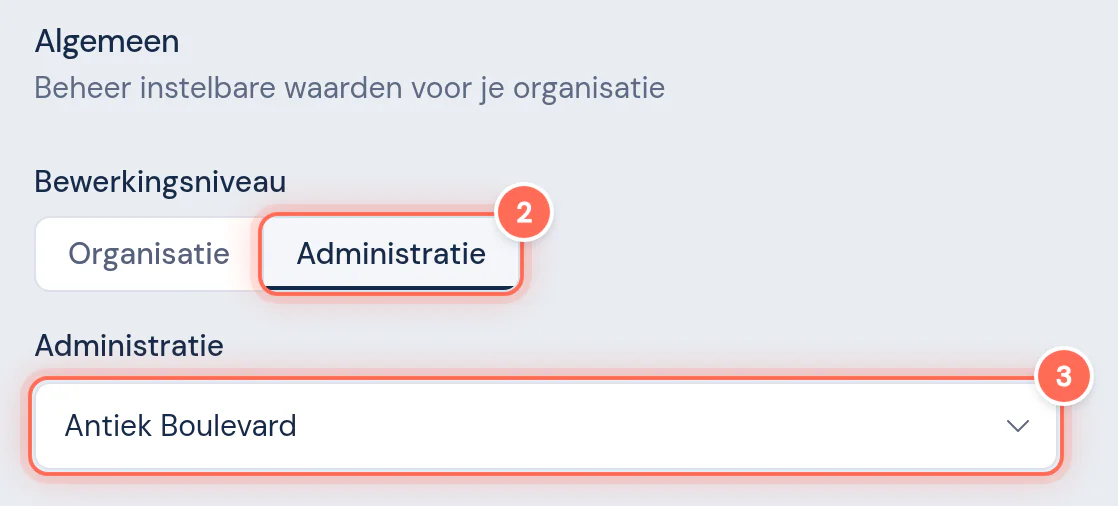
Everything you save now applies only to this administration. -
Change the setting in the Exact Online block.
-
Click Save.
If a field follows the firm, it shows From organisation or Default. Reset to inherited makes a changed field follow the firm again.
On Settings › Behaviour, the editing scope works the same way.
The fields in the Exact Online block
| Field | What it controls |
|---|---|
| Default purchase journal code and Default sales journal code | Which journal Leo books an invoice in. |
| Purchase journal per currency and Sales journal per currency | The journal for an invoice in a foreign currency. Write it like this: USD:61,CAD:62. |
| Bank journal codes, Purchase journal codes and Sales journal codes | Which journals Leo treats as bank, purchase or sales journals. Separate the codes with a comma. |
| Default payment condition code | The payment condition when the proposal doesn't have one. |
| Allow Leo to create relations in Exact | Whether Leo may add a new supplier or customer to Exact Online. On by default. |
| Extract invoice documents from Exact and Delete picked-up documents from Exact | Whether Leo fetches invoices from Scan & herken, and whether he then deletes them in Exact Online. Off by default. Sara's closing always reads Scan & herken, also when this is off, and changes nothing there. |
You only see the journals and the payment condition at the Administration level. The three switches can also be set for your whole firm. The two Scan & herken switches are also on Settings › Integrations and in the Edit administration window.
Company description and Leo's language
Settings › General has two more fields for Leo.
- Company description: what this business does. Leo uses it as context for the bookkeeping. You fill it in per administration, with the Administration editing scope.
- AI output language: the language Leo writes his explanations in. The default is Dutch. You can set it for your firm or per administration.
Where the journals come from
You usually don't need to fill in the journals yourself. Every night, boeq reads the journals from Exact Online. If a default journal is empty, boeq fills it in. boeq adds new journals from Exact Online to the lists of codes. What you filled in stays as it is.
Watch out
Re-import settings on Settings › Integrations fetches the journals again for the administrations you can open. You only see the button if you have the Manage administrations permission. The journal codes you filled in yourself are then replaced with what Exact Online has.
Further reading
Still stuck? Email [email protected] or call +31 6 57867535.