Topics
RGS version, legal form and general ledger
Set your firm's RGS version and the legal form per administration. Leo and Pieter then choose RGS codes that fit.
Before you start
- You have the Manage team settings permission. The Administrator has it by default.
Screenshots show boeq's Dutch interface.
Two settings decide which RGS codes fit: the RGS version and the legal form. RGS is the Dutch reference chart of accounts. Reports, Leo and Pieter use its codes.
Set the RGS version
The RGS version applies to your whole firm. The default is 3.5.
-
Go to Settings › General.
-
Under Editing scope, choose Organisation.
-
Choose the version under RGS version.
-
Click Save.
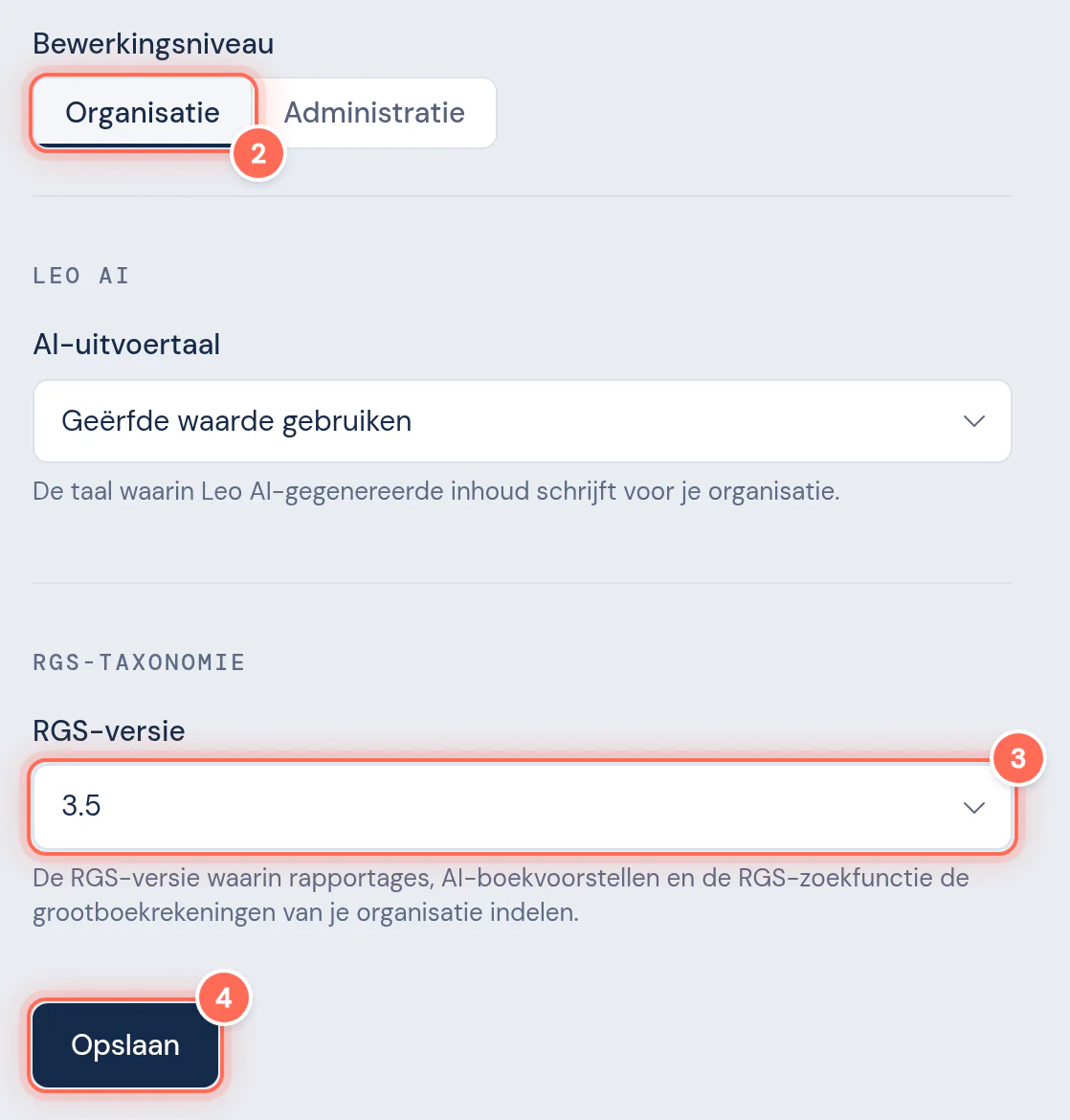
The RGS version is only shown at the Organisation level.
Reports, Leo's booking proposals and Pieter's RGS check use this version.
Set the legal form
You set the legal form per administration. Leo and Pieter then only choose RGS codes that fit that legal form.
-
Go to Settings › General.
-
Under Editing scope, choose Administration.
-
Choose the administration in the Administration list.
-
Under Legal form, choose one of the options.
-
Not sure? Click Determine legal form. Leo then fills in the field. If he can't, choose it yourself.
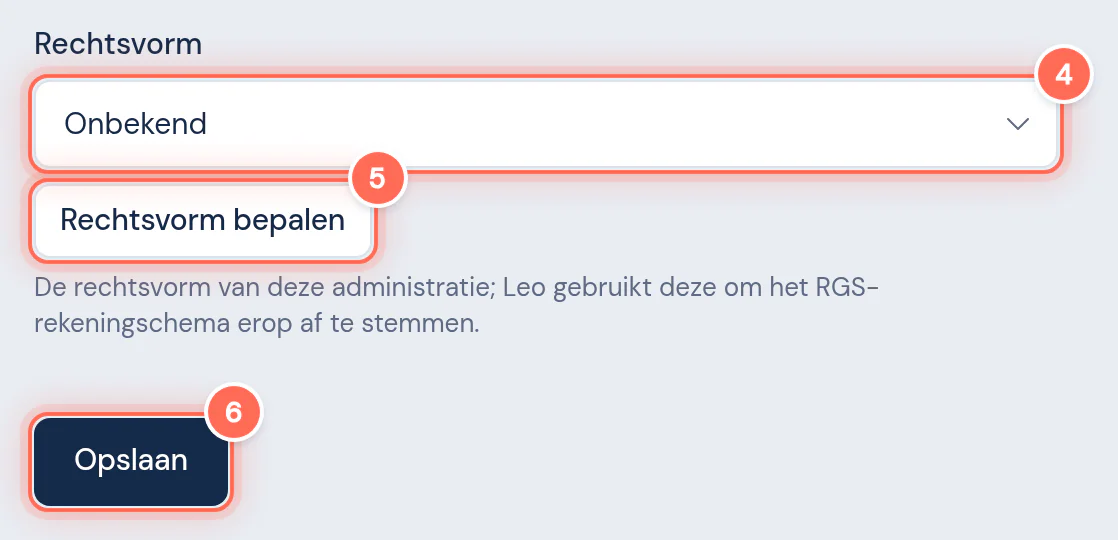
Determine legal form only fills in the field. Nothing is saved until you click Save. -
Click Save.
The options are Self-employed professional (ZZP), Sole proprietorship / general partnership (eenmanszaak/VOF), Private limited company (BV) and Housing corporation.
When a new administration is read in, Leo tries to determine the legal form himself. If he isn't sure enough, the field stays on Unknown. Then choose it yourself.
View the general ledger
boeq reads the general ledger from Exact Online. You find it under Master data in the menu. Choose an administration first.
- GL accounts shows all accounts. Click an account to see the bookings on it.
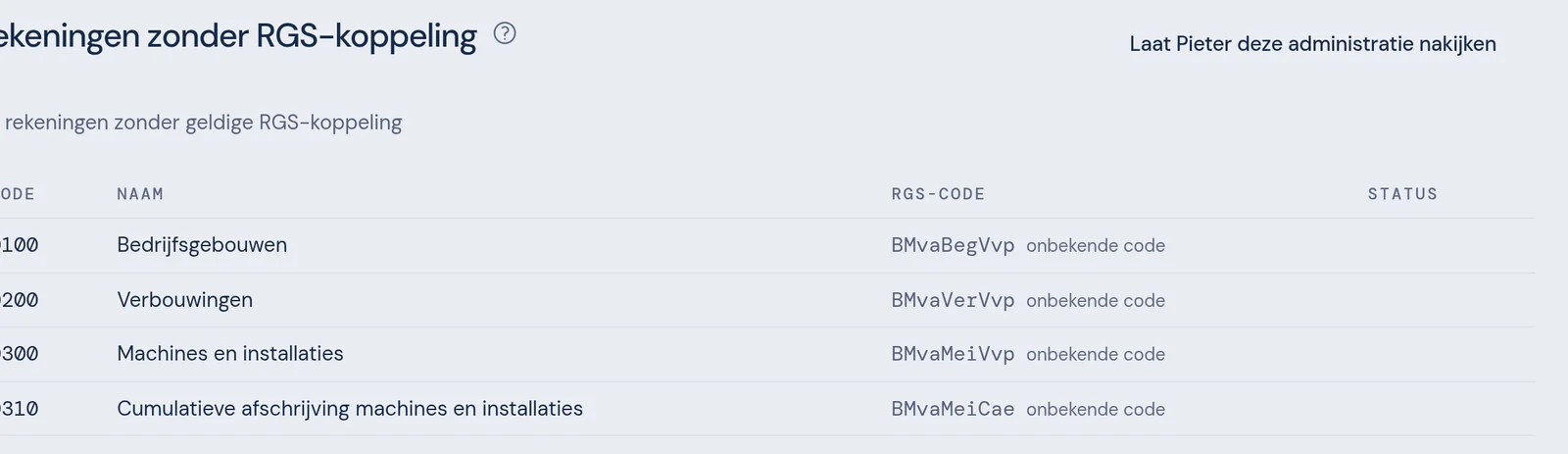
- RGS mapping shows the accounts without a valid RGS code. Reports can't classify those properly.
How it works
You don't change anything on RGS mapping yourself. Map the codes in Exact Online. Or click Let Pieter check this administration: Pieter then proposes codes, and you approve them. You see what the check costs before Pieter starts.
Further reading
Still stuck? Email [email protected] or call +31 6 57867535.