Topics
Create a general ledger account from a booking
Is the right general ledger account missing from a booking line? Create it without leaving boeq. It goes straight into Exact Online.
Before you start
- You have the Create GL accounts permission. By default only the Administrator has it.
- You have an invoice open with a booking proposal.
Screenshots show boeq's Dutch interface.
You create a general ledger account from a booking line. boeq adds the account to Exact Online straight away. It is then selected on the line where you started.
Create the account
-
In Booking lines, click the line's Ledger account field.
-
Click New ledger account at the bottom of the list.
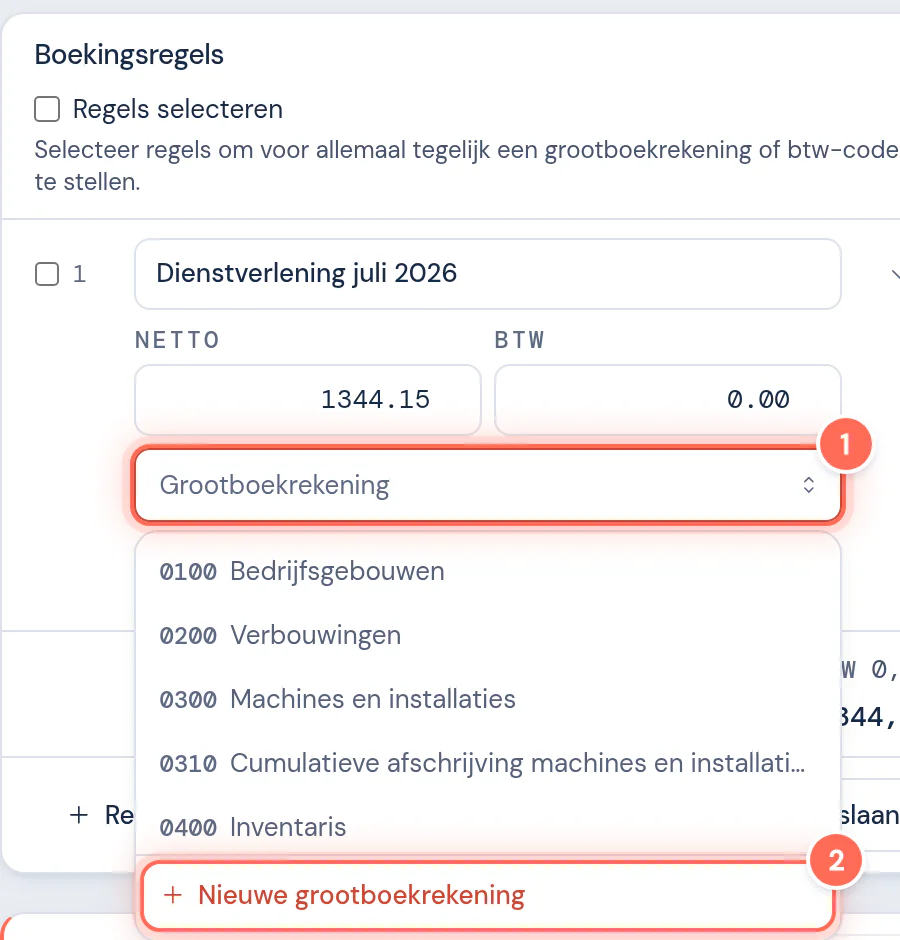
New ledger account is always at the bottom of the list. -
The New ledger account window opens. First check the Existing accounts list to the right of the form to see whether the account is already there.
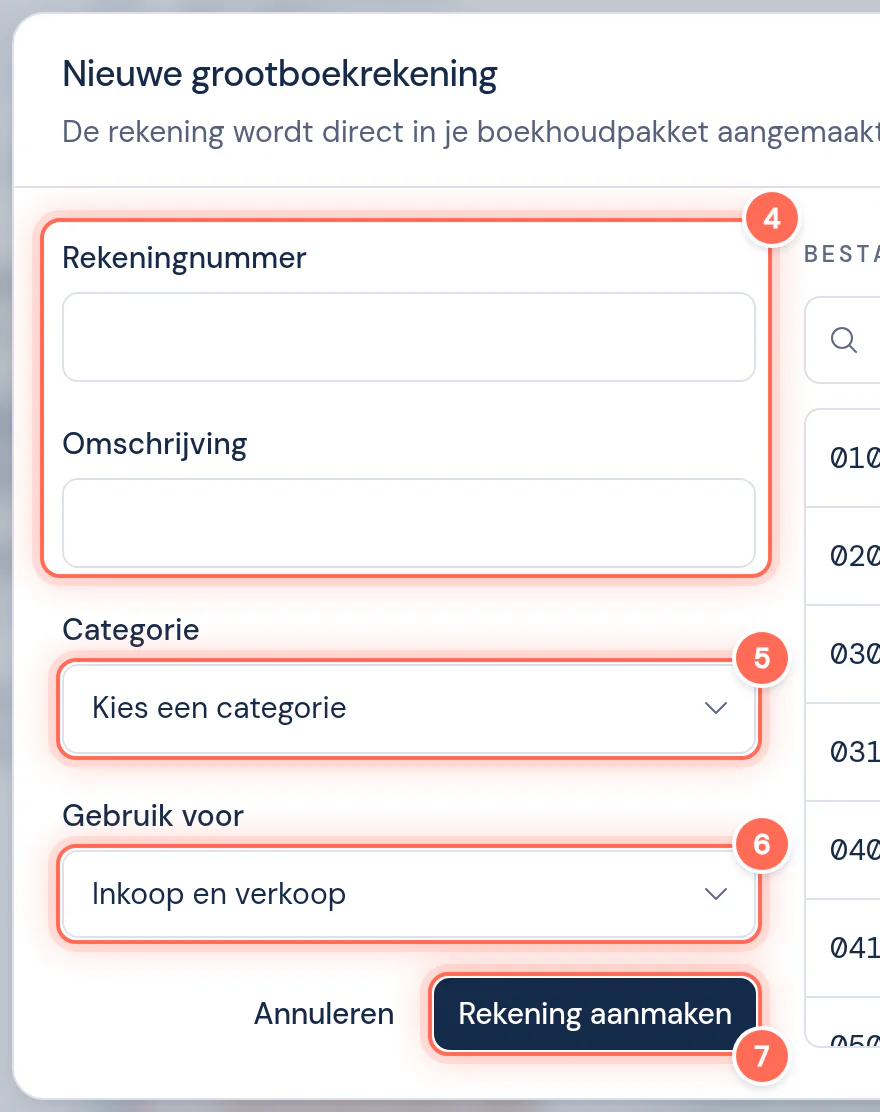
This is where you fill in the new account. -
Fill in the Account number and the Description.
-
Choose a Category: Assets, Liabilities, Revenue or Expenses.
-
Under Used for, choose Purchase, Sales or Purchase and sales.
-
Click Create account.
The account is now in Exact Online and on your booking line. Then book the invoice as usual. The new account doesn't have an RGS code yet. Read RGS version, legal form and general ledger.
This also works in Quick booking.
Good to know
Is the new account similar to an existing one? Click Copy next to that account. boeq copies the description, category and usage, and suggests a free account number.
A message when you create the account
- Seeing
Ledger account … already exists in this administration? Then choose that account in the list. - Does it say the account is blocked? Then you can't use it or create it again. Choose a different number.
- Equity isn't in the list of categories. Create that kind of account in Exact Online.
Further reading
Still stuck? Email [email protected] or call +31 6 57867535.