Topics
Approve and lock a closing
Does every check have your verdict? Then you approve the closing and lock the period in boeq. You do both under the Finish step.
-
 Sara
- Updated
- 3 min read
- Role: Administrator, or a role with Review closings and Lock closings
Before you start
- Every check that needs your verdict is approved.
- You have the Review closings and Lock closings permissions.
Screenshots show boeq's Dutch interface.
Closing takes two steps. First you approve the closing. Then you lock the period in boeq. You do both under the Finish step. After that, you close the period in Exact Online yourself.
What the Finish step holds
Open the closing and click the Finish step. From top to bottom you find:
- The control figures, such as VAT to pay and the result for the fiscal year.
- On a closing with a VAT period: Record the filed amount. Read Record the VAT return.
- Awaiting your decision: the correction entries that still wait for your decision. Read Approve and post correcting entries.
- After locking: the Period in Exact Online block. Read Download the closing file and close the period in Exact.
- The Approve block, with what still stands in the way of approval and the button.
- Sections that start closed: Correction entries, Changes, Trial balance, Draft figures (on a year closing only), Control figure history and Dossier. Click a section to open it.
Approve the closing
-
Click the Finish step.
-
In the Approve block, read what is listed under This still stands in the way of approval:. Each point is one sentence.
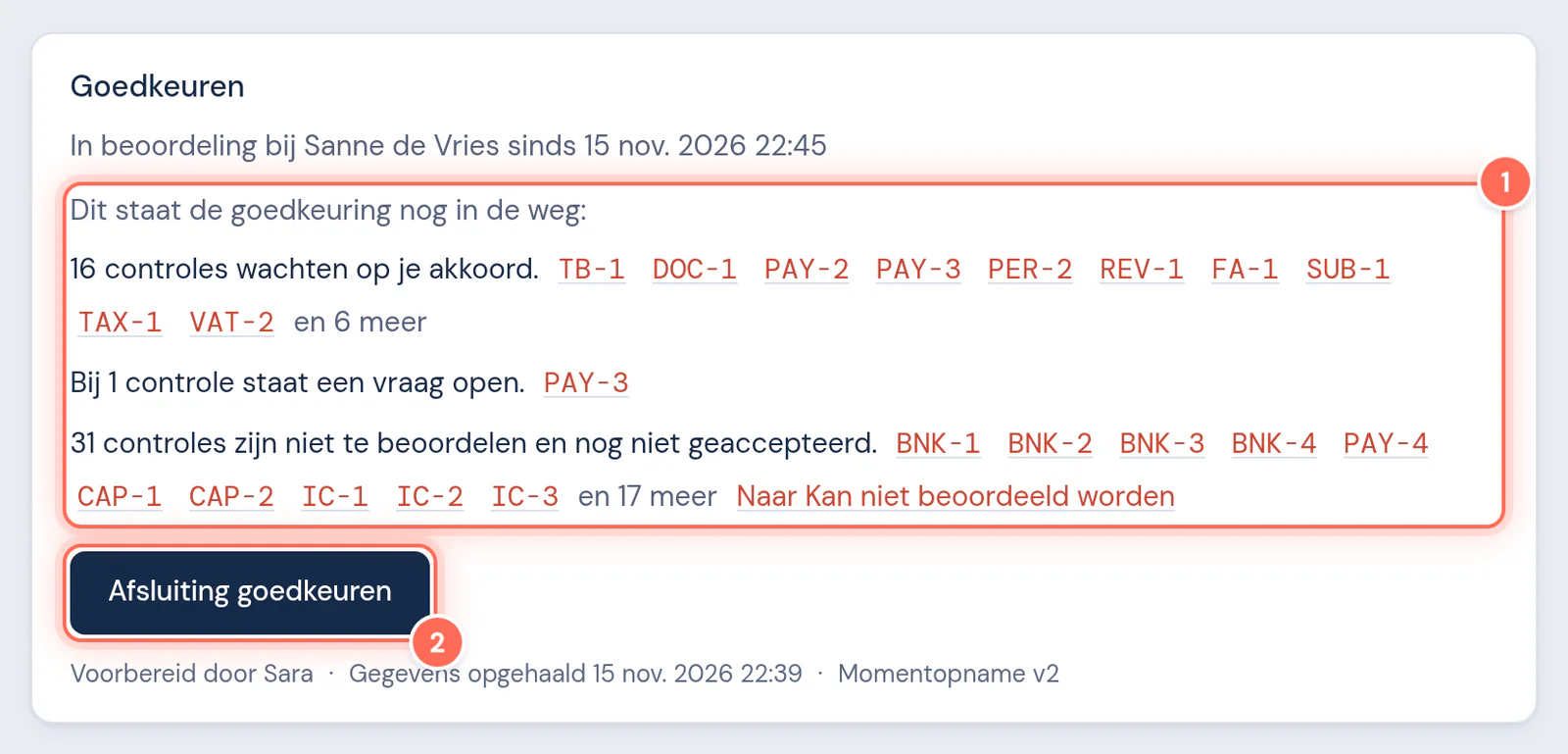
The sentences (1) say what is still open, with the codes of the checks. The button (2) is below them. -
Settle each point. Click a code to open that check, or click the link after the sentence, for example Go to client questions. What to do for each sentence is in Approving or locking fails.
-
Does it say Nothing stands in the way of approval any more.? Then click Approve closing.
-
Read the question that appears. Approving finalises the control figures and the evidence.
-
Click Approve closing again.
The status becomes Reviewed. The control figures are now final. At the bottom of the block you see who prepared and reviewed the closing, when the data was fetched and which snapshot was used.
If you approve work you prepared yourself, it says Self-reviewed. That is allowed. If your firm wants a second pair of eyes, read Set up a second approval.
Lock the period in boeq
- In the Approve block, click Lock. See also locking.
- Read the question that appears. From then on, Leo holds every booking dated in that period for review. boeq also refuses bank and sales invoice exports into that period.
- Click Lock again.
The status becomes Closed. boeq stores the closing file.
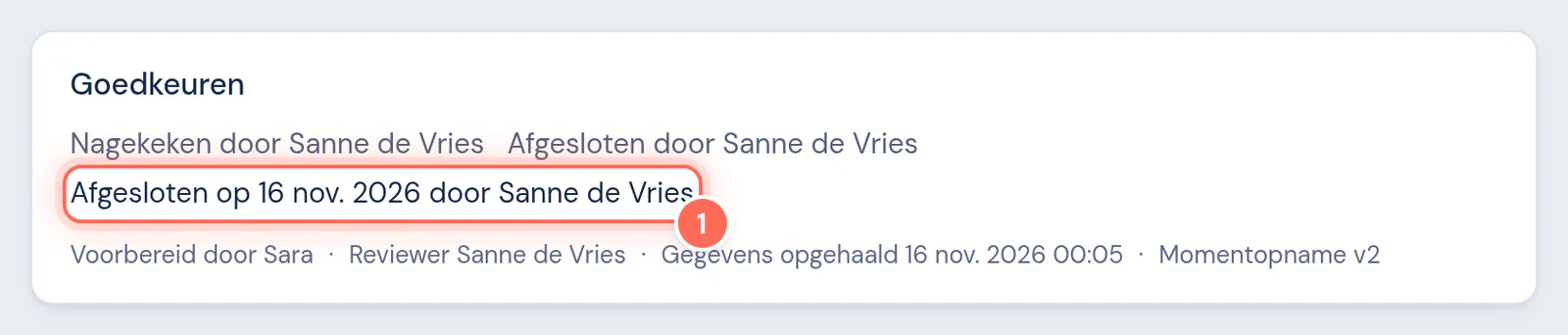
Then you close the period in Exact Online. Read Download the closing file and close the period in Exact.
If locking fails, read Approving or locking fails.
What Sara does
Sara prepares the closing. She approves nothing and locks nothing.
What you decide
You approve and lock. The closing file shows who prepared, who reviewed and who locked.
Not working?
Further reading
Still stuck? Email [email protected] or call +31 6 57867535.