Topics
Review a closing: checks and verdicts
Sara has prepared a closing. This is how you go through the four steps and the checks, and give your verdict on each check.
-
 Sara
- Updated
- 8 min read
- Role: Administrator, or a role with Review closings
On this page
Before you start
- You have the Review closings permission.
- The closing is To review or In review.
Screenshots show boeq's Dutch interface.
Open the closing
- Open Closings in the menu.
- Look under Your work, in the To review group. Each closing shows the administration, the period, what is open and the reviewer.
- Click the row.
Under Your work is every open closing of the administrations you see, in groups:
| Group | What it holds |
|---|---|
| Sara is working | Sara is collecting data, starting, preparing, reading the last documents or writing her explanations. |
| Data blocked | A technical problem holds the closing up. You only see this group when there is one. |
| Documents needed | A document still has to be asked for, or Sara read a document or could not read it and someone at your firm has to deal with that. |
| Waiting on client | Only documents the client still has to send. |
| To review | Ready for review, in review or approved. |
Each closing has one line with its state, for example 3 documents open or 4 deviations, 12 open. A group shows ten closings. Show all shows the rest. The list refreshes itself while Sara is working on a closing.
If you got a notification that the closing is ready, click Open closing in the notification. You can also pick the administration and the period at the top of Closings and click Open closing.
The four steps
Below the header of the closing are four steps. Each step shows how much is still open, for example Checks · 12. A finished step has a check mark. You can open any step at any time: click it.
| Step | What you do there |
|---|---|
| Prepare | The documents Sara needs from the client, and the client facts that checks wait on. Read Send client questions and the document list. |
| Checks | Give your verdict on each check. This is described below. |
| Client questions | Review the questions for the client and send them. |
| Finish | Correction entries, approving and locking, and sections such as Trial balance and Dossier. Read Approve and lock a closing. |
The closing opens on the step that fits. While Sara prepares, that is Prepare; after approval it is Finish. Otherwise it is the first step that still has something open.
The header shows the administration, the period and the status. On the right are the reviewer choice and the More menu, with Refresh data, Reopen and Cancel closing. Each of those three asks you to confirm first.
While Sara is still working
Is Sara still working on the closing? Then a strip with her photo sits below the steps. It says what she is doing, for example Sara is reading 2 documents. The page refreshes itself while the strip is shown.
Is the closing already at To review while Sara is still writing her explanations and assessments? Then the outcomes are final and you can start reviewing. In Closings, such a closing is listed under Sara is working.
Choose a reviewer
If you want one person to review a closing, choose a reviewer. Only that person gets the notification when Sara is done. You need the Review closings permission for this.
- Open the closing.
- At the top right, under Choose a reviewer, pick a colleague.
The choice applies straight away, also to the year closing of the same fiscal year. In Closings, under Your work, you see the reviewer of each closing.
Go through the checks
Open the Checks step. On the left is the column Checks that need you, on the right the check that is open.
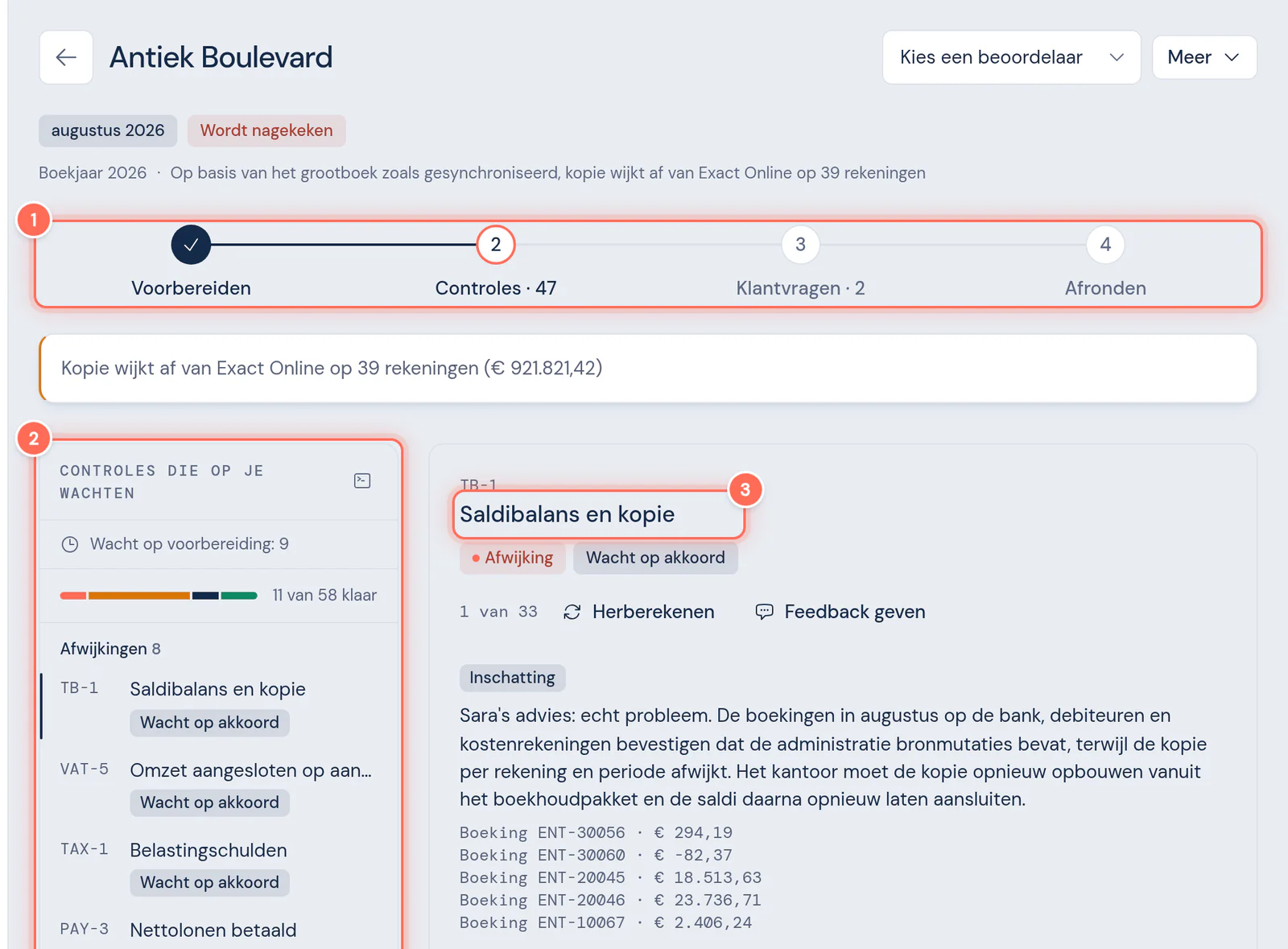
The column has three groups. Each check shows its code, its name and how far along it is, for example Awaiting approval or Question open.
- Deviations: Sara found a difference with the rule of the check.
- Open points: Sara could not assess the check, and you settle that on this page. On the screen of the check, How to settle this says what to do.
- For approval: no deviation, but the review depth still asks for your approval. That depends on the risk of the check and the time of year.
Above the groups you sometimes see Waiting on preparation with a number. Those checks wait on a document, a client trait or an account role. Click it to go to Prepare. The bar below shows how many checks are done.
Below the groups are Cannot be assessed and No findings. Read Handle checks in one go.
Want to see the whole checklist? At the bottom of the column, click Show all 58 checks. The number is the number of checks in the closing. You then see every check by list: Deviations, Missing data, Approval only and Done. The table of all checks is below. Only the checks that need you takes you back.
The screen of a check
Click a check in the column. On the right you see, from top to bottom:
- The code, the name, the outcome and how far the check is. On the right is its place among the checks still waiting for a verdict, for example 3 of 12, with Recompute and Give feedback.
- Sara's advice. Read Sara's advice: estimate and doubt.
- The Rule, the outcome, How to settle this, Sara's explanation, what Sara noticed, the amounts and the Findings.
- Evidence and History. Both are closed. Click one to open it. Evidence holds the lines from the general ledger.
- Verdict, with Approve, Question and Return.
At the bottom, Previous and Next take you to another check.
Did Sara draft questions for the client on this check? Then you see one line, for example 2 draft questions, edit under Client questions. Click it to edit them under Client questions. Want to ask something about a finding yourself? Click Ask the client on the finding. Your question goes to Client questions as a draft, and you send it from there. Does Sara propose a correction entry? Then you see a line that starts with Correction entry on and the entry date. Click it to approve or reject the entry under Finish. Read Approve and post correcting entries.
Good to know
Not sure what a button does? Hover over it. You then see what happens when you click.
Give your verdict
-
On the screen of the check, scroll to Verdict.

You give your verdict at the bottom of each check. Approve is the main button. -
Click Approve if you agree with the outcome.
-
Want to know something first? Click Question, type your question and click Send.
-
Does the work need to be redone? Click Return and type why. Does the general ledger need a correction? Then tick Correction on the accounting platform needed and choose the colleague who makes it. Click Send.
The next check without a verdict then opens. Once every check has a verdict, you see Every check has been reviewed. Click Go to client questions to carry on.
Sara tries to answer your question from the evidence. If she can't, the question goes to whoever prepared the closing.
A check that is Not assessable
For a check that is Not assessable, you can only click Approve once you have accepted the outcome.
- On the screen of the check, click Accept not assessable.
- Fill in a reason.
- Click Save.
- Click Approve.
Handle checks in one go
At the bottom of the column are two groups you handle in one go. They only show when they hold checks. Want to look at one check from such a group on its own? Click Show all 58 checks and open it there.
Cannot be assessed
Cannot be assessed holds the checks that are Not assessable and that nobody can supply this closing. For example because the data does not exist, your firm keeps the document itself, or a statutory figure or a setting of your firm is missing. Each check says what you can do. Where possible, there is a link to the settings or to the statutory figures.
-
At the bottom of the column, click Cannot be assessed.
-
Under Reason, type why you accept these checks.
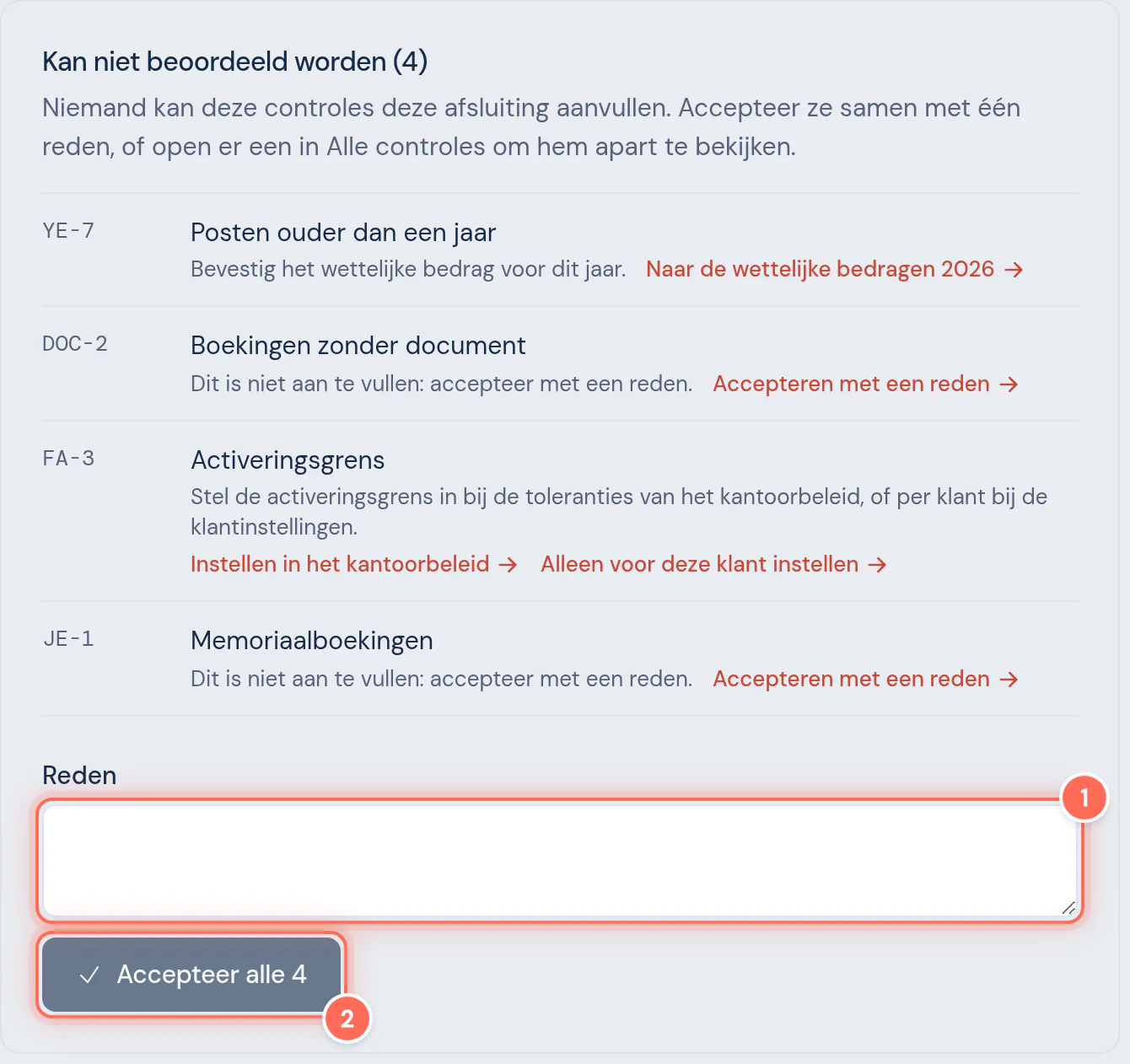
One reason (1) applies to every check on this screen. Then you click Accept all (2). -
Click Accept all, followed by the number of checks.
-
Read the line that appears. Click Accept.
boeq records the acceptance for each check, with your reason. That is the same as accepting each check on its own.
No findings
No findings holds checks without a deviation that you approved at the previous closing of this client. High-risk checks and year checks are never in it.
- At the bottom of the column, click No findings.
- Read the list.
- Click Approve all, followed by the number of checks.
Keyboard shortcuts
Keyboard shortcuts take you through the checks quickly. At the top of the column, click the icon next to Checks that need you to see every key.
| Key | What it does |
|---|---|
| J and K | Go to the next or previous check. |
| B and Enter | B gets Approve ready, Enter confirms. |
| V and T | Question and Return. |
| E | Go to the Reviewer explanation field. |
| D | Open Evidence. |
| S | Go to the next check without a verdict. |
| Esc | Close. |
Don't want the letter keys? Click Shortcuts off in the same window.
When everything has a verdict, read Approve and lock a closing.
What Sara does
Sara runs the checks, explains each outcome and gives advice. She never gives a verdict herself.
What you decide
For each check you choose Approve, Question or Return. Only then do you approve the closing.
Further reading
Still stuck? Email [email protected] or call +31 6 57867535.