Topics
Download the closing file and close the period in Exact
When you lock a closing, boeq stores the closing file. This is how you download it, and how you also close the period in Exact Online.
-
 Sara
- Updated
- 2 min read
- Role: Administrator, or a role with Download exports
Before you start
- The closing is Closed.
- You have the Download exports permission. Administrator has it.
- You have access to the client's administration in Exact Online.
Screenshots show boeq's Dutch interface.
When you lock a closing, boeq stores a closing file. It is the evidence of the closing. It holds the checks with their outcome and your verdict, the control figures and the correcting entries. It also holds the open points and questions, and who prepared and who reviewed.
This closing file belongs to one closing. It is not the same as Sara's Dossier in the menu.
Download the closing file
-
Open the closing.
-
Click the Finish step.
-
At the bottom, click Dossier. The section opens.
-
Next to the version you want, click Download.
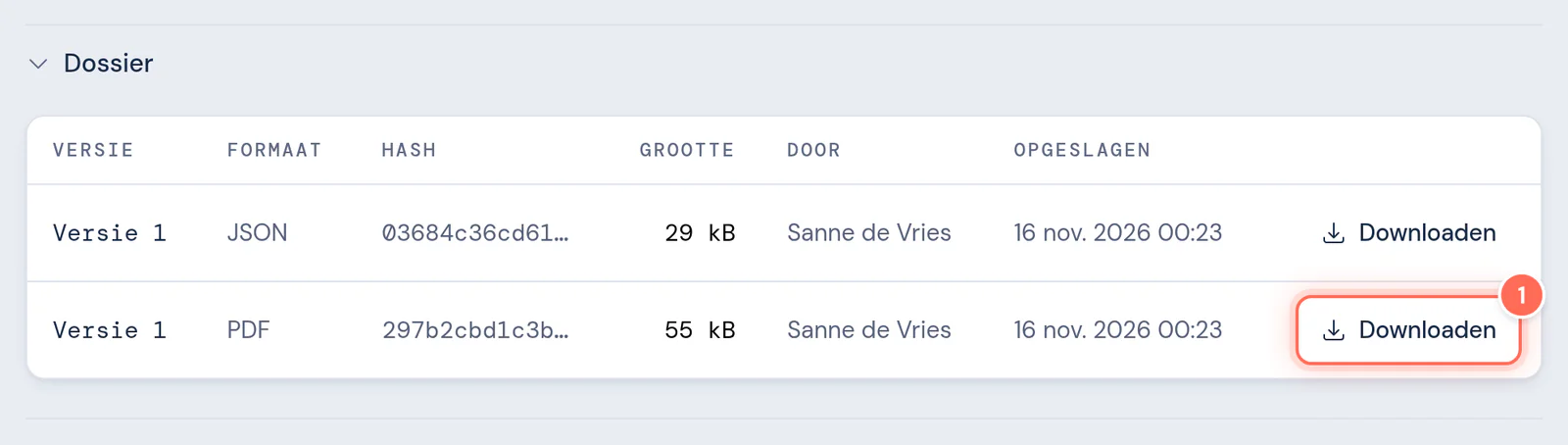
Each version is there as JSON and as PDF. Download (1) gets you the PDF.
Is the closing not locked yet? Then there is no version yet. Working paper (draft) downloads the working paper as it stands now. That draft is not part of the closing file.
The PDF is the file to read and keep. JSON is for software. The Hash column shows a fingerprint of the file. With it you can show later that the file hasn't changed.
You also find the closing file with the administration. In the closing, click the arrow next to the name. The Dossier column lists every version.
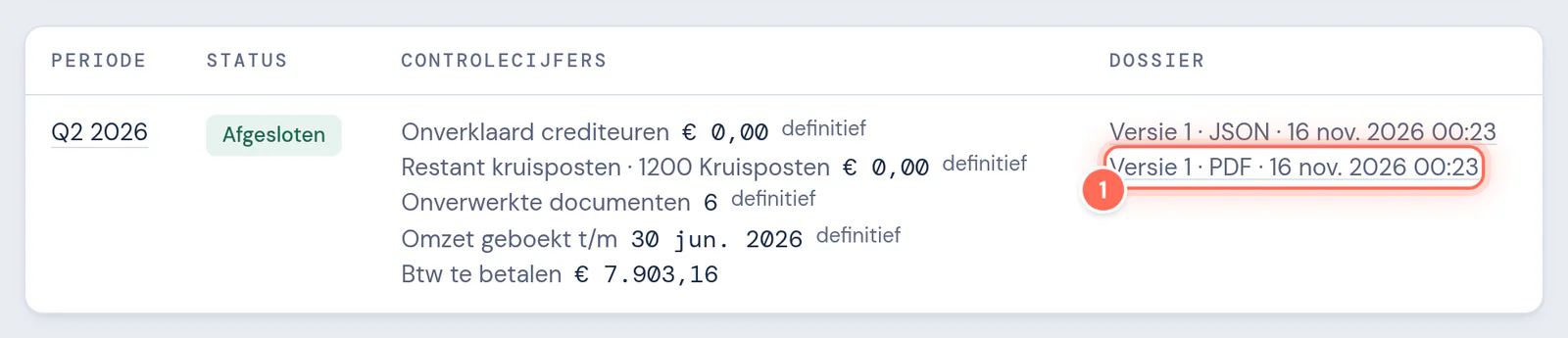
If you lock a closing again after reopening it, a new version is added. The old version is kept.
Close the period in Exact Online
boeq doesn't close the period in Exact Online. You do that. The Finish step then shows the Period in Exact Online block with the status Pending. It says what you need to close, for example:
Close journals 10, 20, 90 for periods 4 to 6 of 2026 in Exact Online
- Open the client's administration in Exact Online.
- Close the journals and periods that boeq names.
- Wait until boeq sees it. boeq checks Exact Online every hour. Once the period is closed, the status becomes Confirmed.
If the status is still Pending after more than three days, you get a reminder: Platform lock pending. The next closing of this client also checks whether earlier periods are closed.
How it works
boeq keeps watching the general ledger of a locked period. If something changes after all, or the period opens again in Exact Online, you get the notification Locked closing changed. Read Reopen a closed period.
What Sara does
Sara prepares the closing. Once you have locked it, boeq checks every hour whether the period in Exact Online is closed.
What you decide
You close the period in Exact Online. Sara never does that.
Further reading
Still stuck? Email [email protected] or call +31 6 57867535.