Topics
Confirm the client profile
Sara works out from the books what kind of client it is. Confirm that profile, and Sara knows which checks apply to this client.
- Level: Advanced
-
 Sara
- Updated
- 3 min read
- Role: Member or Administrator
Before you start
- You have the Prepare closings permission. Member and Administrator have it.
- The administration is connected and imported.
Screenshots show boeq's Dutch interface.
The profile decides which checks belong with a client. If a client has no staff, the payroll checks are not needed. Confirm that, and Sara skips them.
Confirm traits
-
Open a closing of the client and click the arrow next to the name of the administration. That takes you to the administration's page.
-
Open the Confirm profile tab.
-
Read the value of each trait. Below it you see what Sara bases it on.
-
If the value is right, click Confirm.
-
If the value is wrong, click the button with the right value, for example No, it is Yes.
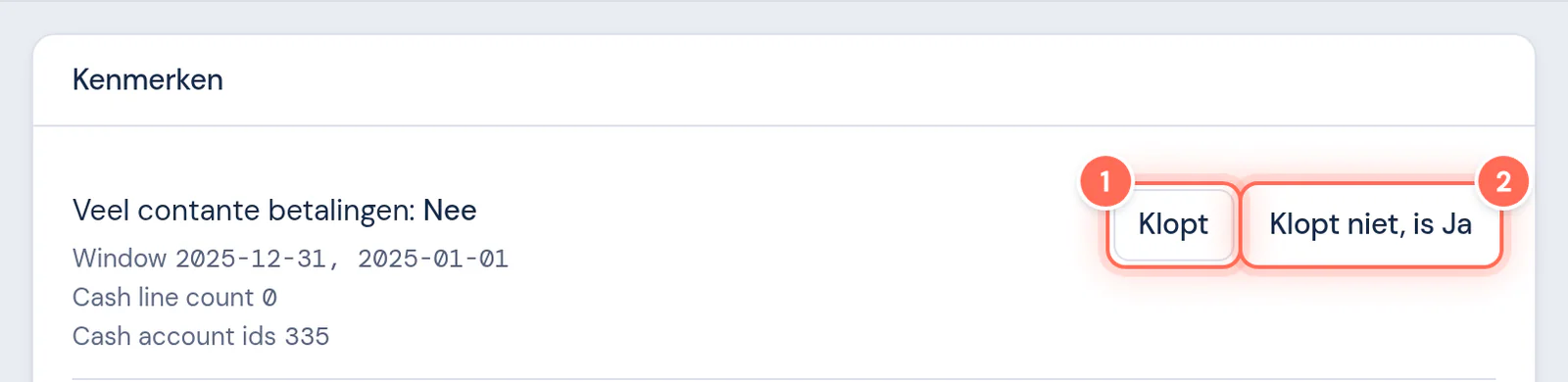
Click Confirm (1), or choose the right value (2).
The trait gets Confirmed with the date. If the client changes later, click Change next to the trait and choose Change to with the new value.
How it works
A check goes to N/a if you confirm a trait that rules it out. It also goes to N/a if Sara sees that the accounts it needs are missing or have no movements. A trait that has not been confirmed yet does not rule out any check. In every closing, Client traits match the data checks whether the confirmed traits still fit the books.
Confirm traits from a closing
Is a check of a closing waiting on a client trait? Then that trait is listed under the Prepare step, under Client facts. You only see that section when a check of this closing waits on a trait.
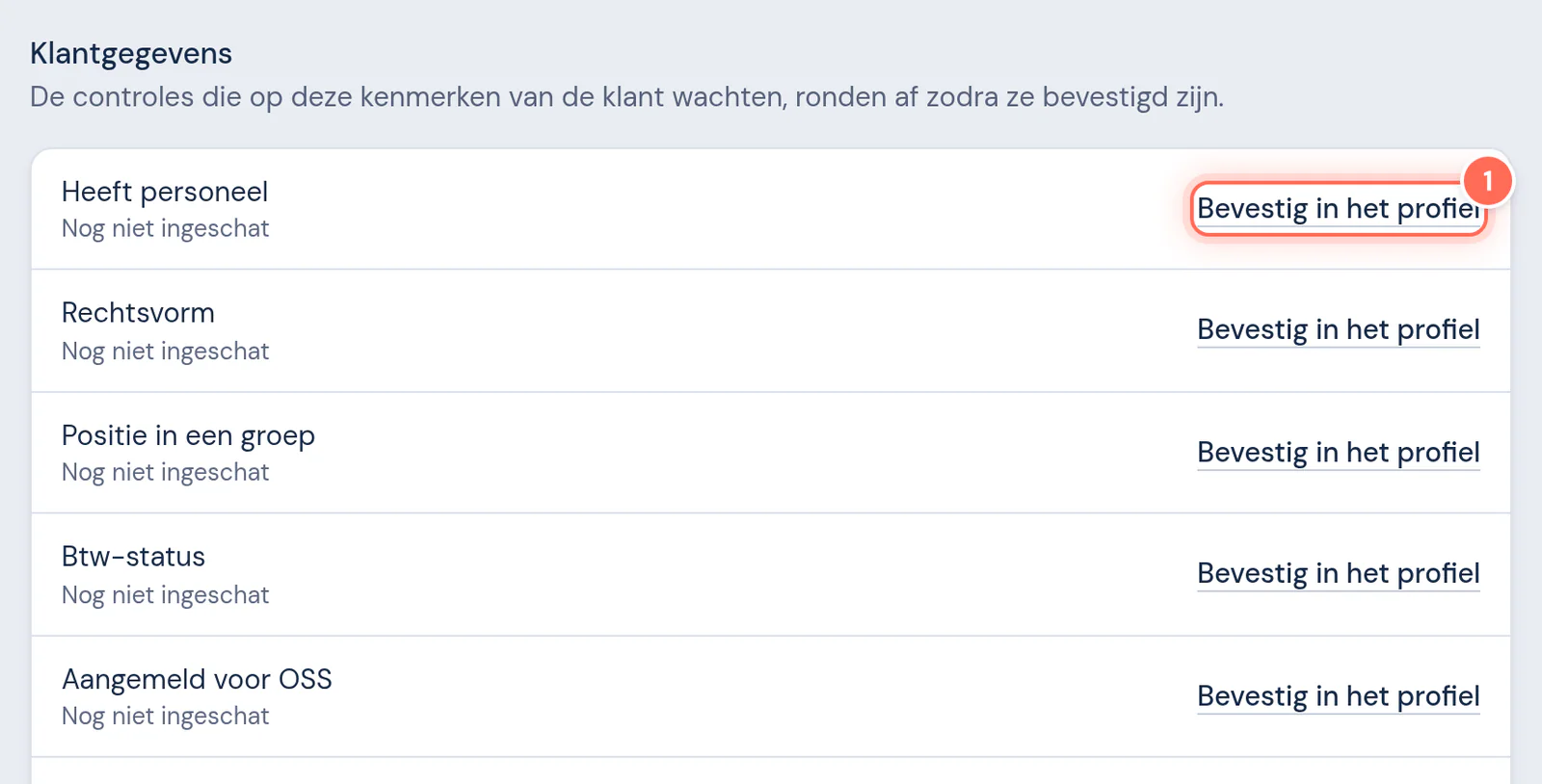
- Sara's guess: Sara derived the value from the books. You see her reason and the records she cites. If the ledger check read something else, that is shown too. Is it right? Click Take over.
- Take over all: takes over every guess on the list in one go. The number is in the button. Sara then runs the closings that wait on these traits again, once.
- Not guessed yet: Sara has not proposed a value. Click Confirm in the profile to confirm the trait on the administration's page.
Confirm account roles
An account role says what a general ledger account is, for example a bank account or a loan. Sara needs that role to reconcile an account. This card only lists roles that Sara derives from how the account is used, its name or an AI proposal.
-
On the same tab, go to the Account roles card.
-
Read the line, for example an account with the role Loan.
-
If the role is right, click Confirm.
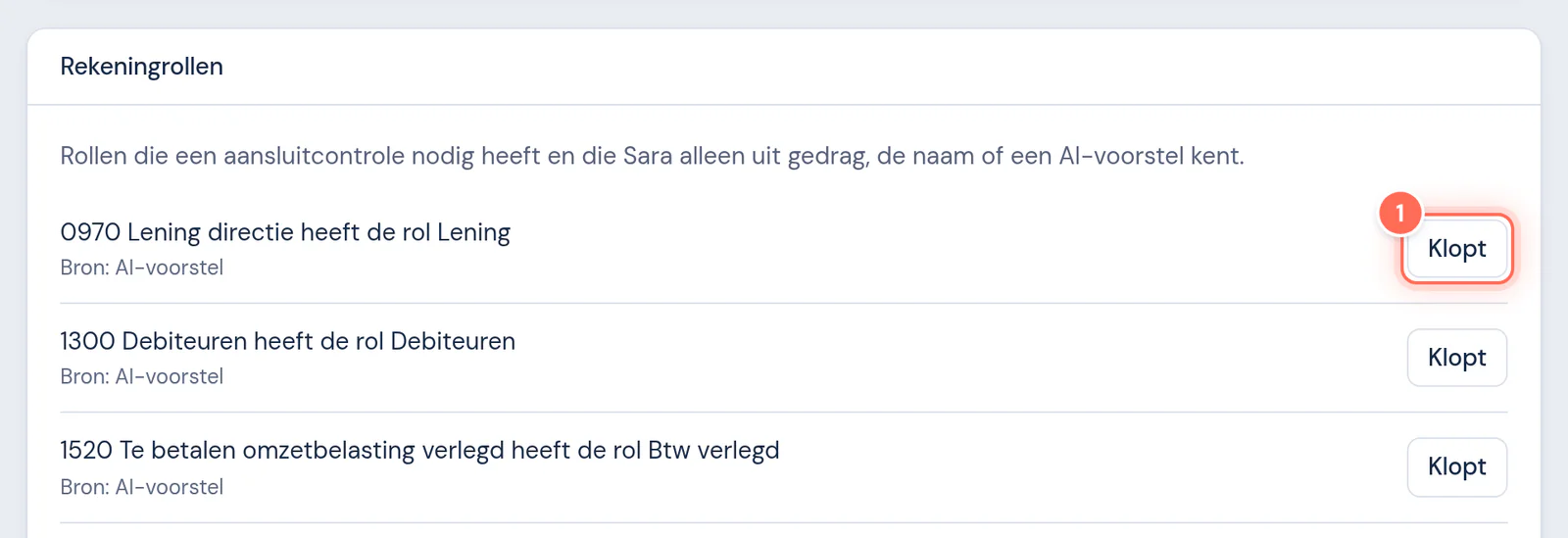
Below each role is its source. Click Confirm if the role is right.
If a role is wrong, do not click Confirm. Give the account a matching RGS code in Exact Online. Sara then reads the role from that code, and the line disappears from this card. Without a confirmed role, Sara cannot reconcile that account. A check that waits on a role is listed in a closing under Checks, at Waiting on preparation.
Confirm group links
If the client belongs to a group, Sara shows this on the Group links card, for example Holding of or Subsidiary of. Click Confirm if the link is right. A confirmed link records which administrations Sara reconciles against each other.
What Sara does
Sara derives traits, account roles and group links from the books. She shows what she bases them on.
What you decide
You confirm or correct each point with one click. Sara never confirms anything herself.
Further reading
Still stuck? Email [email protected] or call +31 6 57867535.