Topics
Add your own checks
Does your firm do a check at closing that Sara does not know? Add it to the checklist. Someone at your firm carries it out and records it.
- Level: Advanced
-
 Sara
- Updated
- 3 min read
- Role: Administrator
Before you start
- You have the Administrator role, or a role with the Manage closings permission.
Screenshots show boeq's Dutch interface.
Your own check is a check that someone at your firm carries out. Sara does not run it. She does put it in every closing where it applies, with your instruction. One example is a cash count for clients with many cash payments.
Add your own check
-
Open Closings in the menu.
-
At the top right, click Settings.
-
Under Own checks, click Add own check.

Your own checks are listed one below the other in this block. -
Fill in the title and the instruction, in Dutch and in English. All four fields are required.
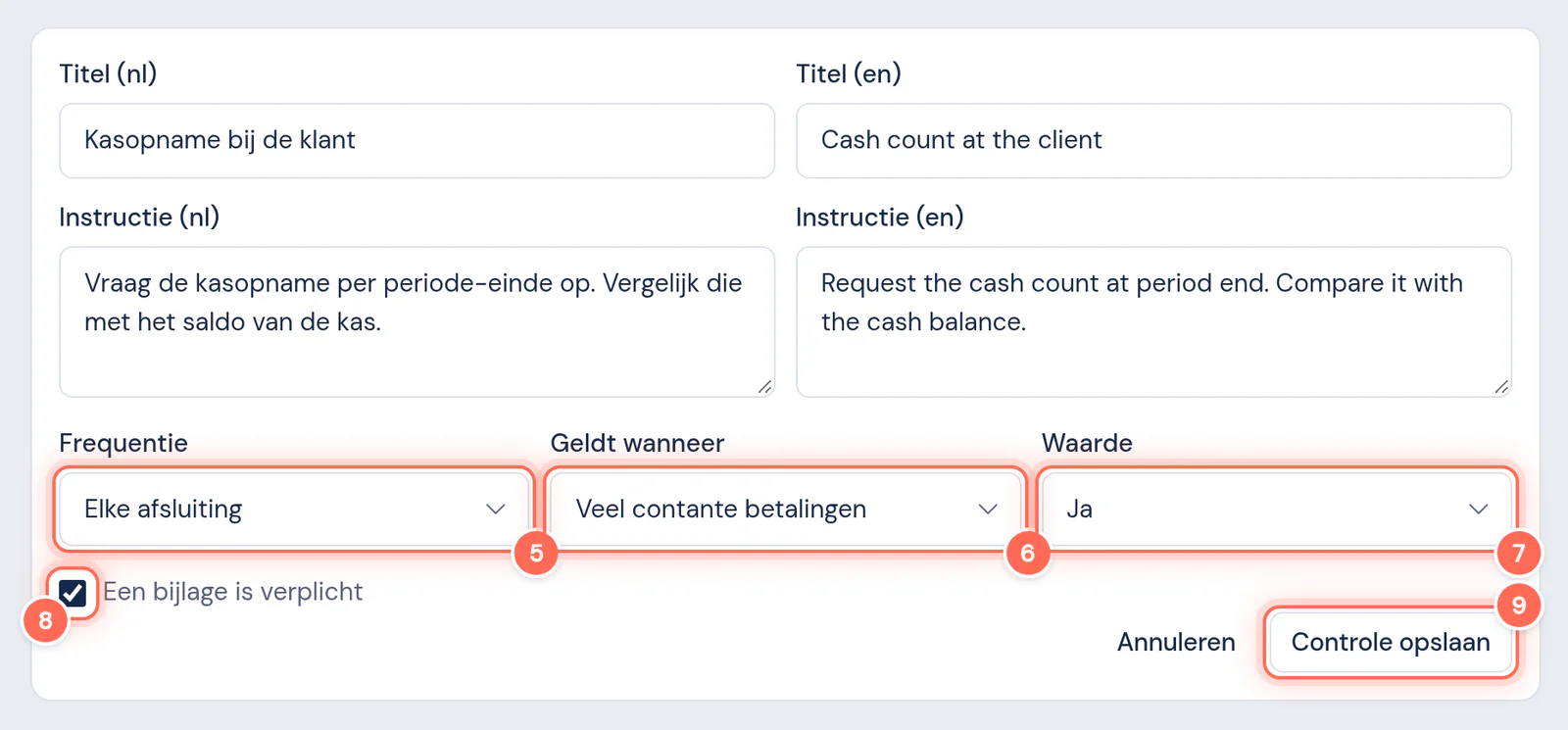
An example: Frequency (5), Applies when (6), Value (7), An attachment is required (8) and Save check (9). -
Under Frequency, choose when the check takes part.
-
Under Applies when, choose which clients the check applies to.
-
If you chose a trait, choose under Value the value for which the check takes part.
-
Leave An attachment is required on if you want to see evidence.
-
Click Save check.
To change your own check, click Edit in the list. You cannot delete or switch off your own check yet.
The choices in the form
- Frequency: choose Every closing, VAT period or Fiscal year. With VAT period, the check takes part when a VAT period ends. With Fiscal year, the check counts in the closing that ends the financial year. The choices On an event and Follow-up work like Every closing for your own check.
- Applies when: choose Always, or a client trait with a Value. For example, Many cash payments is Yes.
If the trait is confirmed for a client with a different value, the check does not take part for that client. If the trait has not been confirmed yet, the check does take part. Read Confirm the client profile.
Carry out the check in a closing
In the closing, your own check is under the Checks step. As long as nobody has carried it out, it shows Not assessable. In the table of Show all … checks it is in the Office group.
- Open the check in the closing.
- Under Note, write what you did.
- Add an attachment if needed. If it says Attachment (required), you cannot do without one.
- Click Record as performed.
- At the top right, click More › Refresh data.
Sara then recalculates the closing. After that your own check shows No deviation found. If the check needs a verdict in this period, a reviewer gives their verdict, as with any other check. Read Review a closing: checks and verdicts.
Good to know
A Member may also carry out your own check. Anyone who carries out the check and then approves it themselves sees Self-reviewed in the closing.
What Sara does
Sara puts your own check in every closing where it applies, with your instruction. She does not carry it out herself.
What you decide
You decide what the check asks and for which clients. Someone at your firm carries it out and records what they did.
Further reading
Still stuck? Email [email protected] or call +31 6 57867535.