Topics
Send client questions and the document list
Sara prepares a document list and questions for the client. You review and send them. This is how you do that, and how you read the answers.
-
 Sara
- Updated
- 6 min read
- Role: Member or Administrator
On this page
Before you start
- You have the Prepare closings or Review closings permission.
- Sara has prepared the closing.
Screenshots show boeq's Dutch interface.
For each closing, Sara prepares two things for the client. The documents she needs are together on one document list, with a line for each document. You find it under the Prepare step. Her questions are under the Client questions step. You send the list and the questions separately.
Without the authorisation for low-risk questions, nothing goes to the client until you click the button. Read Let Sara send low-risk questions herself.
The documents under Prepare
-
Open the closing.
-
Click the Prepare step. Under Documents is every document Sara needs.

Below each document are the checks that wait on it (1). On the right is how far the document is (2).
Each line shows what is asked, for example the statement of a bank account with the balance on the last day. Below it are the checks that wait on the document, with their code. On the right is one status.
| Status | What it means |
|---|---|
| Not asked yet | The document is on the list, but the client doesn't have the request yet. |
| Asked through the portal on … or Asked through the download on … | The list was sent, with the date. |
| Received | The document is in. |
| Sara is reading this document | Sara is reading the document now. |
| Sara read this document | Sara read the document. Confirm what she read, see Read the answers. |
| Confirmed | Someone at your firm confirmed what Sara read. |
| Sara could not read this document | Enter the figure yourself under Fixed data. |
| Not available: … | The client doesn't have the document. Their reason follows. |
| Added by … | Someone at your firm added the document themselves. |
If Sara needs no documents, you see Sara needs no documents for this closing.
Under Asked before are documents that were asked at an earlier closing and are still open, with Already asked in and the period. You can't change those here.
The buttons below need the Prepare closings permission.
Ask the client for the documents
- Click Ask the client for … documents. The number is in the button.
- Does the client have a client portal? Then the list goes into the portal. Your client sees your firm's name there, not Sara's.
- No portal? Then the list goes on the question list. Next to Download question list, click PDF or Excel. Send that list to your client yourself.
This button only sends the document list. You send the questions under Client questions.
Add a document yourself
Does your firm have the document itself?
- Click Add it yourself on the line.
- Drop the document in the box, or click it and choose a file.
Sara reads the document like a client upload. Then you confirm what she read. The line shows Added by with your name. If the document had not been asked yet, boeq takes the line off the client's list.
Don't ask for a document
Is a document that hasn't been asked yet not needed? Click Not needed on the line. The line leaves the list.
Continue without the documents
While documents of this closing are open, the closing waits for them. Its status is then Waiting on documents, and Sara does not put the closing up for review yet. Don't want to wait?
- Click Continue without these documents.
- Read the line that appears. It says how many documents Sara is still waiting on.
- Click Continue without these documents again.
The closing then goes to review. Checks that wait on a missing document stay Not assessable. The open lines stay on the list.
If the closing isn't waiting on documents, you see Go to the checks.
Review the questions under Client questions
- Open the closing.
- Click the Client questions step. Sara's questions are under Draft list, grouped by counterparty.
- If the wording of a question is wrong, click Edit.
- Change the text.
- Click Save question.
- If a question isn't needed, click Don't ask.
Some questions carry advice from Sara, for example Advice: do not ask or different wording. Read Sara's advice: estimate and doubt.
You don't edit questions on the screen of a check under Checks. There you see a line such as 2 draft questions, edit under Client questions. Click it to get to the questions.
Send the questions
-
Click Send … questions. The number is in the button.
-
Read the bar that appears. It says how many questions go out, where they go and who they are for.
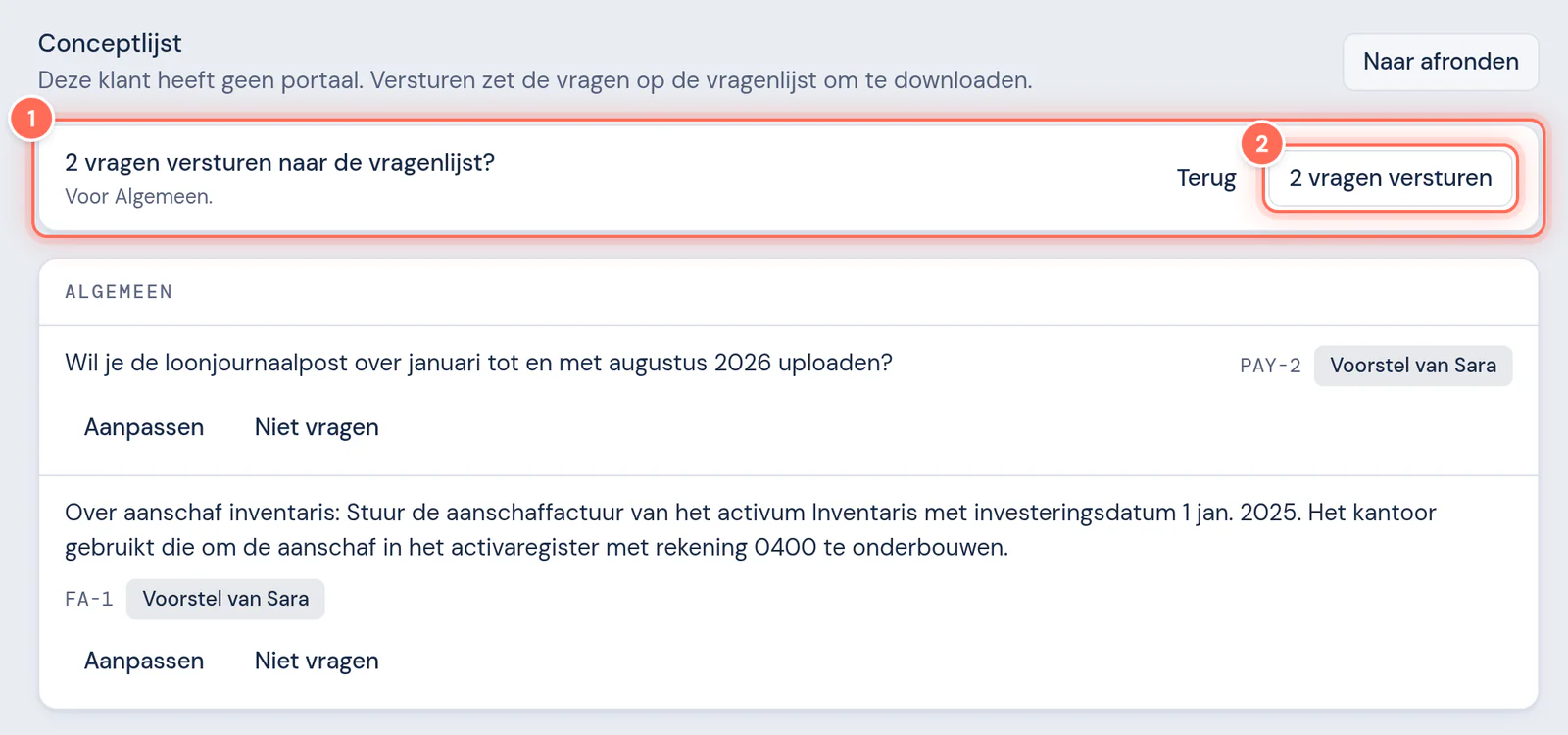
The bar (1) says how many questions go out and where they go. The button (2) sends them. -
Click the button with the number of questions, for example Send 2 questions.
This button only sends questions, never the document list. Where the questions go depends on the client:
- With a client portal: the questions appear in the portal. Your client sees your firm's name there. They don't see Sara's name.
- Without a client portal: the questions go on a question list. Under Download question list, click PDF or Excel. Send that list to your client yourself.
A question you hold back is not sent. Above the questions you see how many there are.
Done with the questions? Click Go to finish. If there are no questions, you see There are no questions for the client. with the same button.
Read the answers
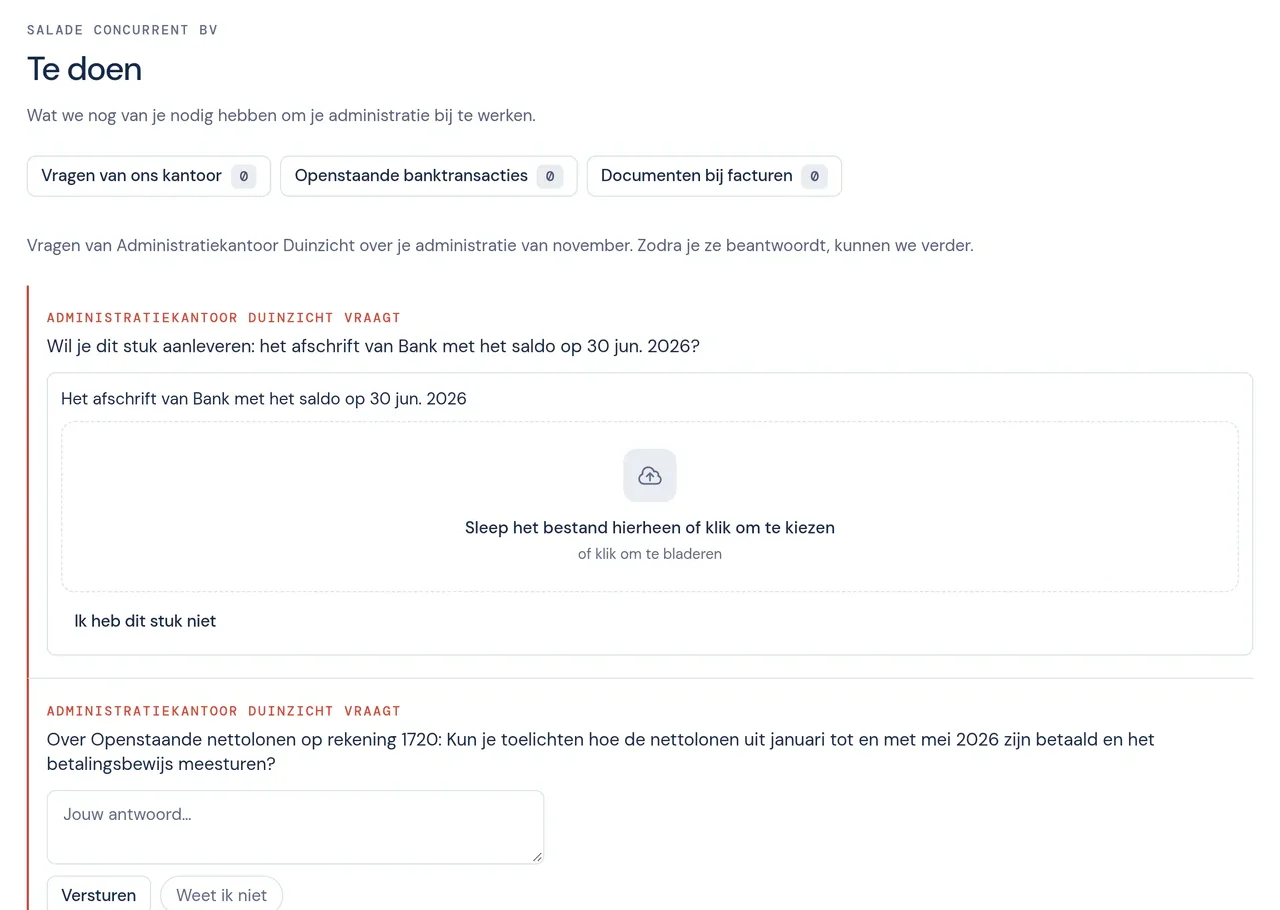
In the portal, your client answers each line of the document list separately. They upload the document, or choose I do not have this document and give a reason. You get a notification when clients answer.
You read the answers to the document list under Prepare. Each line gets the status of the answer.
- Does a line say Sara read this document? Then read under Sara's reading what Sara took from the document.
- Is it right? Click Confirm.
Sara then runs the checks that wait on the document again.
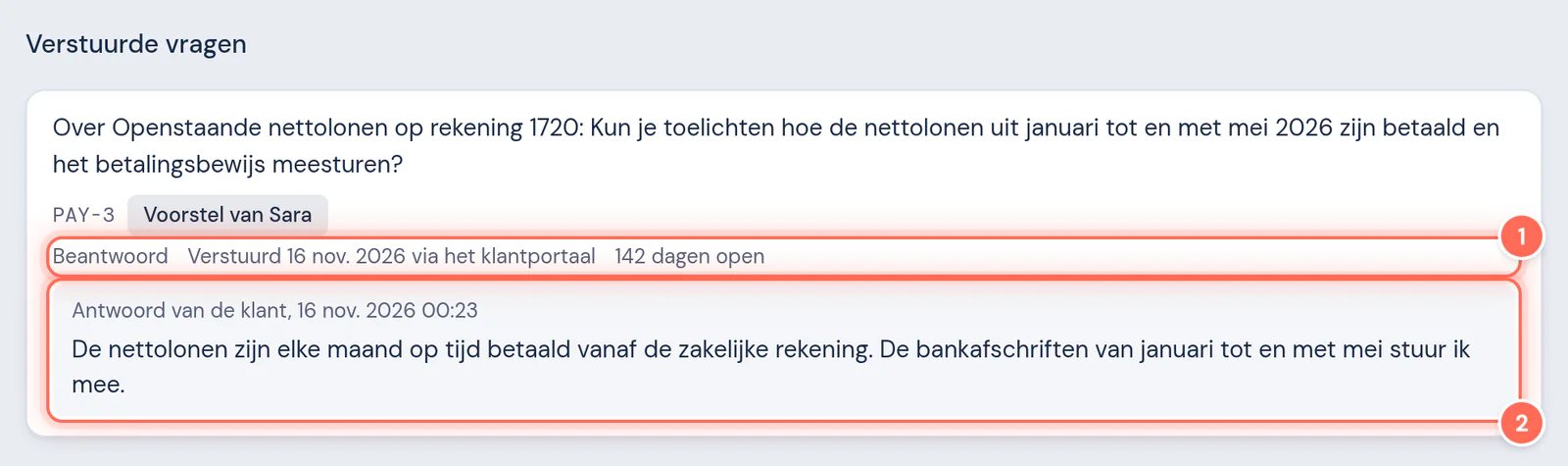
You read the answers to the questions under Client questions, under Sent questions. For each question you see the status, when and where it was sent and how many days it has been open. If a question comes from an earlier closing, it says Carried from and the period. The client's answer is below the question.
Does your client choose I don't know on a question? Then the question is in Client replies, marked Client does not know. You answer it there yourself.
Fill in answers for a client without a portal
A client without a portal can't answer themselves. You fill in their answers.
- Open Questions in the menu.
- Under For the client, choose For the client only.
- Click Answer next to a question.
- Fill in your client's answer.
- Click Submit.
Stop a question from blocking
An open question marked Blocking stops you from approving. You need the Review closings permission for this.
- Click Not blocking next to the question.
- Under Reason, type why the question doesn't hold up the closing.
- Click Save.
Watch out
Has a question been open for 60 days or more? Then you can't approve the closing, and you can no longer mark the question Not blocking either. The days count from the end of the period. Get an answer first.
What Sara does
Sara prepares the questions and the document list in your firm's name. When she gets a document, she reads it.
What you decide
You choose which documents and questions go to the client. Only with a separate authorisation does Sara send low-risk questions herself.
Further reading
Still stuck? Email [email protected] or call +31 6 57867535.