Topics
Approve and post correcting entries
Can Sara fix a mistake with lines that follow from the general ledger? Then she proposes a correcting entry. This is how you approve or reject it.
- Level: Advanced
-
 Sara
- Updated
- 3 min read
- Role: Administrator, or a role with Post correction entries
On this page
Before you start
- You have the Post correction entries permission. Administrator has it.
- The closing is To review or In review.
- The administration has a general journal in Exact Online. For a VAT correction, that general journal must allow VAT.
Screenshots show boeq's Dutch interface.
A correcting entry is a general journal entry that corrects a mistake in the books. Sara proposes one when every line of the correction follows from the general ledger. Nothing goes to Exact Online until you approve it.
When Sara proposes a correction
| What the correction does | For check |
|---|---|
| Correct a wrong VAT code | VAT-4 VAT codes consistent |
| Move a booking to the right account | PER-1 Recurring costs every month, PAY-1 Payroll every month |
| Reverse a double booking | OI-1 Open items at period end |
| Write off a small residue, only if there is a write-off account | OI-1 Open items at period end |
| Book a missing depreciation, only if Exact Online doesn't book it itself | FA-2 Depreciation every month |
View a proposal
-
Open the closing.
-
Click the Finish step. Under Awaiting your decision are the proposals that still wait for your decision: Proposed and Not posted.
-
Want to see every proposal, including approved, posted and rejected ones? Further down the step, click Correction entries. The number after it is the number of proposals. Superseded proposals sit behind Superseded.
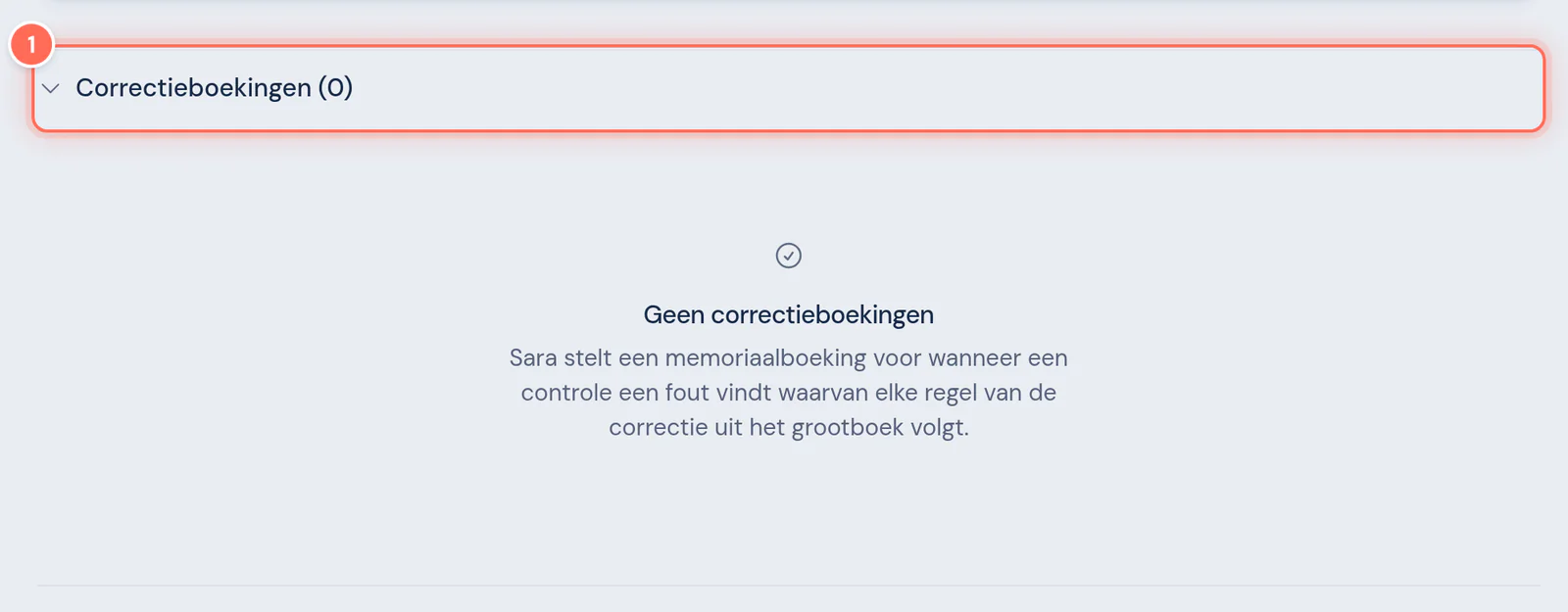
This section (1) holds all of Sara's proposals. This closing has none. -
Read the reason for the proposal. Below it are the lines with account, relation, amount and VAT.
-
If you want to see the finding, click the code of the check.
On the screen of the check under Checks, the proposal is one line: Correction entry on and the entry date, with its status. Click it to go to the proposal under Finish. You approve and reject it there.
Approve and post
- Click Approve and post.
- Check the entry date in the line that appears.
- Click Post.
boeq posts the general journal entry in Exact Online and then reads it back. If all goes well, it says Posted and read back, with the entry number. The finding is then resolved.
Then click More › Refresh data at the top right. Only then does the closing work with the new entry. Until you do, you can't approve the closing.
Reject
- Click Reject.
- Under Reason for rejection, type why you don't want the proposal.
- Click Reject.
If posting fails
- Not posted: boeq or Exact Online refused the entry. The message is shown next to it. Is the period closed in Exact Online? Then reopen that period in Exact Online, or book the correction yourself in an open period. You don't approve a proposal with this status a second time.
- Differs on read-back: the entry is in Exact Online, but not as proposed. Compare the differences and adjust the entry in Exact Online.
- Superseded: the data has changed. Sara has made a new proposal.
How it works
If you approve a correction, you also become the preparer of that check. If you then click Approve on the check yourself, it says Self-reviewed.
What Sara does
Sara proposes the general journal entry. Every line follows from the general ledger. She fills in nothing herself.
What you decide
You approve or reject the entry. Without your approval, nothing goes into Exact Online.
Not working?
Further reading
Still stuck? Email [email protected] or call +31 6 57867535.