Topics
When Sara prepares closings
Once an administration is enrolled, Sara schedules every closing herself. This is how that schedule works, and how to choose the cadence or stop.
- Level: Advanced
-
 Sara
- Updated
- 2 min read
- Role: Administrator
Before you start
- To change the cadence or stop, you need the Manage closings permission. The Administrator has it.
Screenshots show boeq's Dutch interface.
Sara only schedules closings for an administration that is enrolled. You enrol an administration by starting its first closing yourself. You can also choose a cadence on the Closing cadence card. If the first closing you start is a year closing, Sara enrols the client at the cadence of its VAT returns.
How Sara schedules
| When | What Sara does |
|---|---|
| Every morning at 06:20 | She schedules a closing for every period that has ended since enrolment. If she misses a morning, she catches up the next day. |
| Every morning at 06:40 | She checks for each administration whether the data is ready for a closing. Read Can Sara start?. |
| One business day after the end of the period | She starts with Collecting data. If the connection with Exact Online is behind, she waits up to 48 hours. |
| When the preparation is done | The closing shows To review. Sara then still writes her explanations and assessments. A closing Sara scheduled herself gets no notification of its own; you see it in the Monday overview. Did someone at your firm start the closing? Then the reviewer gets a notification once Sara is done, at most 6 hours later. If there is no reviewer, everyone who may review gets the notification. |
| Every Monday at 07:00 | She sends the overview Your closings this week. |
If a closing ends the financial year, Sara also creates the year closing for it.
Choose the cadence
Sara proposes a cadence based on the VAT returns. If the client files monthly returns, she proposes Month. For annual returns she proposes Year, and otherwise Quarter.
-
Open a closing of the client and click the arrow next to the name of the administration. That takes you to the administration's page.
-
Open the Confirm profile tab.
-
Go to the Closing cadence card.
-
Click Month, Quarter or Year.
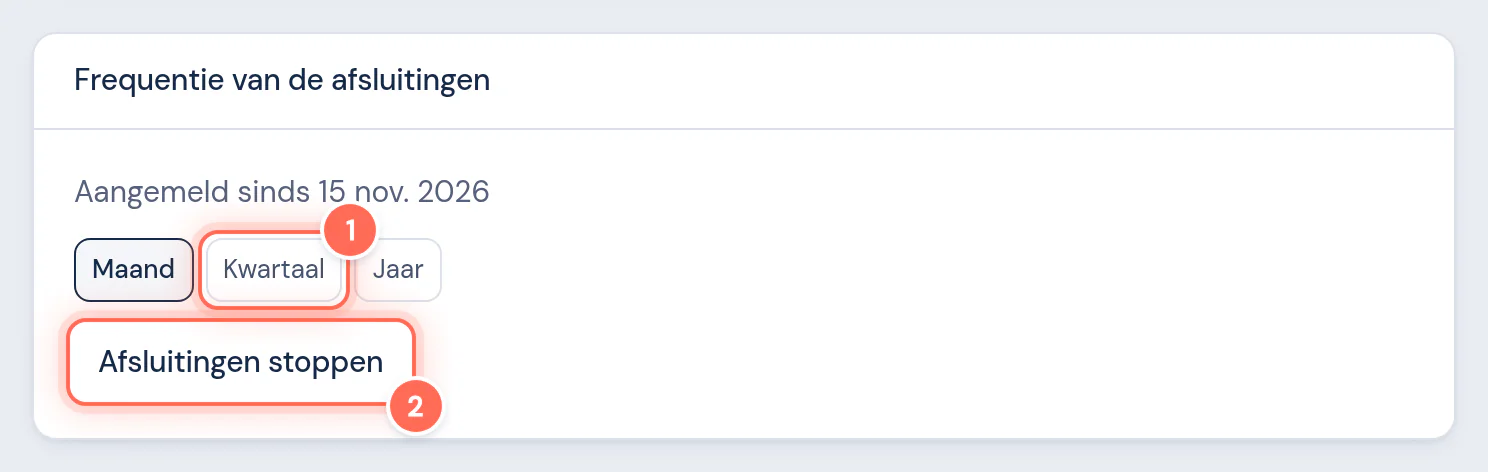
Click a different cadence (1). Stop closings (2) stops the schedule.
The card shows Enrolled since with today's date. Sara schedules from the period in which you chose the cadence.
Stop closings
- On the card, click Stop closings.
- Under Why do the closings stop?, enter the reason.
- Click Stop.
Sara then schedules no more closings for this administration. A scheduled closing that has not started yet gets the status Cancelled. A closing that is already running stays.
Good to know
Want to start again later? Choose a cadence again, or start a closing yourself.
What Sara does
Every morning Sara schedules the closings of enrolled administrations. She starts one business day after the end of the period.
What you decide
You decide which administrations take part, at which cadence, and when they stop. Sara prepares, you approve.
Not working?
Further reading
Still stuck? Email [email protected] or call +31 6 57867535.