Topics
Record the VAT return
Sara doesn't file returns. After you file, you record the filed amount in the closing. Only then can you lock the period.
-
 Sara
- Updated
- 2 min read
- Role: Administrator, or a role with Review closings
On this page
Before you start
- You have filed the VAT return for this period.
- You have the filing receipt as a file, for example a PDF.
- You have the Review closings permission.
Screenshots show boeq's Dutch interface.
If a closing ends a VAT period, boeq wants to know which amount you filed. That way the closing file shows which amount was actually submitted. Without that amount you can't lock the period. You can record the amount before or after approving.
If your client falls under the KOR (the Dutch small businesses scheme) or is exempt, and that is confirmed in the client profile, no filed amount is needed.
Where you see the VAT amount
Sara recalculates the return box by box from the general ledger. The outcome is at the top of the Finish step as VAT to pay. Every version of the amount is further down that step, in the Control figure history section. The Kind column shows what kind of amount it is, for example Prepared (from Sara) or Filed (from you). The By column shows who recorded it.
If you filed the return in Exact Online
If you filed the return in Exact Online, boeq fetches the processed return every day. boeq then records the amount as filed itself. You don't need to do anything. If the amount differs from the closing's amount, you record it yourself, with a reason.
Record the amount yourself
-
Open the closing.
-
Click the Finish step.
-
Go to Record the filed amount, below the control figures. This form only appears on a closing that ends a VAT period.
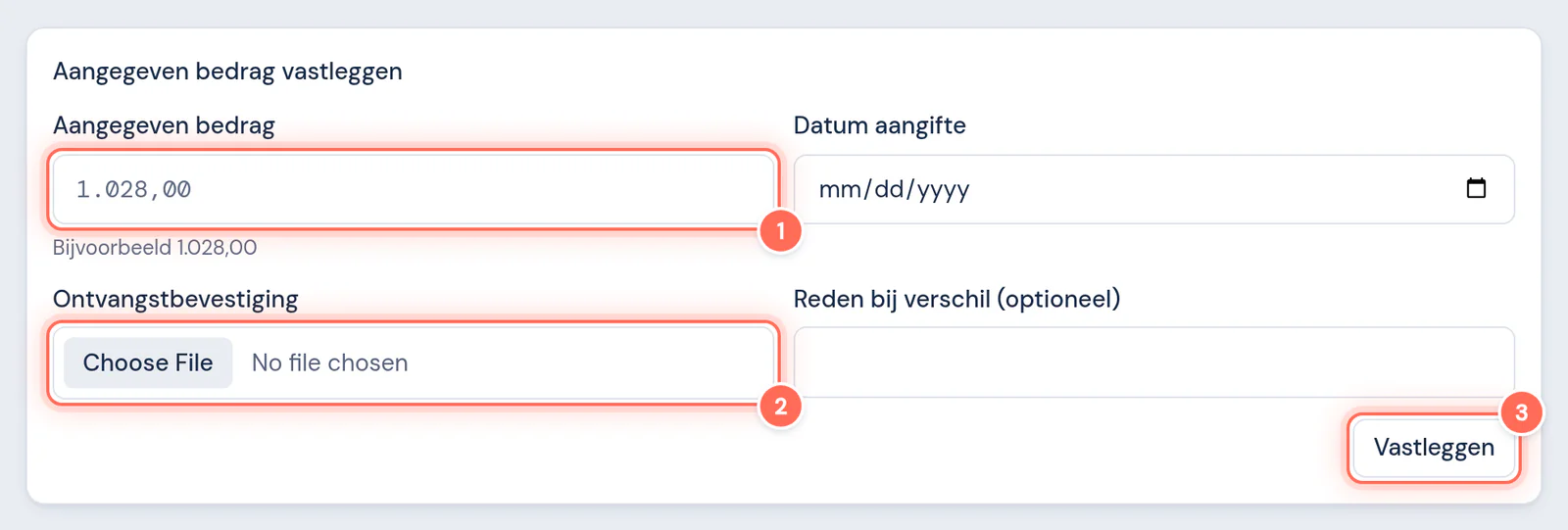
Fill in the amount (1), choose the filing receipt (2) and click Record (3). -
Under Filed amount, type the amount in Dutch notation, for example 1.028,00.
-
Choose the Filing date.
-
Under Filing receipt, choose the file.
-
If your amount differs from Sara's, type a reason under Reason for a difference (optional).
-
Click Record.
Open Control figure history. The VAT to pay table now has a line of the kind Filed.

Watch out
The field is called Reason for a difference (optional). But if your amount differs from Sara's, the reason is required. If a recorded amount is wrong, record it again. You can do that until you lock the period.
A correction to an earlier period
If Sara finds a mistake in an earlier VAT period, you see it at check VAT-8. It says whether the correction fits in the next return or whether a supplementary return is needed. It also gives a deadline. On the screen of that check, click Record treatment and choose Next return or Supplementary return. You file a supplementary return yourself. Sara never does that.
What Sara does
Sara recalculates the return box by box from the general ledger. She puts the outcome in the control figures as VAT to pay.
What you decide
You file the return and record the filed amount. If it differs, you give the reason.
Further reading
Still stuck? Email [email protected] or call +31 6 57867535.