Topics
Set up your firm's checklist
Choose which checks Sara runs, in which order and under which code. And decide how often you review a check.
- Level: Advanced
-
 Sara
- Updated
- 2 min read
- Role: Administrator
Before you start
- You have the Administrator role, or a role with the Manage closings permission.
Screenshots show boeq's Dutch interface.
The checklist holds Sara's 59 checks. They are in groups, such as Every closing, VAT period and Fiscal year. Each check shows What Sara checks and Counts as. The second one is the source of the rule, for example the law or professional practice.
Switch a check on or off
-
Open Closings in the menu.
-
At the top right, click Settings.
-
Find the check in the list. Search for its code, for example DOC-2, with Ctrl + F.
-
Tick or untick Include.
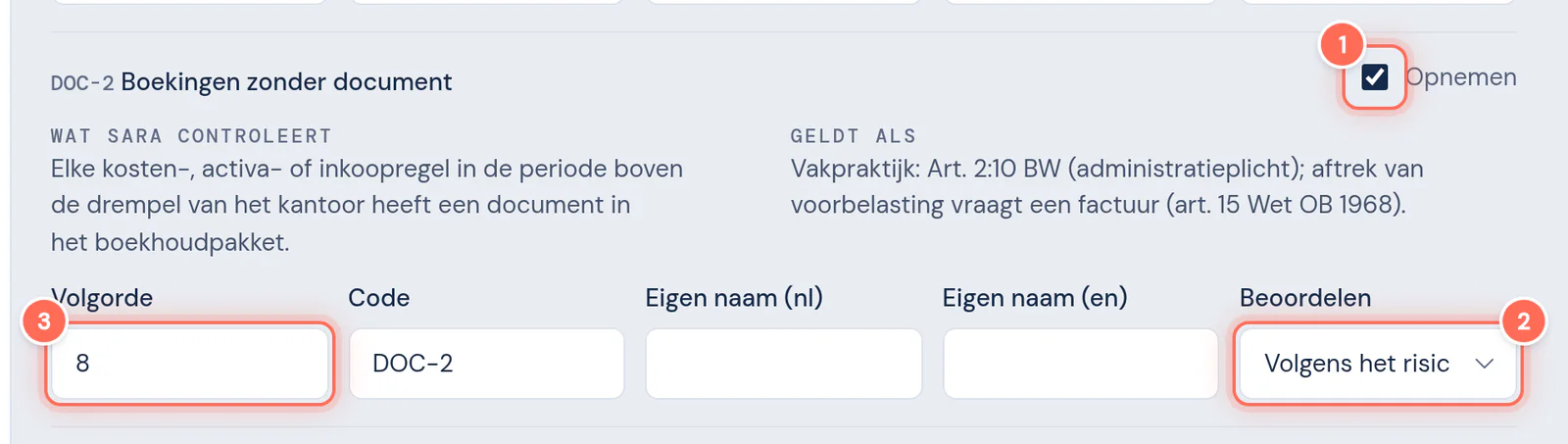
You set Include (1), Review (2) and Order (3) for each check.
If you see Required with a padlock, you cannot switch the check off. Without these checks, a closing cannot be accounted for.
Choose when you review
With Review you choose when a check asks for your verdict. The default is By risk. Every check has a fixed risk in the product:
- A high risk asks for your verdict in every closing.
- A medium risk asks for your verdict when a VAT period ends, and in every quarter and year closing.
- A low risk asks for your verdict in the closing that ends the financial year.
A Deviation or Not assessable always asks for your verdict, whatever you choose.
Want to see a check more often? Choose Every closing, Quarterly or Yearly. This way you can only ask for more verdicts, never fewer. Quarterly applies in every closing in which a VAT period or quarter ends. A check that needs no verdict shows Not required this period in the closing.
Change the order, code and name
- Order is the check's place in the closing.
- Code is the check's code. You could use the code from your firm's work programme, for example. The closing and the dossier then show your code.
- Own name (nl) and Own name (en) are saved with the checklist. For now, the closing still shows Sara's name for the check.
If you leave Code empty, the check keeps Sara's code.
Save
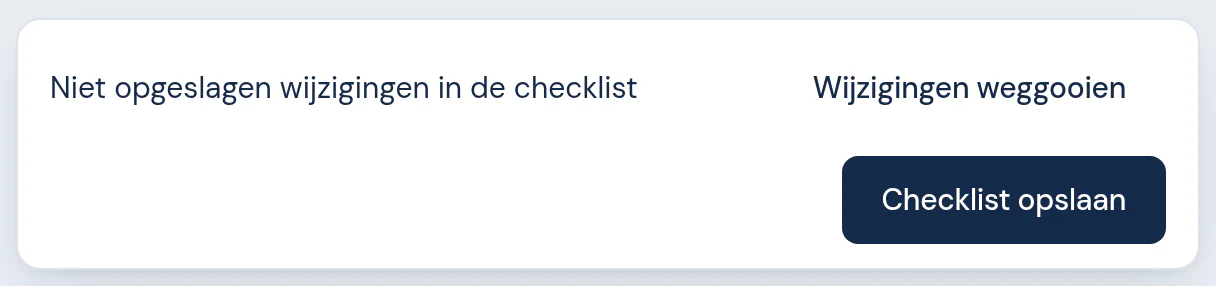
After a change you see a bar with Unsaved changes to the checklist. Click Save checklist. Discard changes puts everything back.
How it works
A change to Include, Order or Code applies from the next time Sara recalculates a closing. A change to Review counts straight away, also in closings that are already running.
What Sara does
Sara runs the checks on your checklist in every closing. She never skips a required check.
What you decide
You choose which checks take part and when a check asks for your verdict.
Further reading
Still stuck? Email [email protected] or call +31 6 57867535.